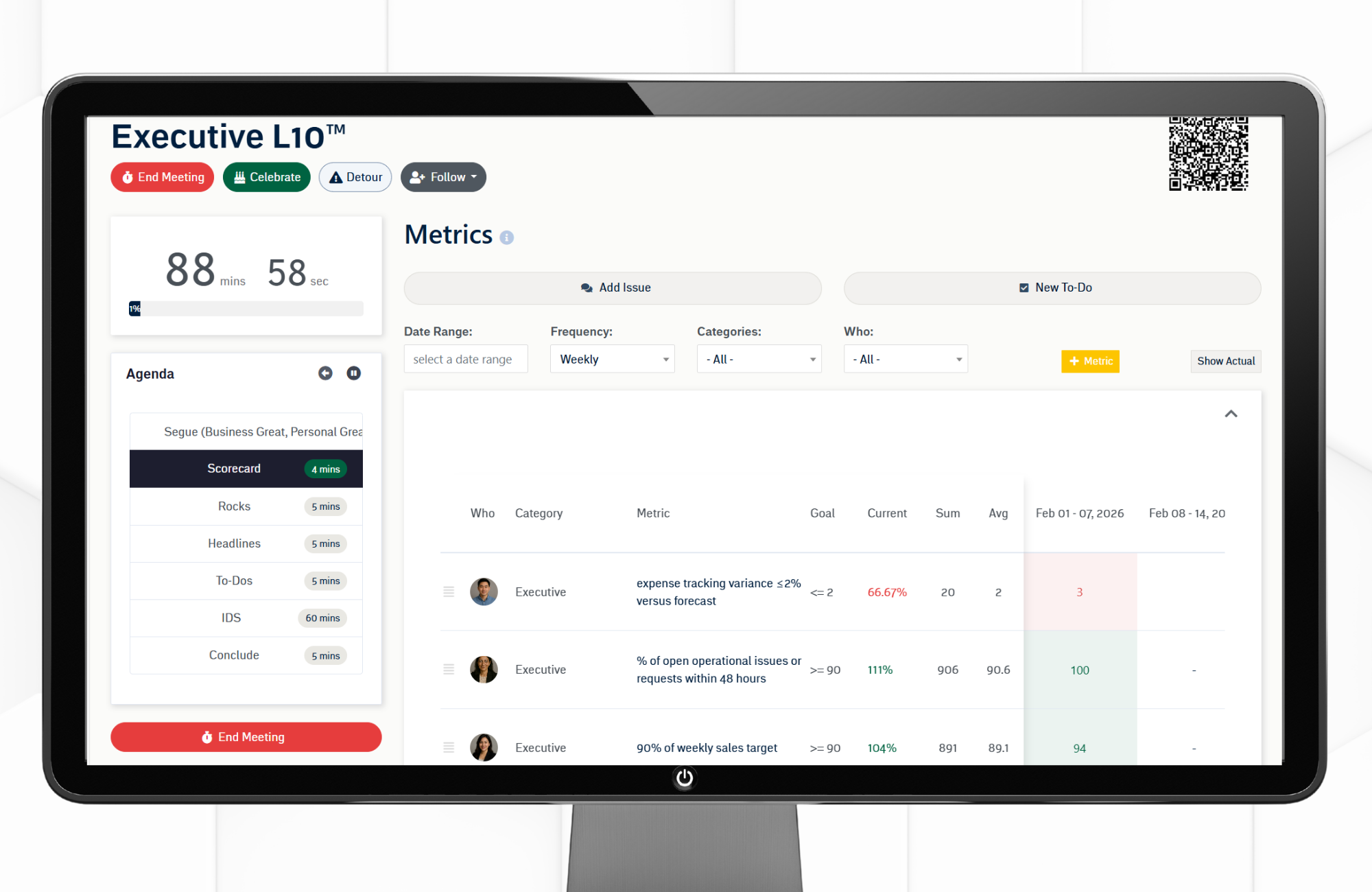
Level 10 Meeting™ agenda showing time-boxed sections for Metrics, Rocks, IDS®, To-Dos, and Conclude.
Access, Create, and Edit
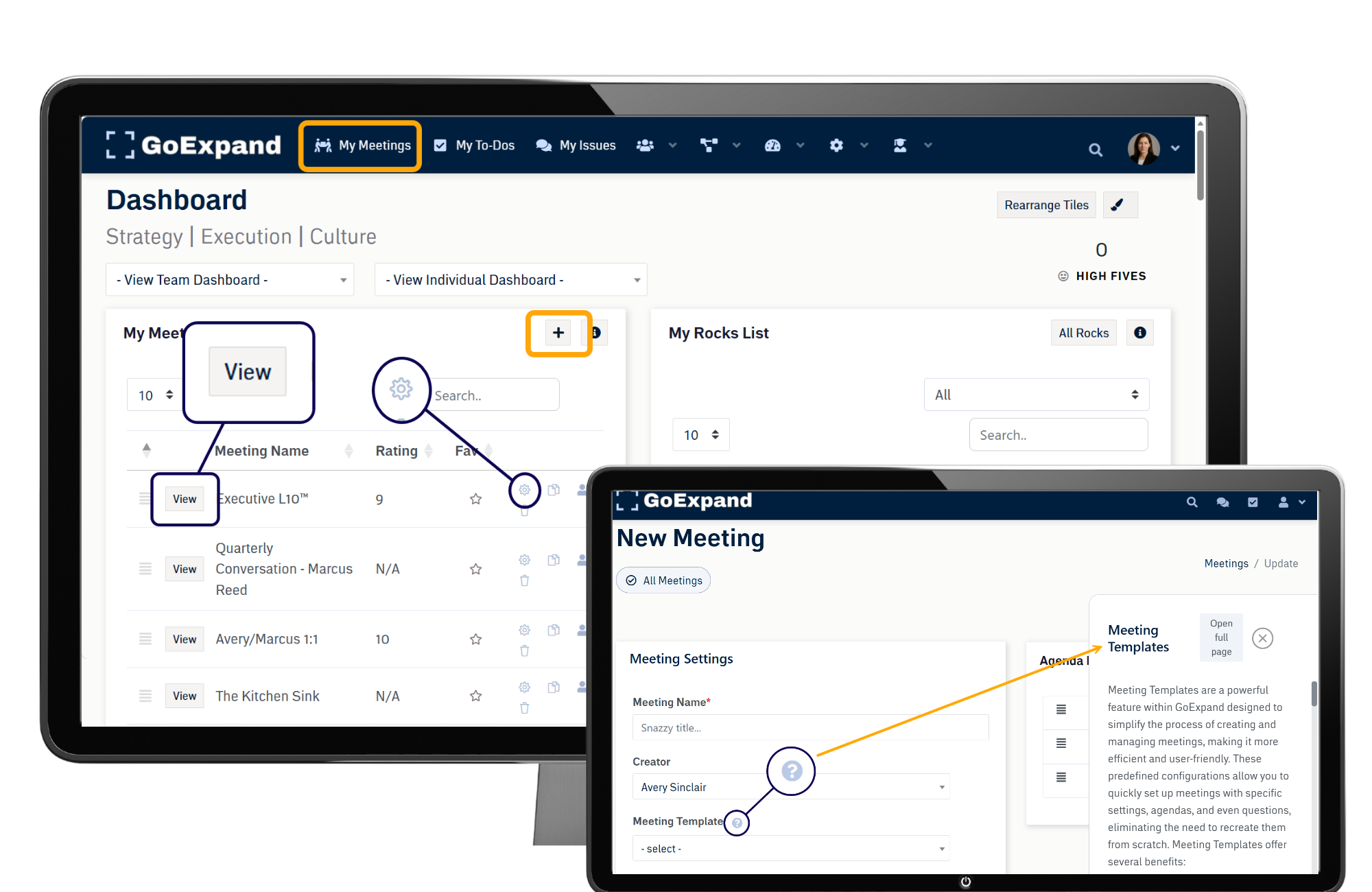
You can access your meetings at any time by clicking My Meetings in the top navigation bar or by using the My Meetings section on your Dashboard.
To create a new meeting, click the + (plus) icon, which allows you to quickly set up a meeting and define its details.
To make changes to an existing meeting, select the gear icon next to the meeting name to edit meeting settings, participants, or the agenda.
❓ When creating a new meeting, you can choose to start from scratch or select from built-in templates. Templates help streamline setup by preloading a structured Level 10 Meeting™ agenda aligned with the EOS® Meeting Pulse™.
If you have questions while creating a meeting, click the question mark icon to open a training slide-out with additional guidance and support.
Pre-Meet and Getting Started
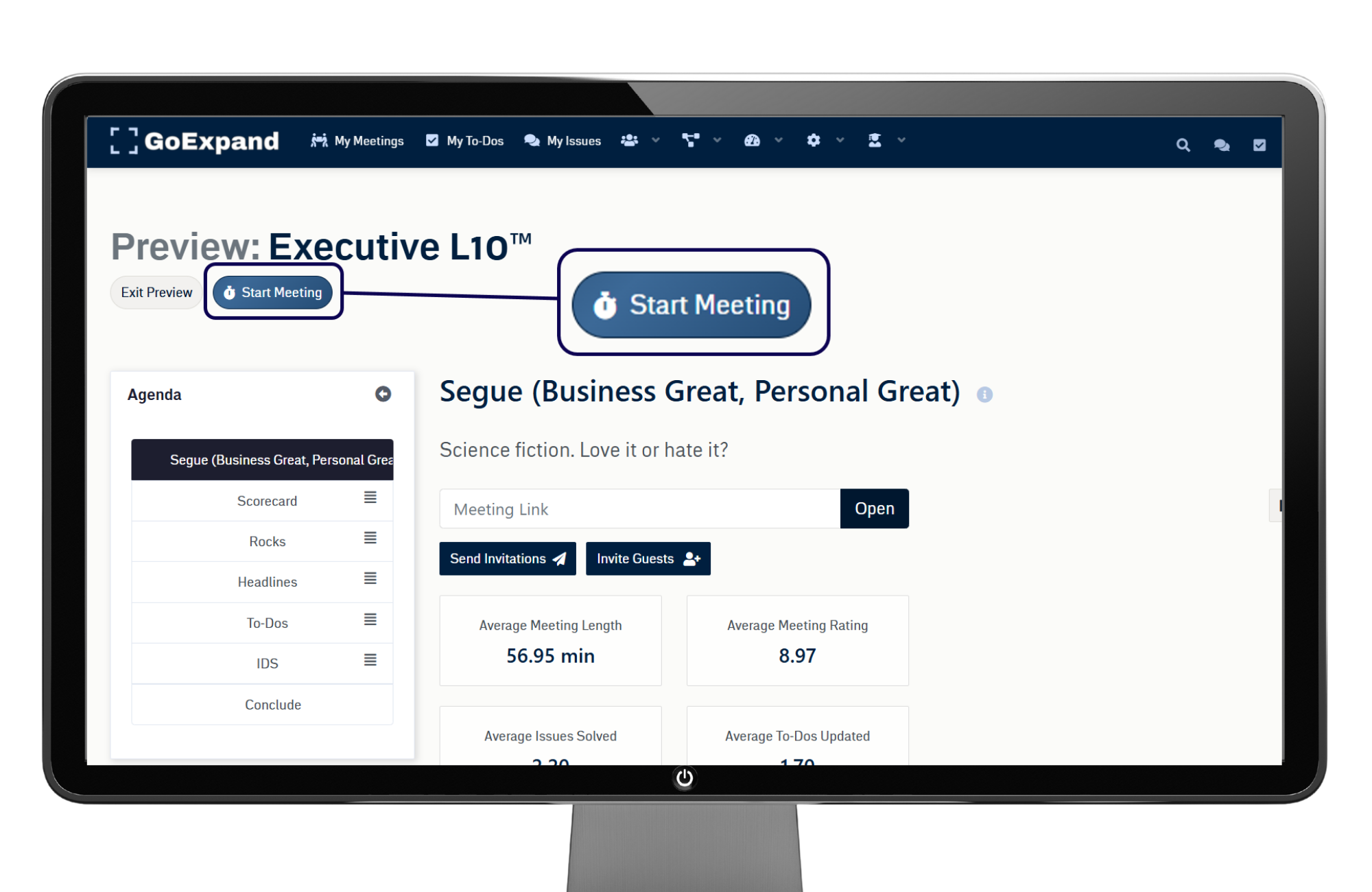
Click View Meeting to access the platform’s pre-meeting area, where you and other attendees can add or update items before the meeting begins.
Navigate between sections by clicking through the agenda items listed on the left.
Most agenda items are fully customizable; however, the Segue and Conclude sections are fixed:
- The Segue helps the team transition into the meeting and supports meeting access and connection.
- The Conclude section is where attendees rate the meeting and confirm next steps.
Click the information icon to open a training slide-out with helpful guidance, or select the AI Assistant icon at the bottom of the screen to ask questions and get real-time support as you work.
Starting the meeting lets the system know you are ready to begin documenting, tracking time, and running the structured agenda.
Conclude and Send Recap
Once the meeting begins, move through the agenda items one by one, updating and creating:
- Weekly Metrics in the Scorecard
- Quarterly Rocks
- To-Dos with clear owners and due dates
- IDS® Issues and action items
If you want your team to stay aligned with you as you navigate the meeting, select the Follow Me button and choose Everyone Follow Me.
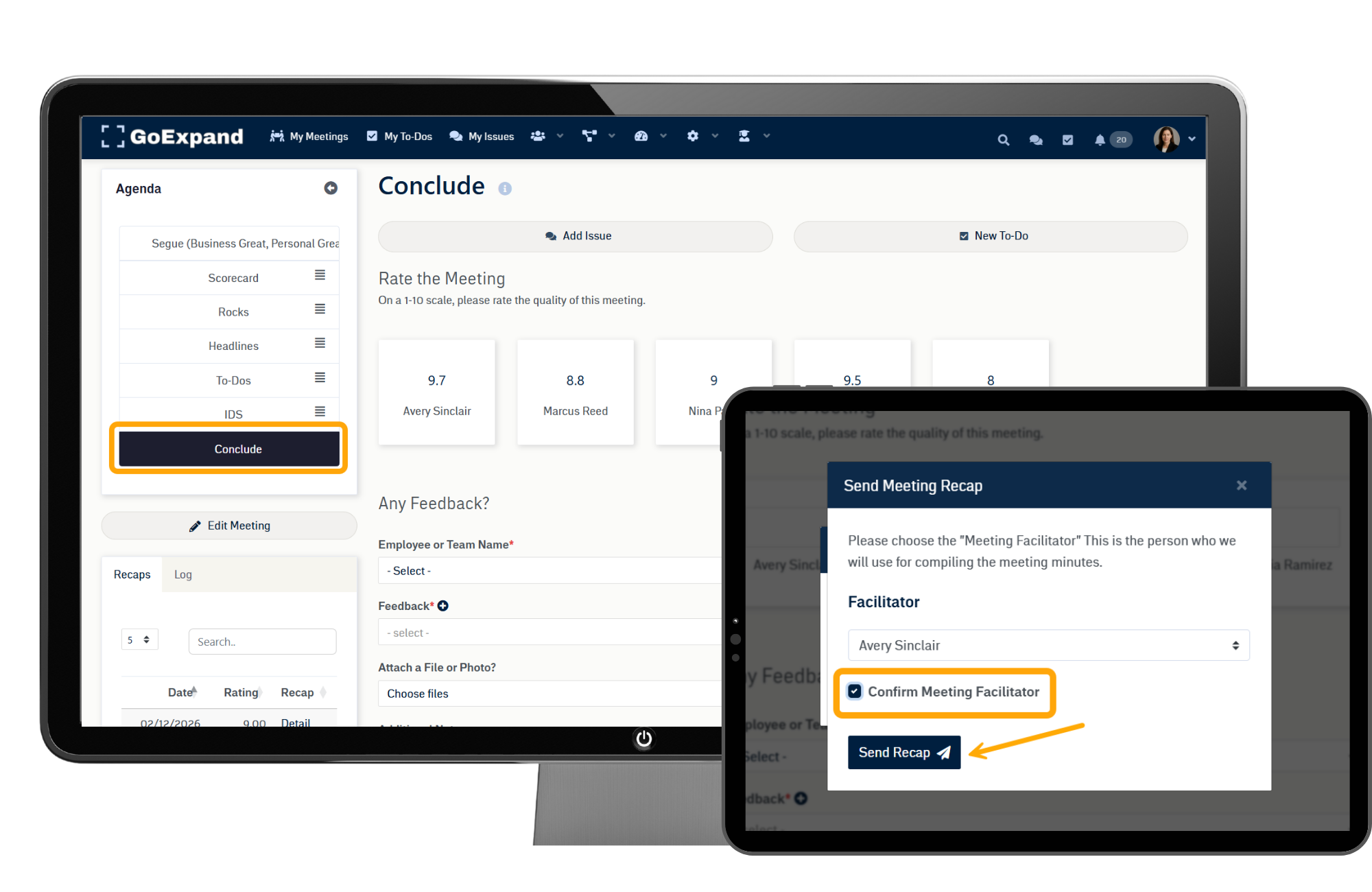
At the end of the meeting, be sure that all attendees rate the meeting to capture feedback and complete the session properly.
Don’t forget to send the meeting recap to yourself and all attendees. Select the meeting Facilitator, confirm by checking the acknowledgment box, and then click Send Recap to share the meeting summary and assigned To-Dos.
See full Knowledge Base training article here.
>Up Next: Manage Scorecards and Metrics in GoExpand Meetings
Further reads and articles:
Harvard Business Review – Stop the Meeting Madness
https://hbr.org/2017/07/stop-the-meeting-madness
MIT Human Resources — How and Why to Use a Meeting Agenda
https://hr.mit.edu/learning-topics/meetings/articles/agendas
MIT Human Resources — The Basics of Designing & Facilitating Meetings
https://hr.mit.edu/learning-topics/meetings/articles/basics
Stanford d.school — Design Engaging Meetings
https://dschool.stanford.edu/tools/design-engaging-meetings