
This guide walks you through GoExpand company setup in just a few minutes. Follow the steps below to complete your organization’s initial configuration and get your team ready to log in.
Step 1: Enter Organization Information
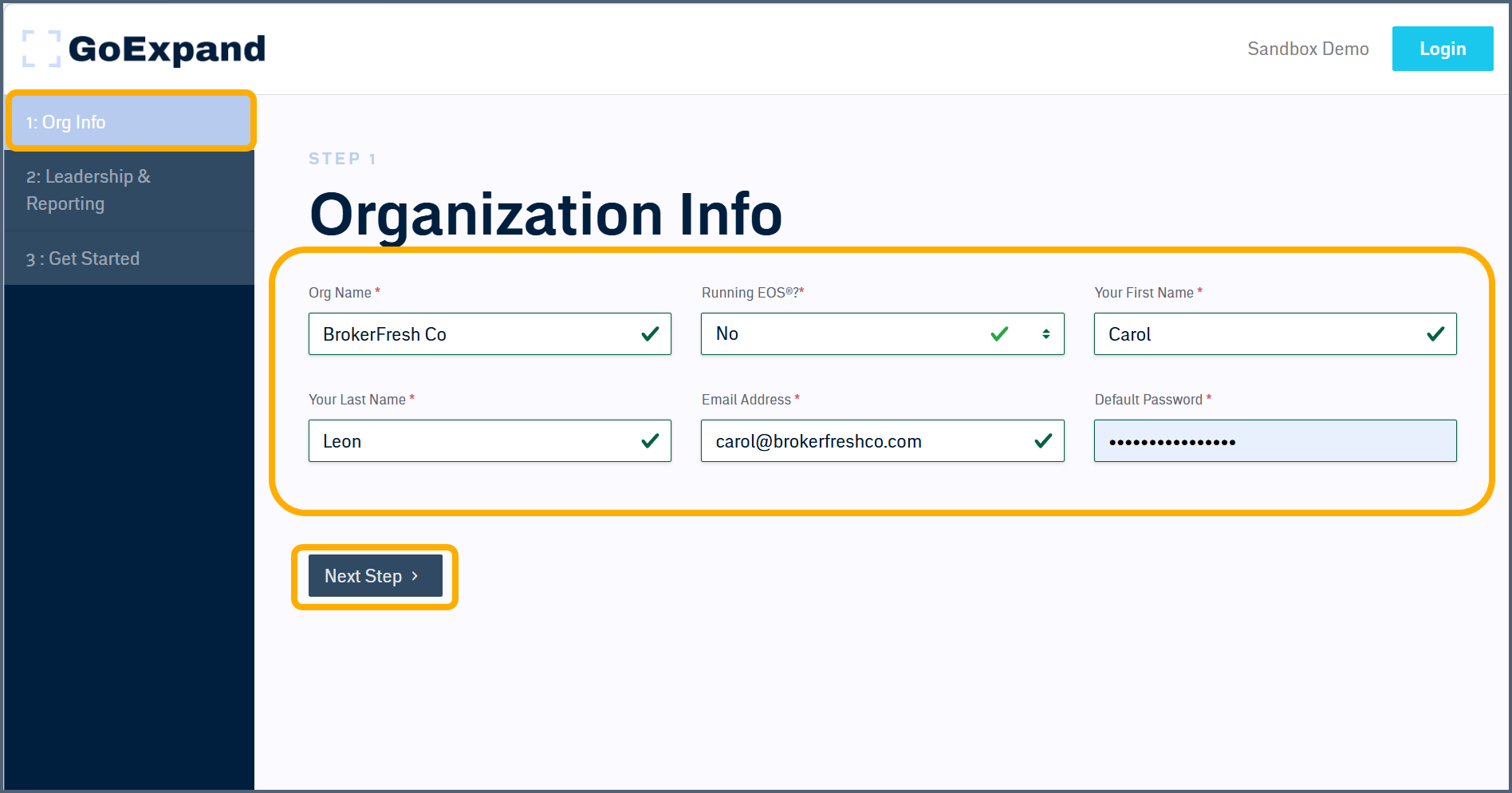
Begin by entering your organization details in GoExpand. Fill out your Org Name, confirm whether you are running EOS®, and enter your first administrative user information including first name, last name, email address, and default password. Once all required fields are complete, click Next Step.
💡 Tip: Use a secure default password. Users can update it after their first login.
⚠️ Important: The email entered here becomes the primary administrative account for your organization.
Step 2: Build Your Leadership & Reporting Structure
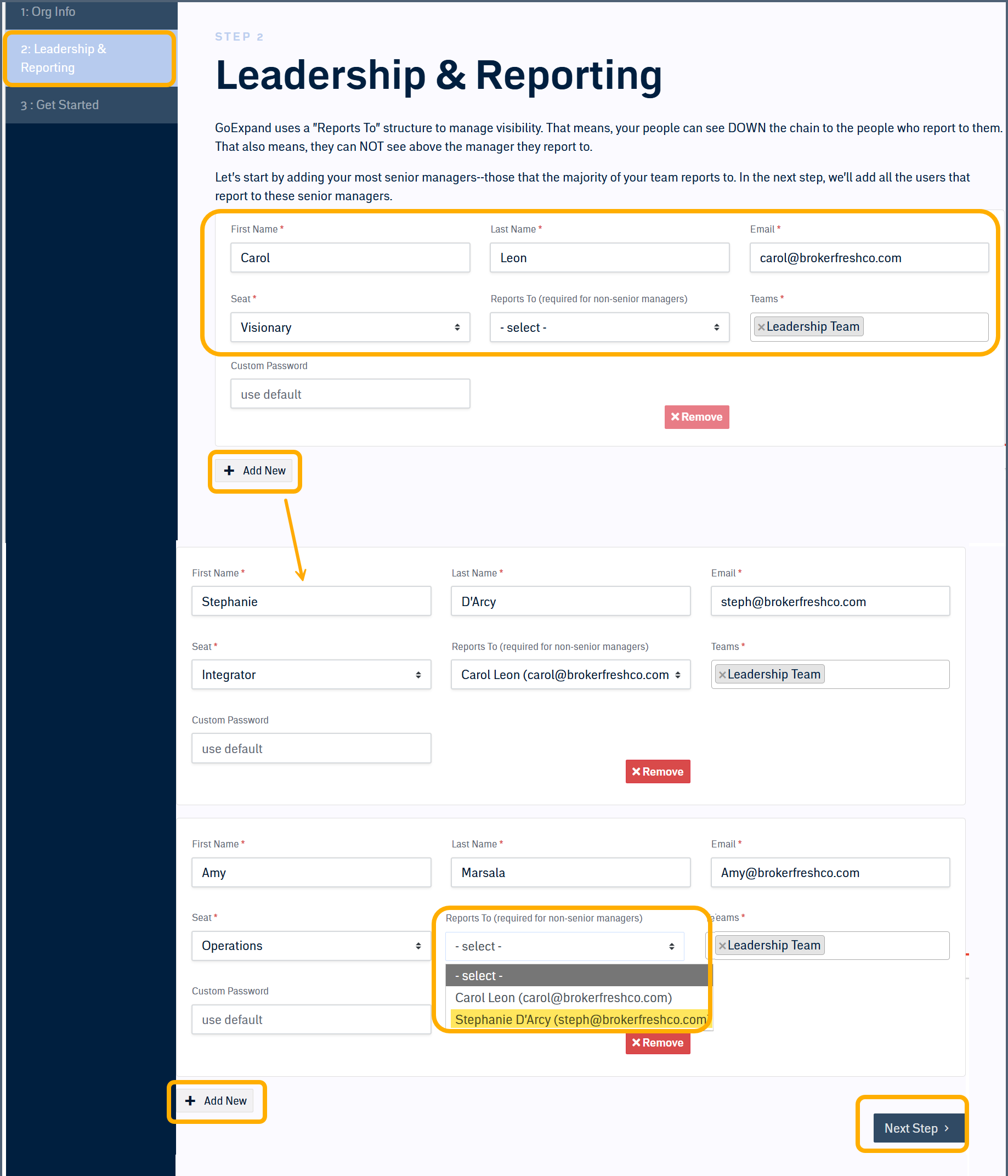
Next, define your reporting structure inside GoExpand. Start by adding your most senior leader (typically the Visionary or top executive). Assign their Seat and Team.
Click Add New to enter additional leaders. For non-senior managers, select who they Report To from the dropdown. Continue adding leadership team members until your core structure is complete, then click Next Step.
💡 Tip: Start with your highest-level leaders first. This ensures the reporting dropdown populates correctly for managers below them.
⚠️ Important: The “Reports To” field controls visibility within GoExpand. Users can see down the reporting chain, but not above their manager.
Step 3: Complete Setup
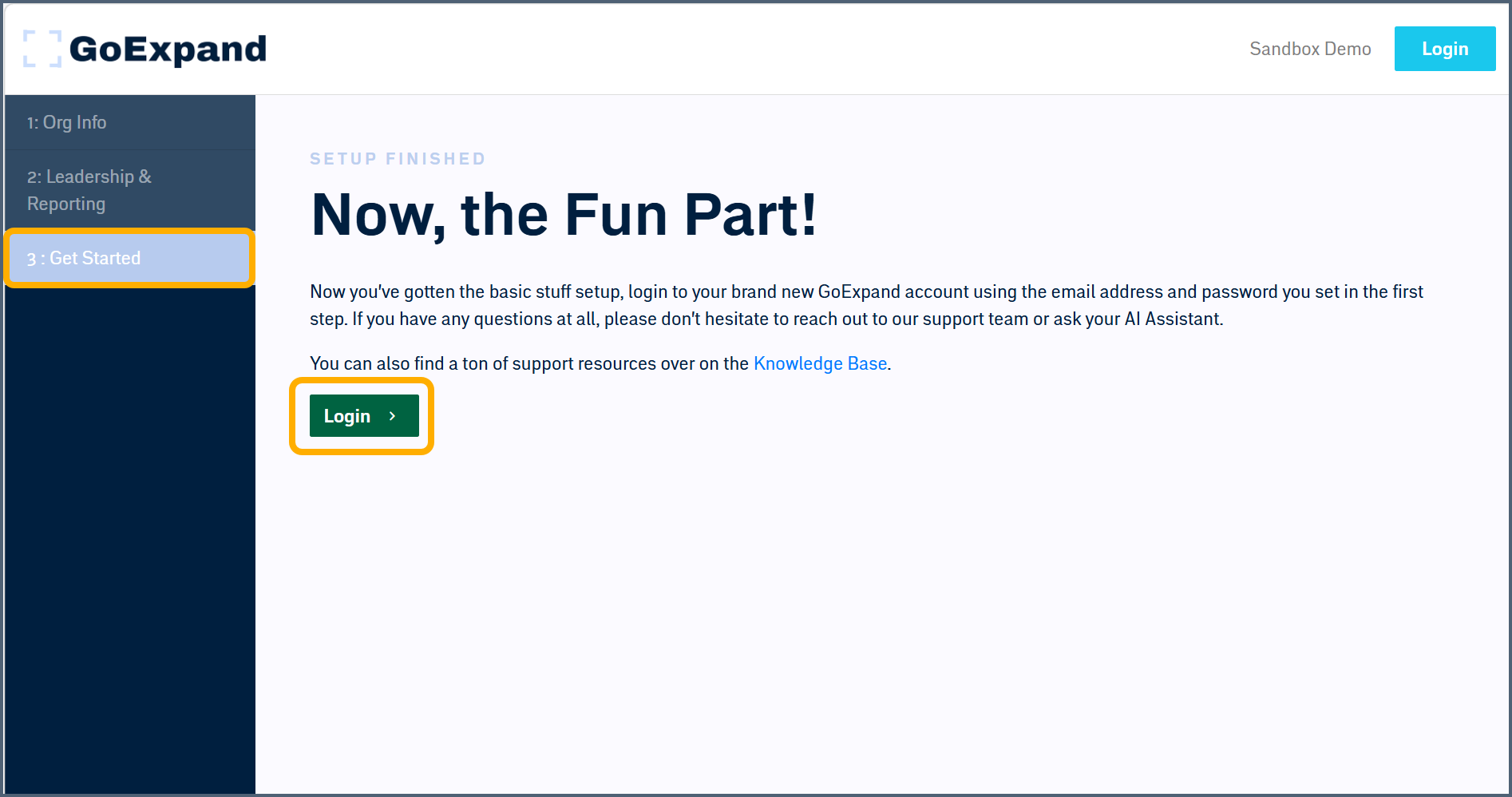
You’ve successfully configured the foundational structure in GoExpand. This confirmation screen indicates your organization has been created and your leadership hierarchy is in place. Click Login to access your new account.
💡 Tip: Bookmark your login page for quick access.
⚠️ Important: Use the email and password created in Step 1 to log in.
Step 4: Log In to GoExpand
Enter your email and password to access GoExpand, or choose to log in using Google, Microsoft, or Apple if enabled for your organization. Once logged in, you can begin adding additional users and configuring your teams.
💡 Tip: If inviting additional users, ensure their reporting relationships match your organizational structure.
⚠️ Important: If you forget your password, use the Forgot Password option on the login screen.

Your company is now set up inside GoExpand and ready to begin aligning, managing, and expanding performance.
For additional support, contact your Account Manager or your internal administrator.
>Up Next: GoExpand Essentials Video Walkthrough