The Level 10 Meeting™ (L10) is a structured weekly 90-minute meeting designed to keep leadership teams aligned, focused, and accountable.
The goal of the meeting is to ensure that:
- Critical priorities (Rocks) are being addressed
- Issues are being solved using IDS®
- The organization is progressing toward its Vision
GoExpand provides a built-in L10 meeting structure aligned with EOS® to make execution consistent and measurable.
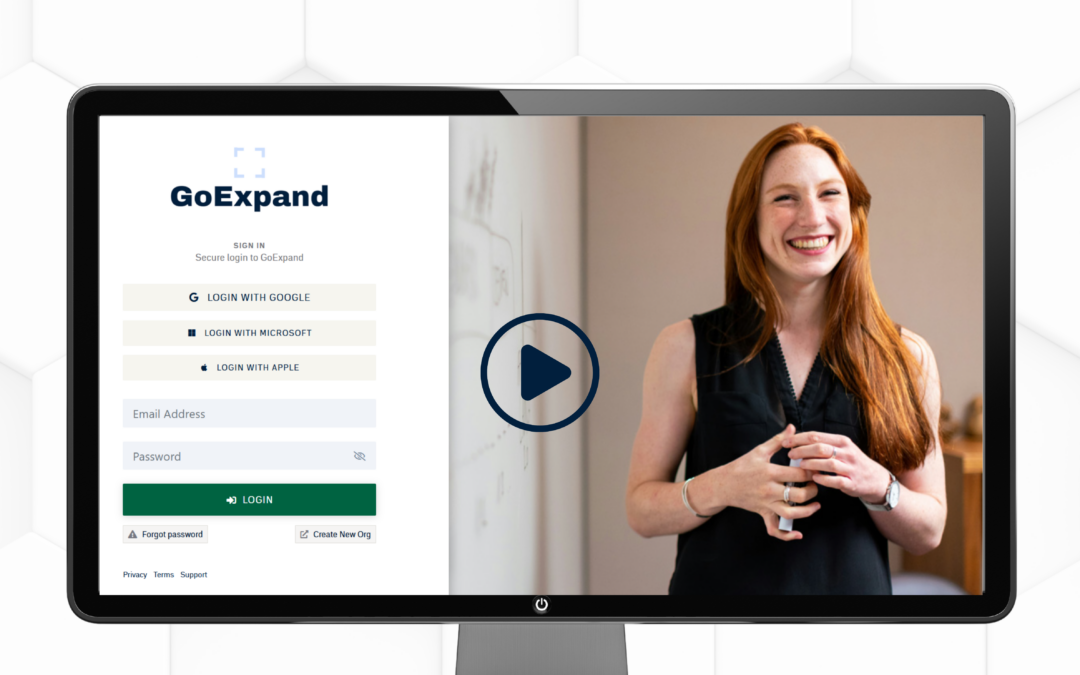
Watch the training video:
Accessing Your Leadership L10 Meeting™
When your company is first created in GoExpand, a default Leadership Level 10 Meeting™ is automatically generated.
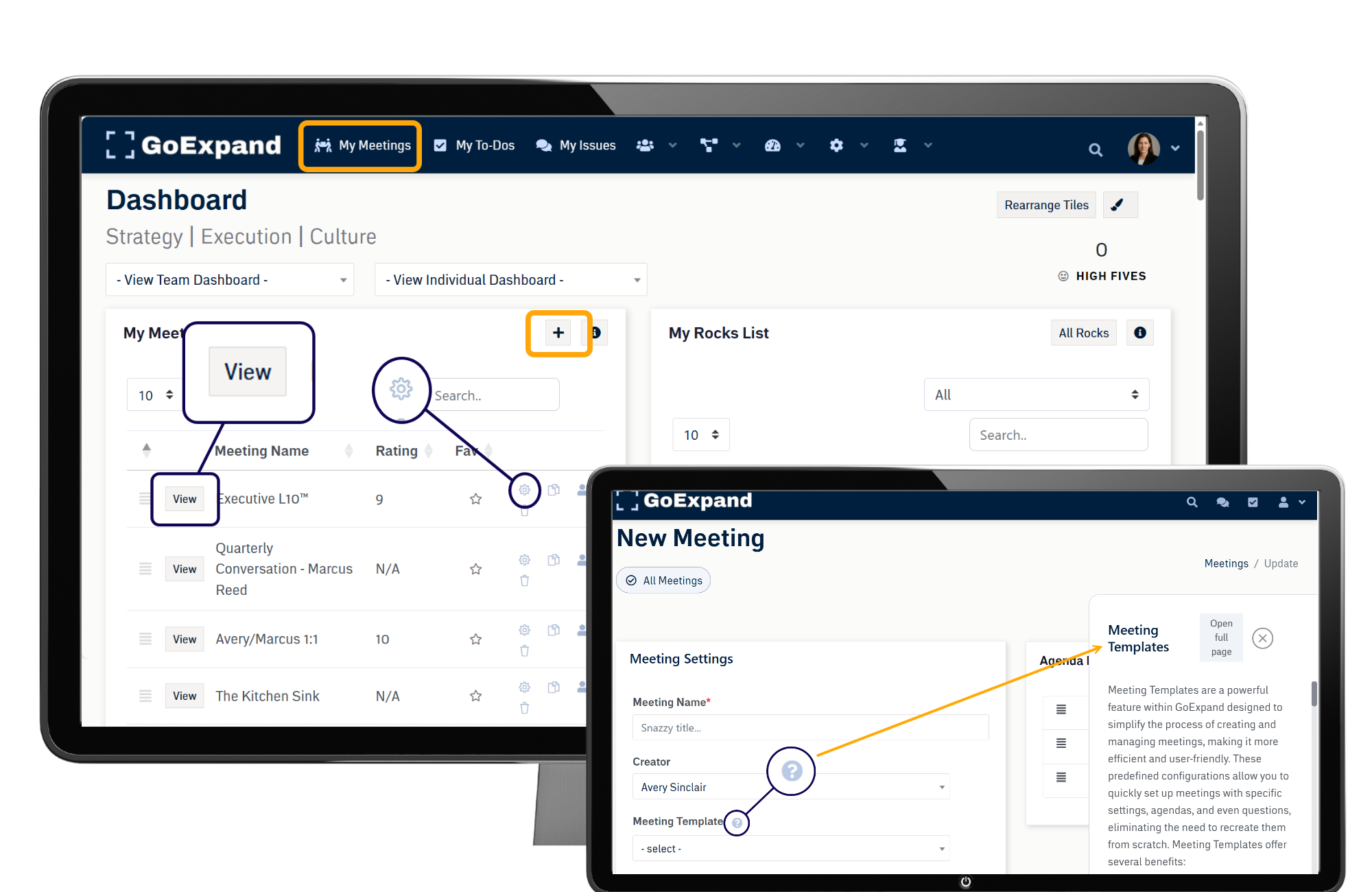
To preview the meeting:
Dashboard → My Meetings → View Meeting
This preview allows you to update and configure the meeting before officially starting it.
At first, the meeting may appear mostly blank. That’s normal — no Metrics, Rocks, or To-Dos have been added yet.
Adding Content to Your L10 Meeting™
You can build your meeting directly inside the agenda.
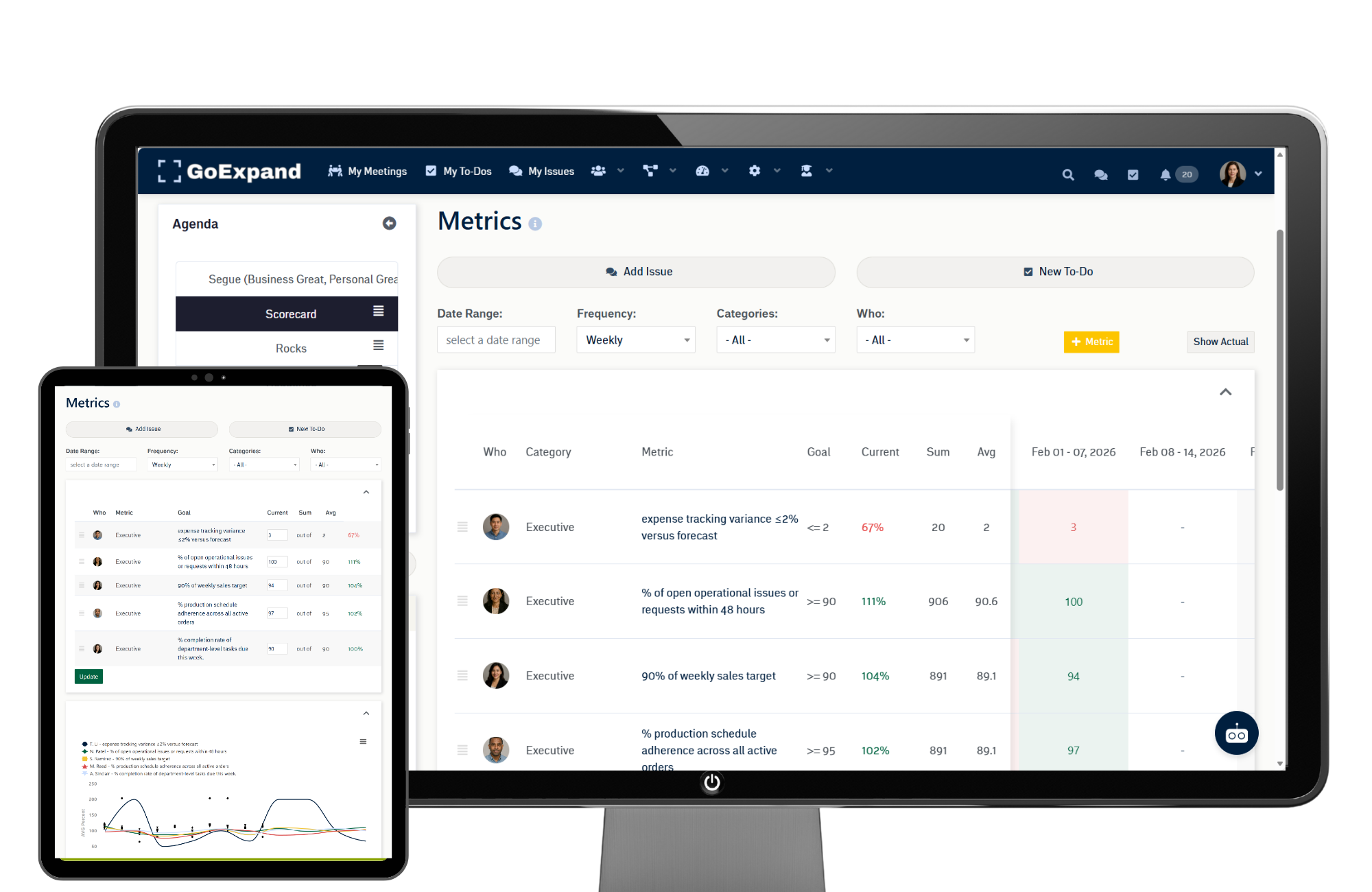
Add Metrics to the Scorecard
Navigate to the Scorecard section and click Add Metric to seed your leadership meeting with weekly measurables.
Metrics help your team identify early warning signs and maintain accountability.
(For detailed setup, see the Metrics training article.)
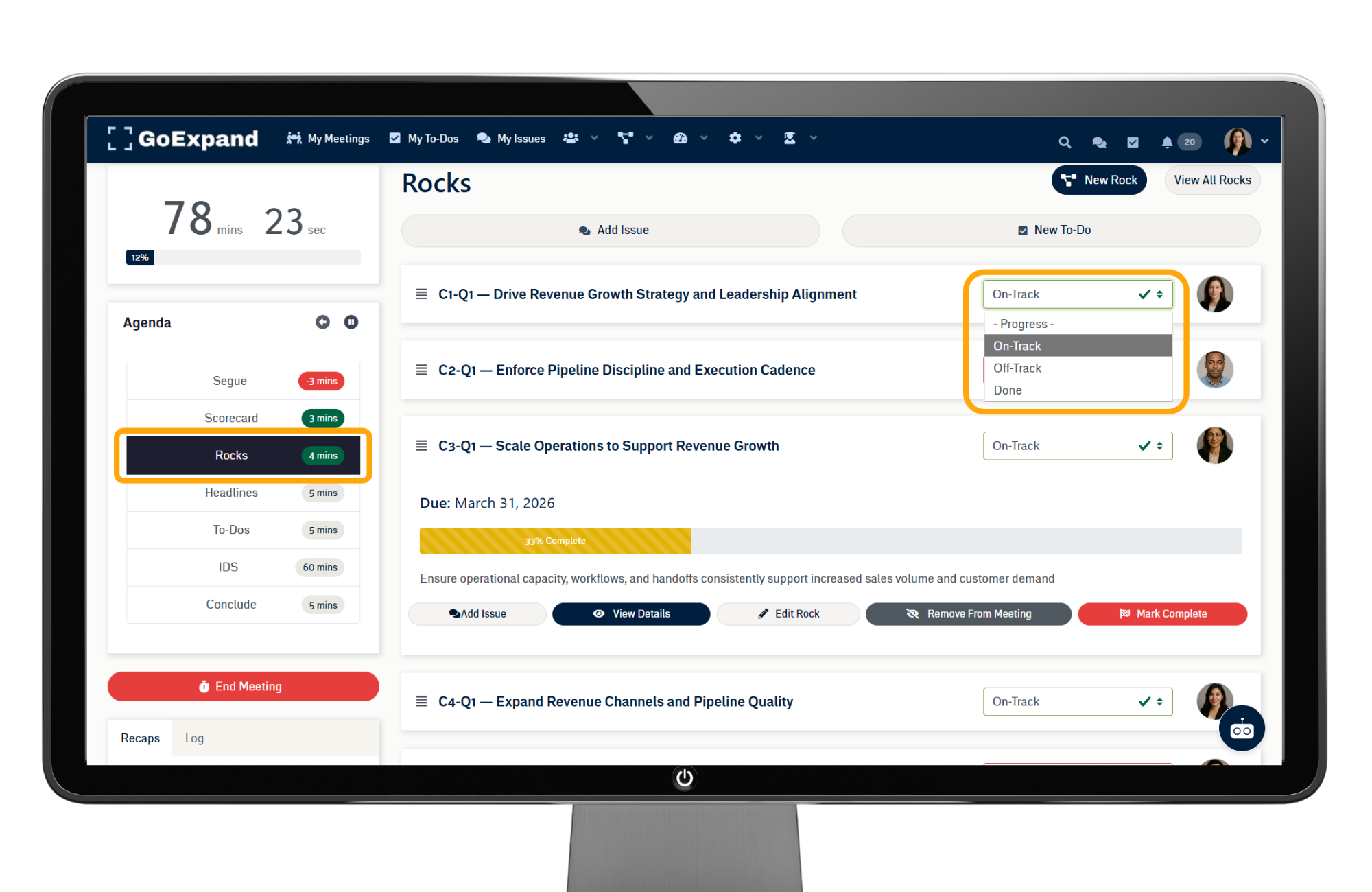
Add Rocks
You can create quarterly Rocks directly within the meeting by navigating to the Rocks section and clicking New Rock.
Rocks connect quarterly priorities to your weekly execution rhythm.
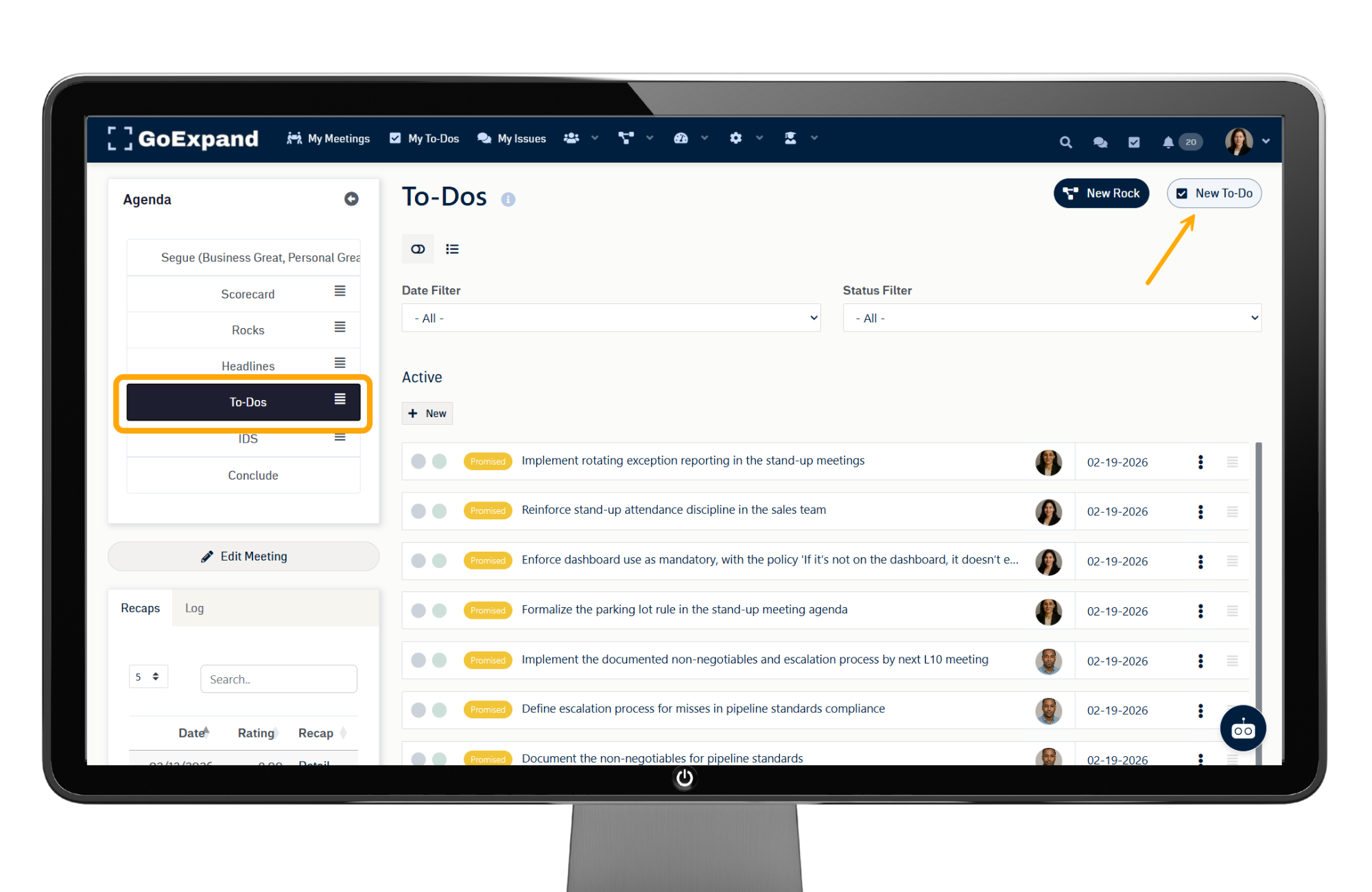
Add To-Dos
To-Dos can be created during the meeting whenever action is required.
Each To-Do should have:
- One owner
- One due date
To-Dos drive follow-through between meetings.
Headlines Section
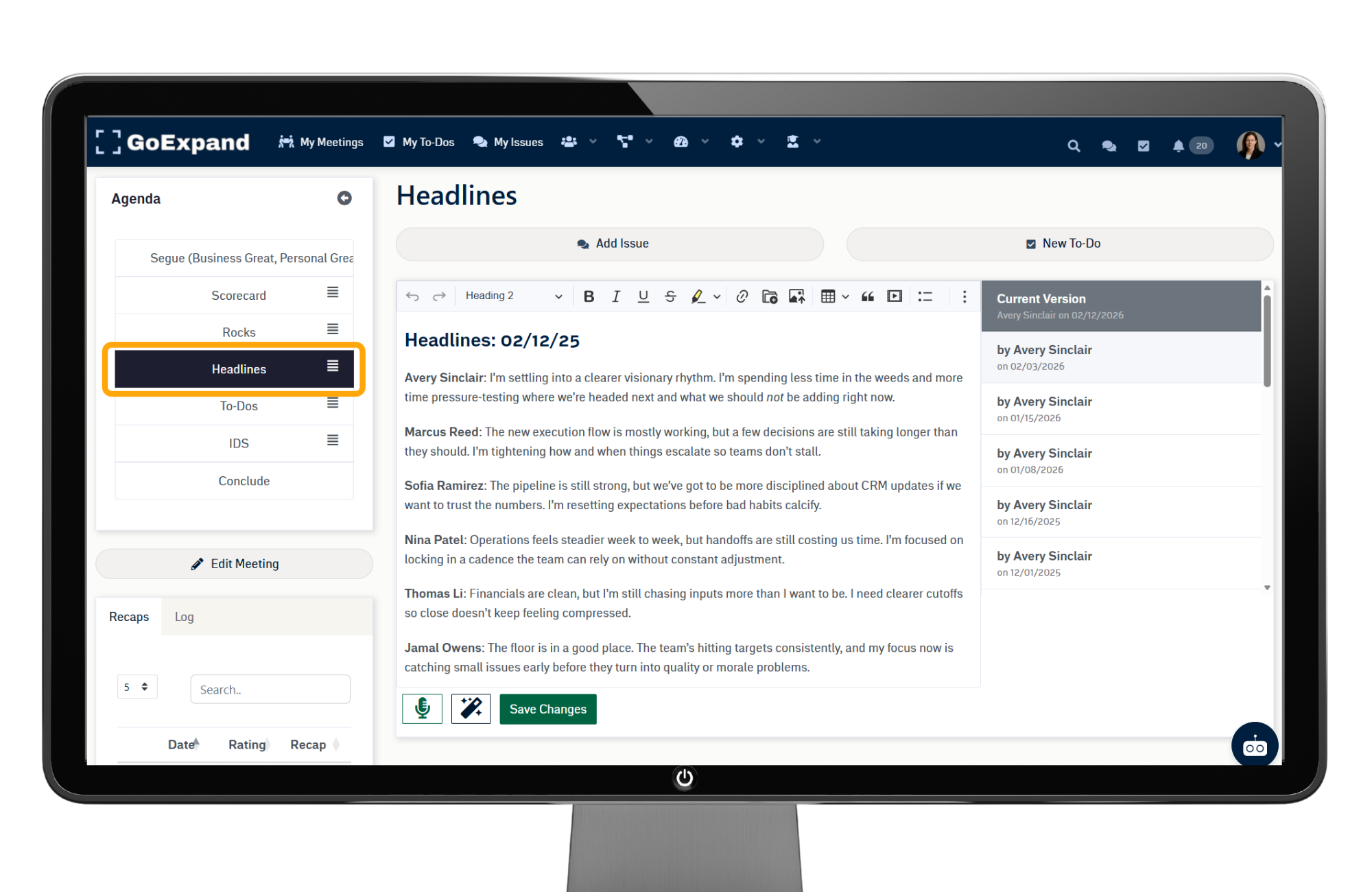
The Headlines section is a flexible text area used to share updates, announcements, or wins.
You can:
- Type headlines manually
- Have attendees add their own updates
- Use it for department summaries
Be sure to click Save after making changes. Archived versions of updates will appear automatically.
IDS® Section (Issues List)
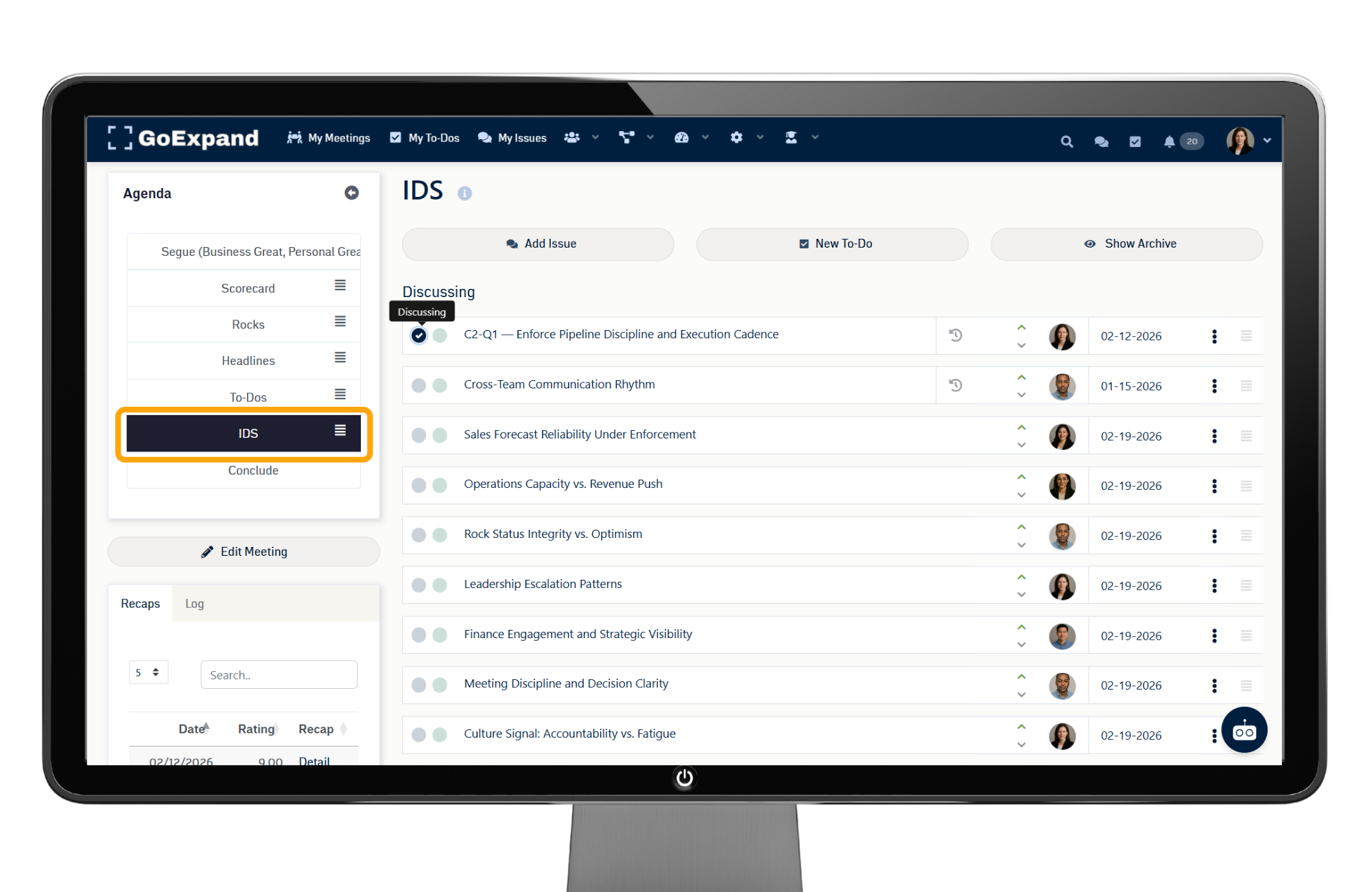
The IDS® (Identify, Discuss, Solve) section is where your team solves problems.
To add an Issue:
- Click Add IDS® within the IDS section
- Or add an Issue from anywhere inside the meeting
During IDS®, select the most important Issue and work through it until solved. If action is required, create a To-Do immediately.
Configuring Your L10 Meeting Settings
To fully configure your meeting:
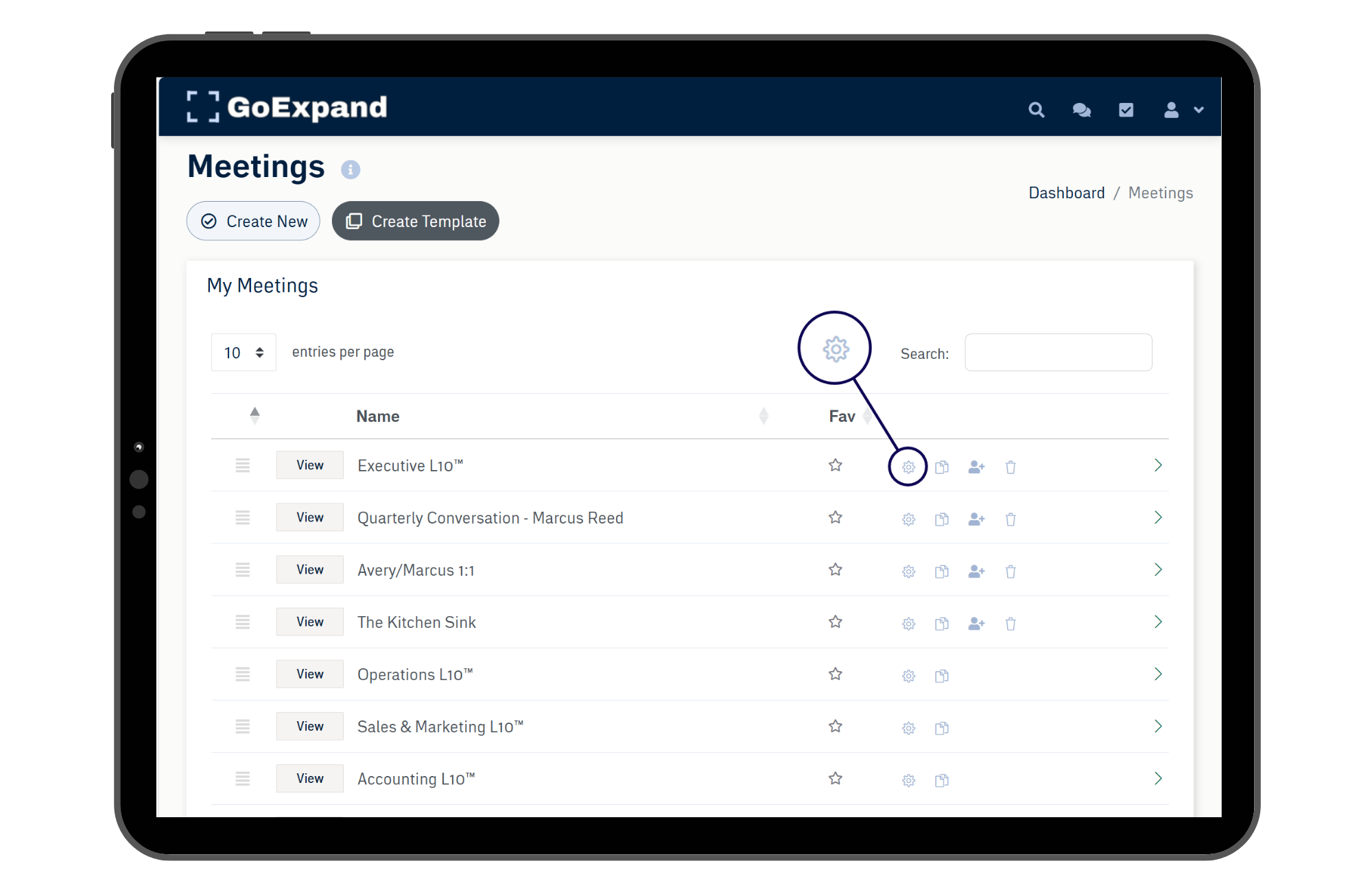
My Meetings → Locate your L10 → Click the Gear Icon
This opens the meeting settings page.
Here you will see:
- Default Level 10 agenda structure
- Time allotments for each section
- Meeting creator
- Attendee list
Adding Attendees
To add internal attendees:
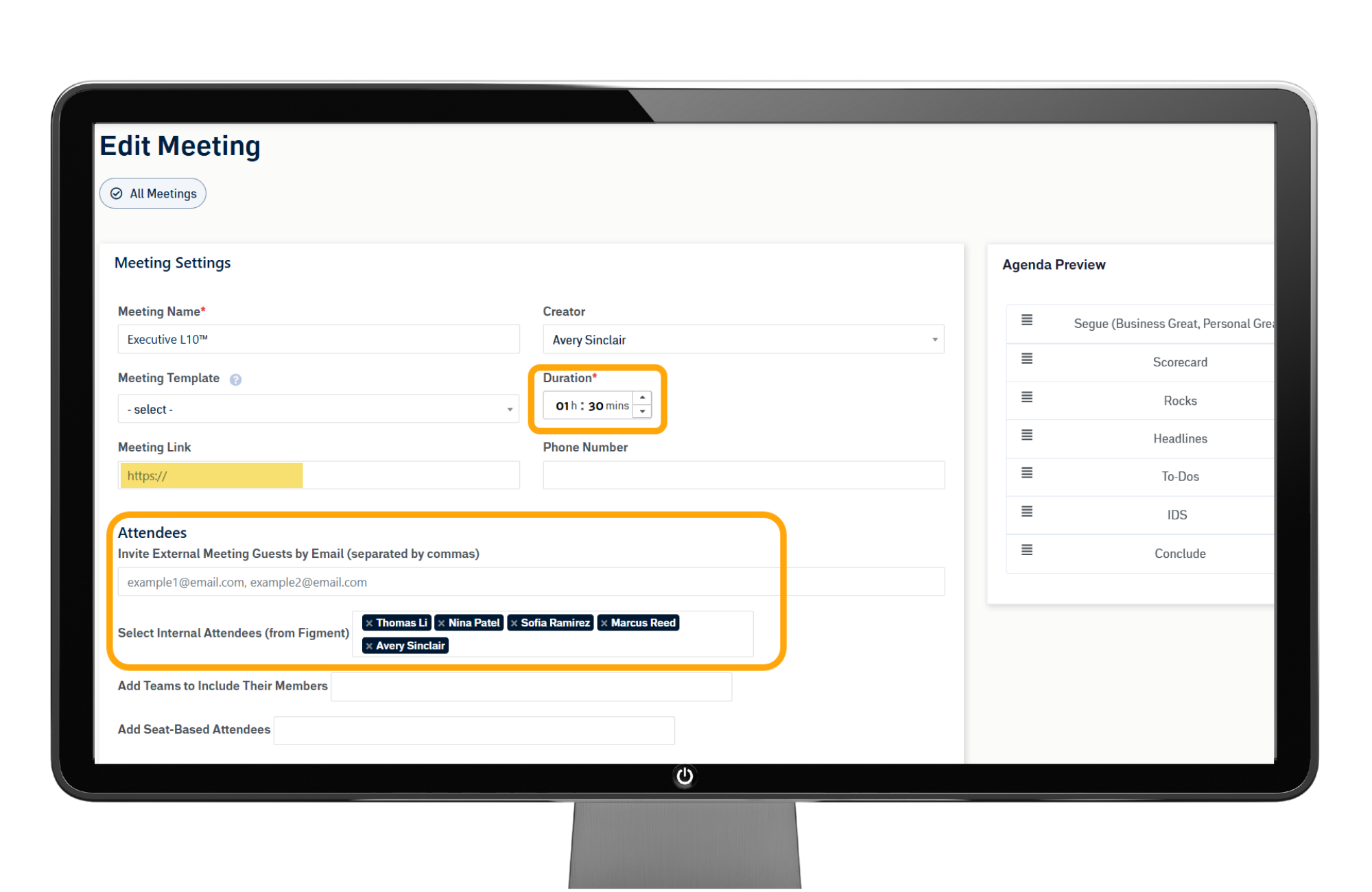
- Click Select Internal Attendees
- Begin typing the user’s name
- Select them from the list
If you’ve already created Teams, you can add an entire team using the Teams dropdown.
Adding a team automatically includes all members — no need to add individuals separately.
Adding a Video Conferencing Link
If you use Zoom, Microsoft Teams, WebEx, or Google Meet:
- Paste your meeting link into the designated field
- Click Save
The link will automatically appear in the Segue section of the meeting so attendees can click and join directly — no need to search calendars or emails.
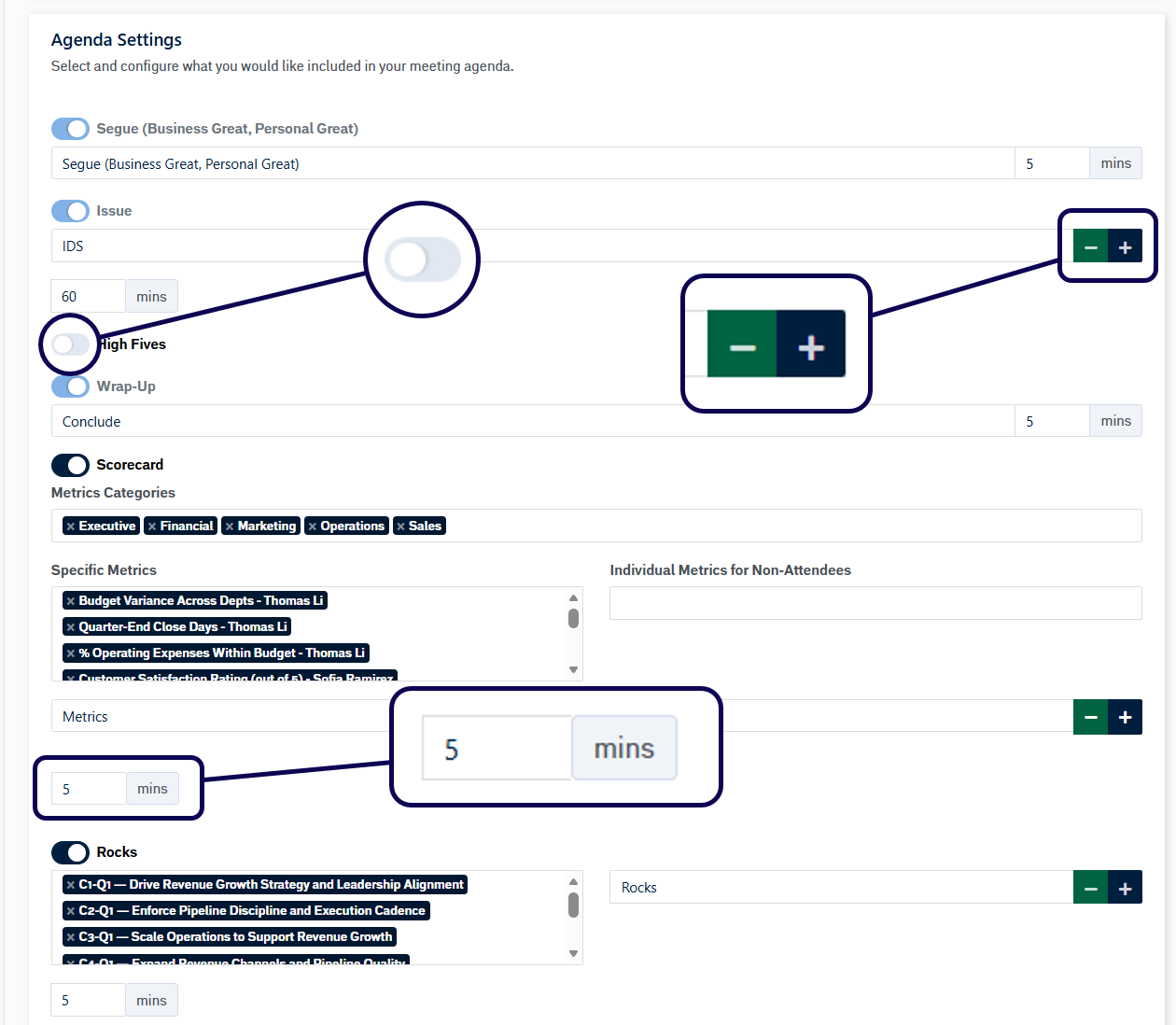
Agenda Settings & Time Adjustments
In the meeting settings, you can:
- Turn agenda sections on or off
- Adjust time allocations for each section
- Update section names (if needed)
Time changes update automatically when you click outside the field.
Embedding Third-Party Tools
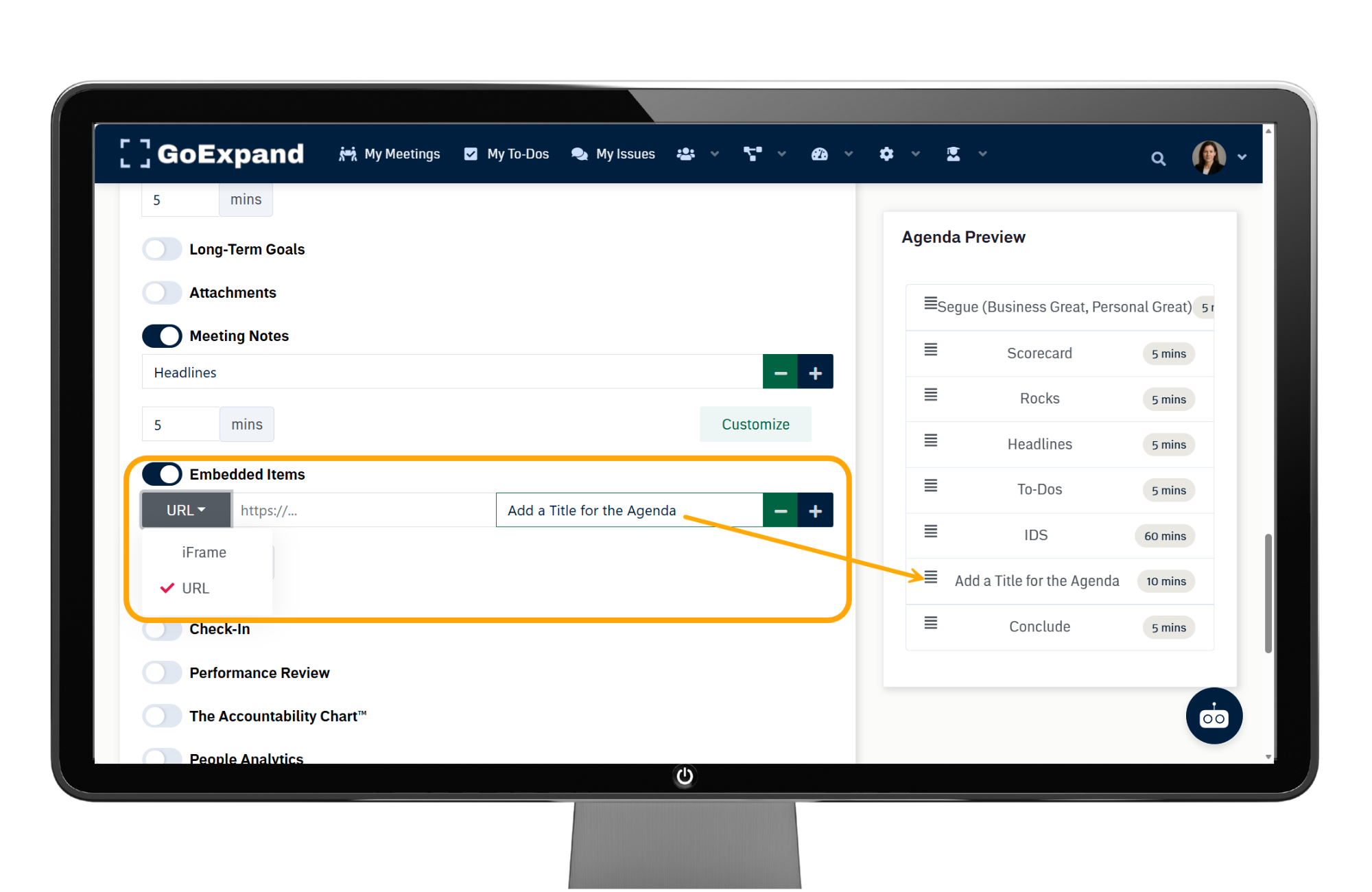
GoExpand allows you to embed external tools directly inside your Level 10 Meeting™.
To enable this:
- Toggle Embed on in the meeting settings
You can embed using:
URL:
Paste a shared link (such as a Google Sheet). Permissions follow that link. If users are logged in and have edit access, they can edit live during the meeting.
iFrame:
Switch to iFrame mode and paste the embed code. Add a display name for the section.
This is useful for:
- Advanced spreadsheets
- External dashboards
- Shared planning documents
Saving Meeting Settings
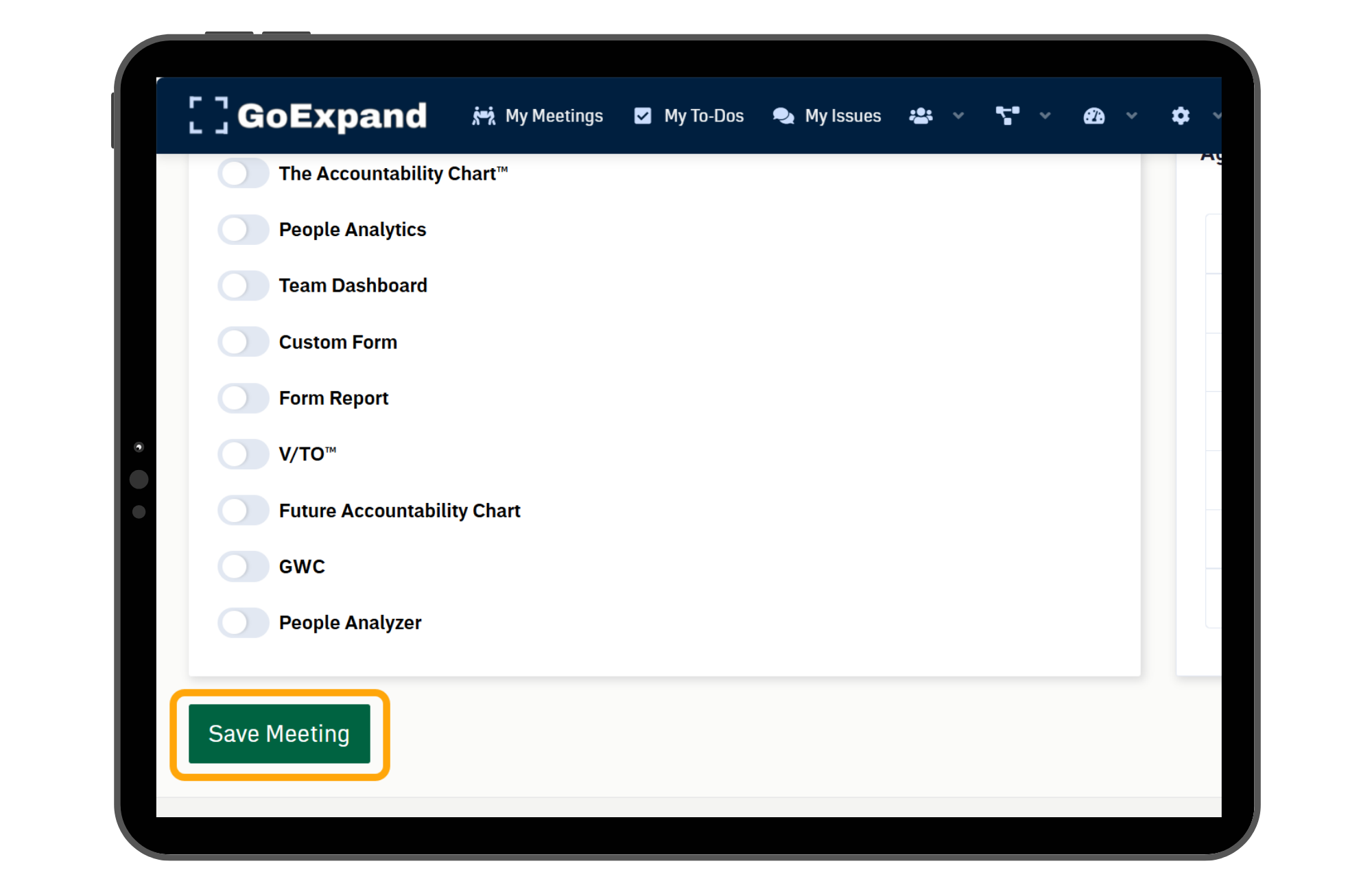
After updating meeting settings:
Click Save Meeting
All attendees (whether added individually or via Teams) will be notified of the updates and any agenda changes.
Final Reminder
Your Level 10 Meeting™ works best when:
- Metrics are updated weekly
- Rocks are reviewed consistently
- IDS® drives real problem-solving
- To-Dos are completed at 90%+
- The agenda stays structured and time-boxed
Consistency creates Traction®.
See full Knowledge Base training article here.
>Up Next: Leadership L10 Meeting™ Agenda in GoExpand | EOS® Meeting Guide
Further reads and articles:
Harvard Business Review – Stop the Meeting Madness
https://hbr.org/2017/07/stop-the-meeting-madness
MIT Human Resources — How and Why to Use a Meeting Agenda
https://hr.mit.edu/learning-topics/meetings/articles/agendas
MIT Human Resources — The Basics of Designing & Facilitating Meetings
https://hr.mit.edu/learning-topics/meetings/articles/basics
Stanford d.school — Design Engaging Meetings
https://dschool.stanford.edu/tools/design-engaging-meetings