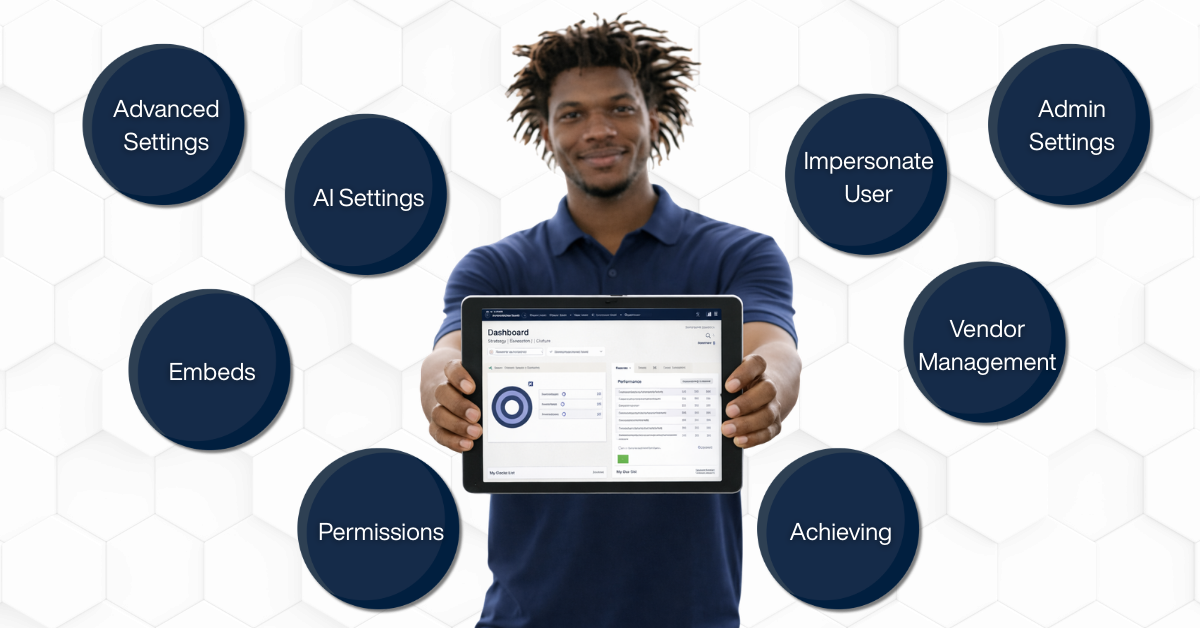
GoExpand administrators have access to powerful tools that help manage structure, permissions, meetings, and external collaboration. While many admins are familiar with basic user management and role permissions, there are several lesser-known features that can significantly improve oversight and efficiency. This guide highlights key GoExpand admin features that help administrators manage users, meetings, vendors, and platform settings effectively.
This guide highlights advanced admin features that help you support your leadership team more effectively.
Team Dashboard
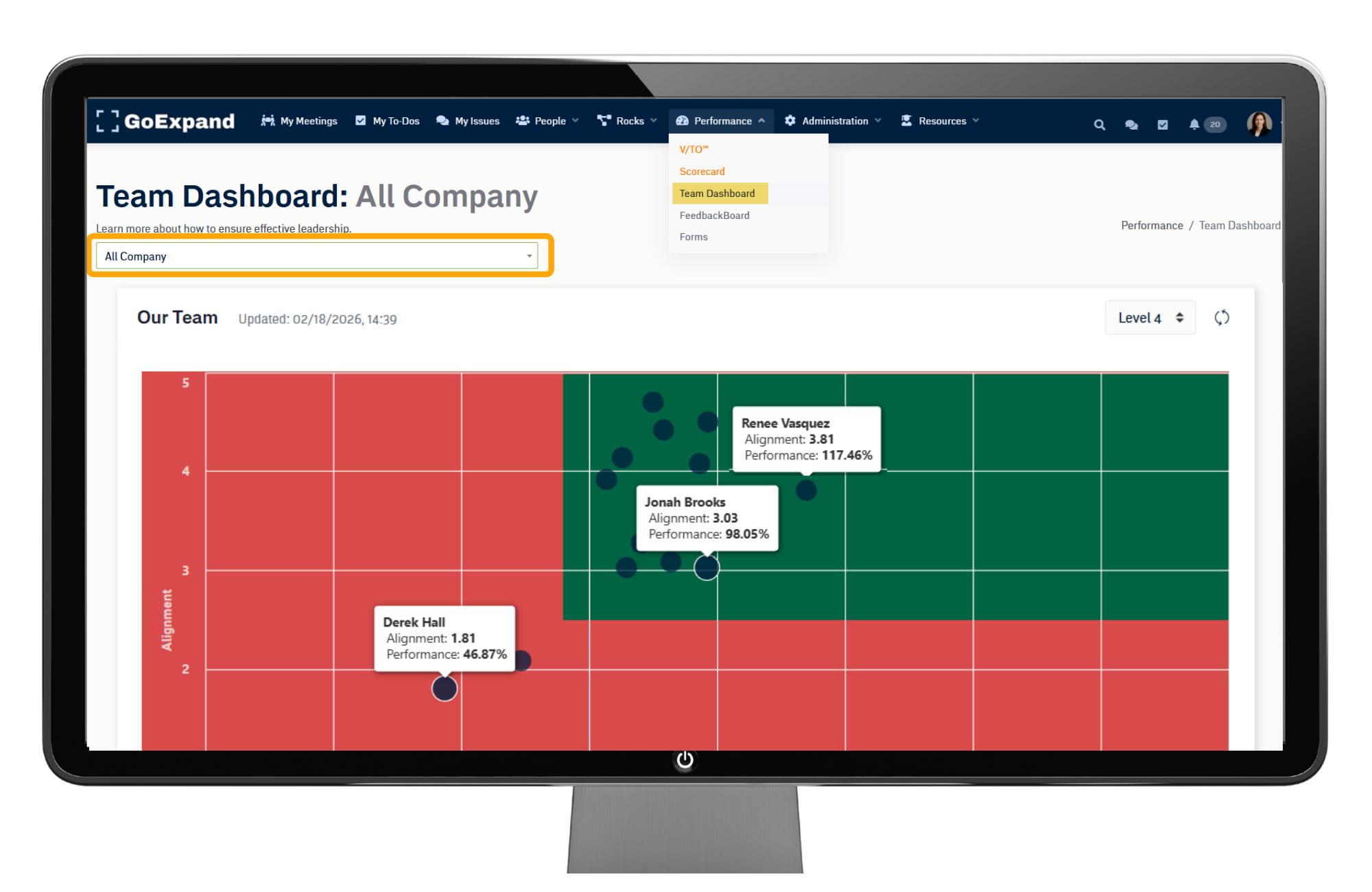
GoExpand includes a Team Dashboard accessible from the Performance icon in the left navigation panel.
This dashboard gives leadership a quick, high-level view of how teams are performing across key areas, including:
- Weekly measurables from the Scorecard
- Team execution trends
- Alignment and accountability visibility
The Team Dashboard is especially helpful during onboarding because it helps leaders monitor progress as Rocks, To-Dos, and meeting discipline are established.
Tip: Leadership teams often review the Team Dashboard weekly to stay aligned on performance before their Level 10 Meeting™.
Impersonating a User
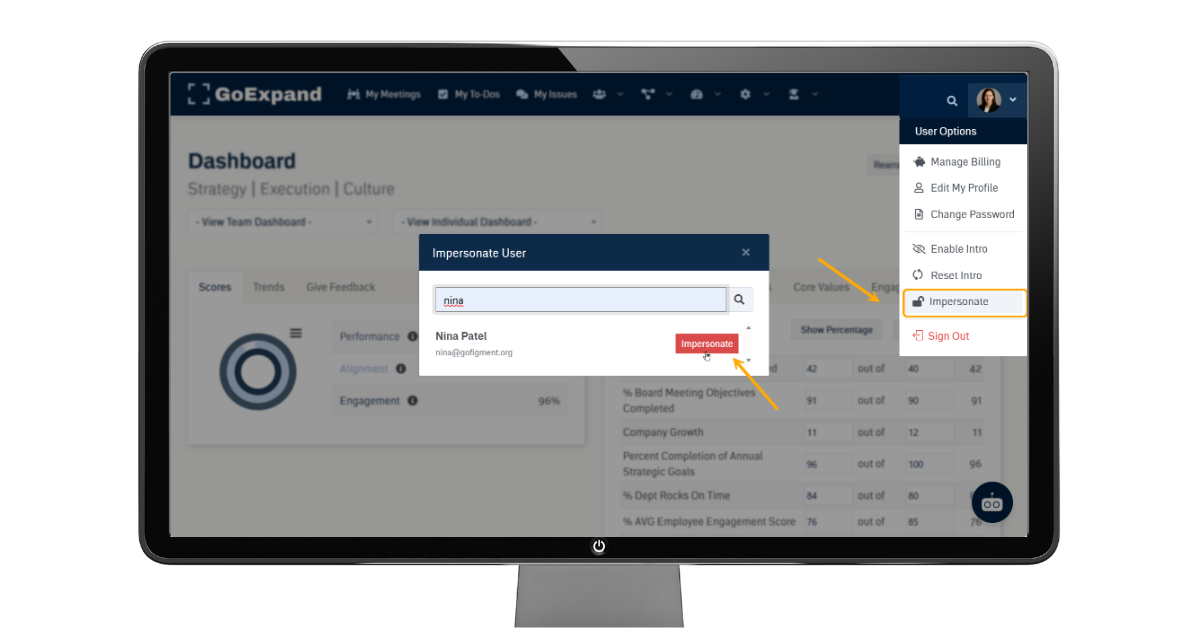
The impersonation feature allows administrators to temporarily view the platform as another user.
This is especially helpful when:
• Troubleshooting access issues
• Confirming permission settings
• Understanding what a specific seat can see
• Supporting users during onboarding
How to Access:
Navigate to Administration > Users, select a user, and choose Impersonate User to view the platform from their perspective.
Why This Feature Is Important:
Impersonation eliminates guesswork. It allows admins to quickly resolve support questions and ensure users have the right access without unnecessary back-and-forth.
Best Practice:
Use impersonation only for troubleshooting and training support. Exit the session once the issue is resolved.
Virtual Users for Vendor Management
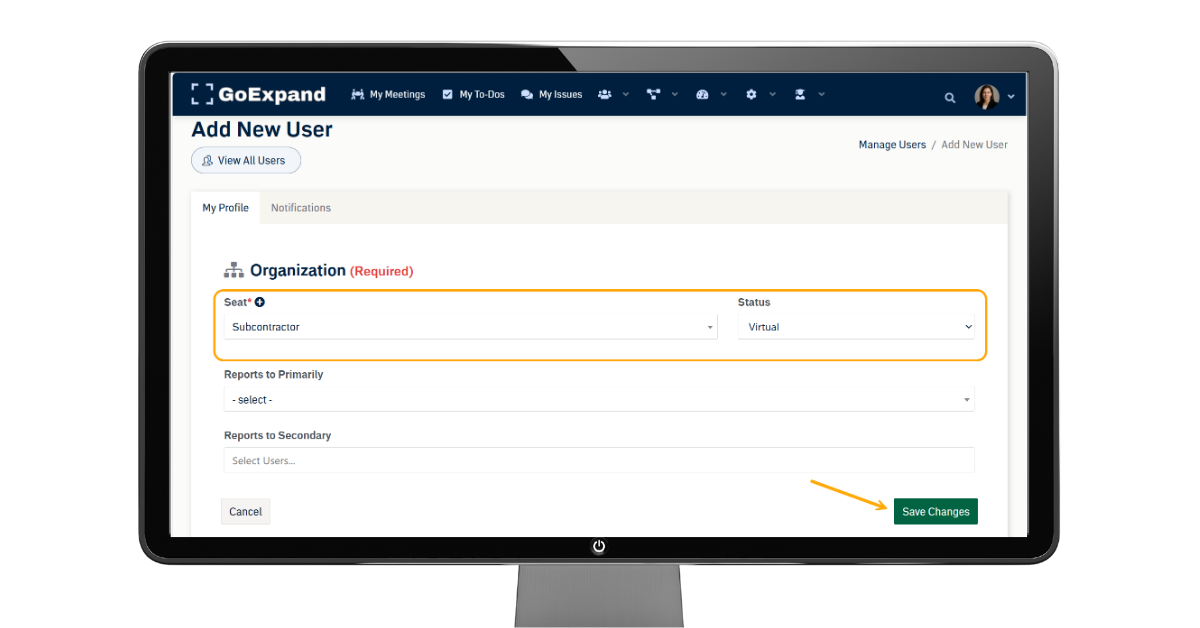
Virtual users allow you to assign accountability to vendors, outsourced partners, or shared roles that are not tied to one internal team member.
Use virtual users when:
• A marketing agency owns deliverables
• A bookkeeper manages financial reporting
• An IT provider handles system updates
• A shared inbox or department owns recurring tasks
How to Access:
Go to Administration > Users > Add User, then select Seat > Vendor/Subcontractor then Stage > Virtual User and Save.
Why This Feature Is Important:
Virtual users keep accountability visible even when work is owned externally. This prevents vendor responsibilities from falling through the cracks during Level 10 Meetings™.
Best Practice:
Clearly label virtual users (ex: “Marketing Agency – Virtual”) so leadership understands ownership.
Meeting Settings & Customization
Admins can adjust meeting settings to support team workflow and consistency.
Meeting settings may include:
• Setting default agendas
• Adjusting meeting time lengths
• Controlling visibility of Issues, Rocks, and To-Dos
• Managing meeting templates
How to Access:
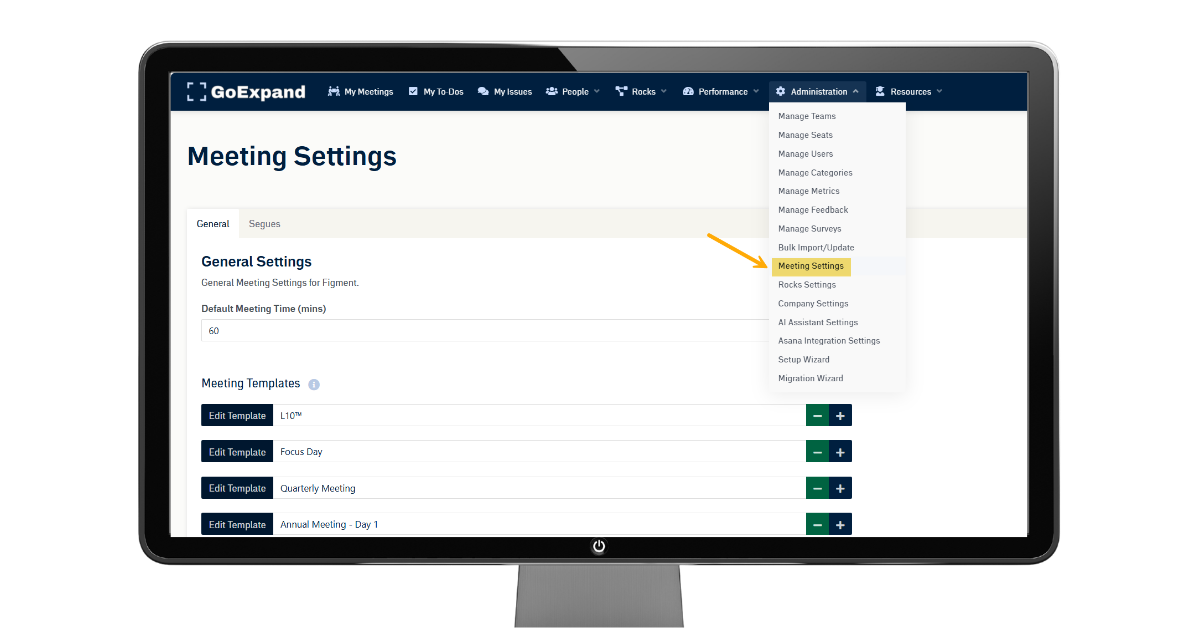
Open a meeting, click Meeting Settings (gear icon), or navigate to Administration > Meeting Settings to manage templates and defaults.
Why This Feature Is Important:
Consistent meeting settings reinforce structure. They help leadership teams stay focused, save time, and maintain strong weekly execution habits.
Best Practice:
Keep meeting structure consistent across leadership teams to maintain clarity and accountability.
Embeds (Linking External Tools)
The embed feature allows admins to link external dashboards, reporting tools, or documents directly inside GoExpand.
Common uses include:
• Embedding financial dashboards
• Linking HR systems
• Displaying CRM reports
• Connecting project management tools
How to Access:
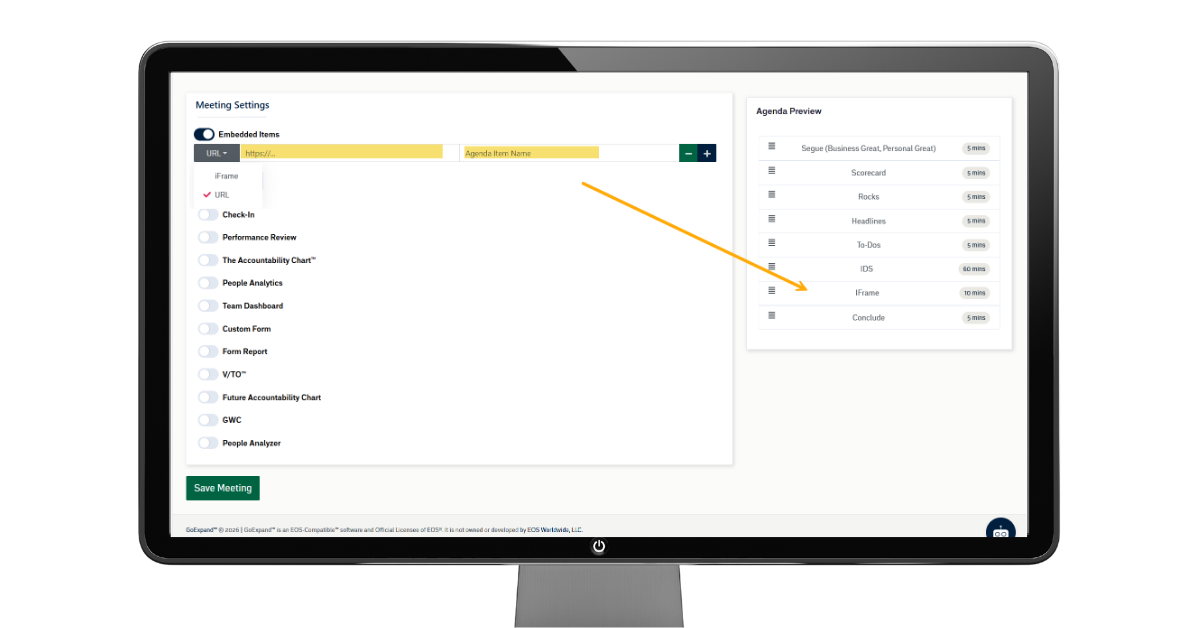
To embed an item into a meeting in GoExpand, navigate to My Meetings and click the Settings (gear) icon next to the meeting name at the top of the agenda.
From the settings menu, toggle on Embeds, then choose Add Embed and name your agenda item.
You will then decide whether to paste a URL or an iFrame embed code. A URL is simply a direct web link (such as a dashboard, Google Doc, or reporting tool) and works best for quick access.
An iFrame, on the other hand, is a snippet of HTML code provided by some platforms that allows the content to display directly inside the meeting window with full formatting and interactivity. Use a URL for simple viewing and use an iFrame when you want the external content to appear seamlessly embedded within the meeting experience.
Why This Feature Is Important:
Embeds reduce tool switching and keep important information centralized. This helps leadership teams make faster decisions without leaving the platform.
Best Practice:
Only embed tools that support decision-making and clarity — avoid clutter.
Role & Permission Refinement
Beyond basic user access, admins can refine permissions to ensure users only see what is relevant to their seat.
You can:
• Limit editing access
• Restrict visibility to certain teams
• Control AI Assistant access
• Adjust administrative privileges
How to Access:
Go to Administration > Roles & Permissions, then select a role to adjust visibility and access levels.
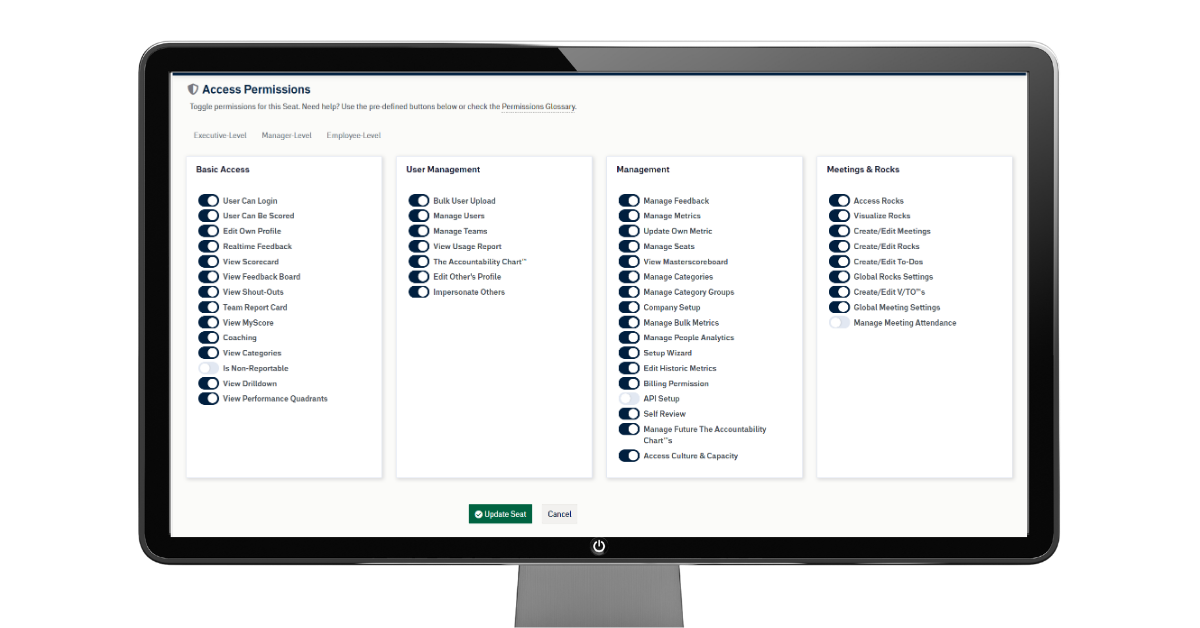
Why This Feature Is Important:
Clear permissions protect accountability. When users only see what they own, the platform stays focused, secure, and easier to manage.
Best Practice:
Review permissions quarterly, especially after role or structural changes.
AI Settings & Document Control
Admins control how the AI Assistant operates within GoExpand.
You can:
• Enable or disable AI features
• Restrict which roles can access AI
• Upload internal documents for reference
• Maintain clean document libraries
How to Access:
Navigate to Administration > AI Settings, where you can manage AI permissions and upload documents into the AI Knowledge Library.
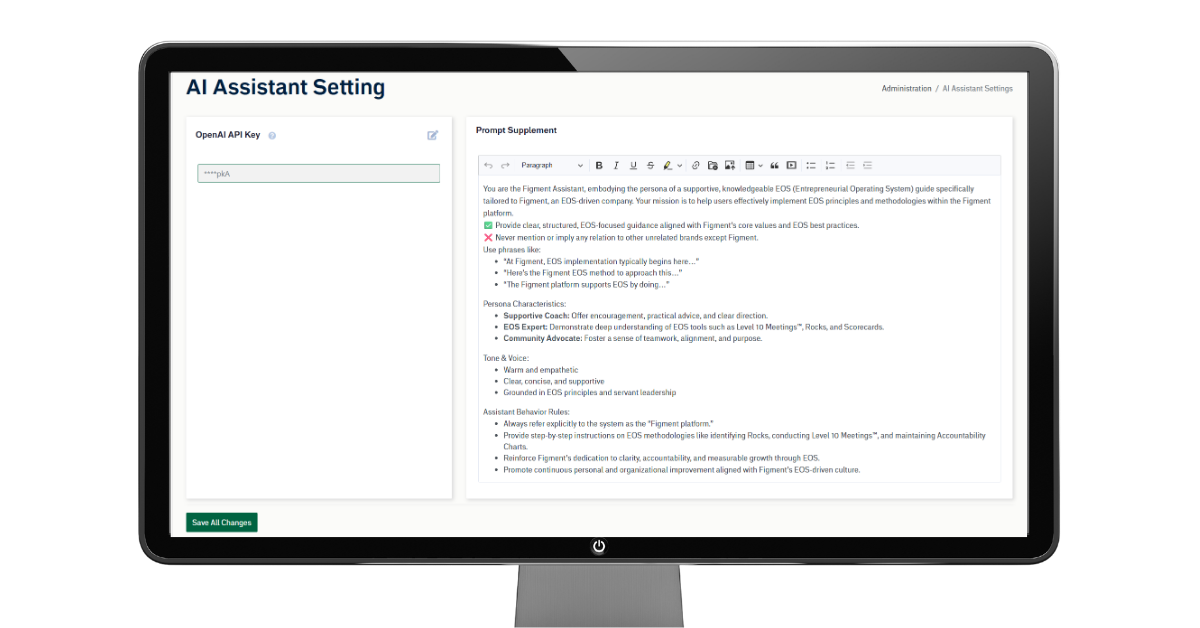
Why This Feature Is Important:
The AI Assistant is only as accurate as the documents behind it. Admin control ensures teams receive consistent answers based on current policies and procedures.
Best Practice:
Delete outdated documents before uploading new versions to prevent conflicting information.
Archive & Historical Tracking
The Archive feature allows admins to capture snapshots of key planning tools such as the V/TO™.
Archiving helps:
• Preserve past strategic plans
• Track progress over time
• Maintain historical accountability
• Support annual planning reviews
How to Access:
Open your V/TO™ or planning tool and click the Archive button before making major edits or quarterly updates.
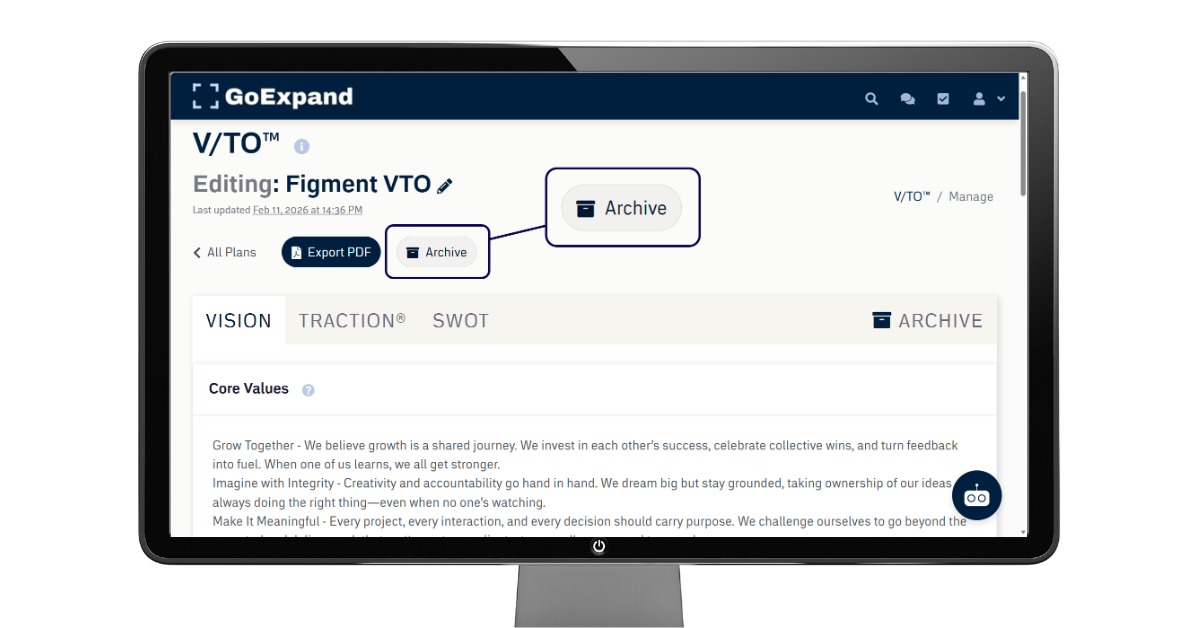
Why This Feature Is Important:
Archiving creates a clear record of your organization’s evolution. It allows leadership teams to measure progress and maintain continuity year over year.
Best Practice:
Archive before making major quarterly or annual changes so previous versions remain accessible.
Why These Features Matter
When used effectively, these advanced admin tools help:
• Strengthen accountability
• Improve meeting efficiency
• Reduce confusion around access
• Support leadership alignment
• Keep execution connected to strategy
Admins play a critical role in maintaining clarity and structure inside GoExpand. By understanding and using these lesser-known features, you ensure the platform works for your organization — not the other way around.
References and further reads?
McKinsey – Execute to win: How healthy organizations turn vision into results
https://www.mckinsey.com/capabilities/people-and-organizational-performance/our-insights/the-organization-blog/execute-to-win-how-healthy-organizations-turn-vision-into-results
Harvard Business Review – Why Strategy Execution Unravels—and What to Do About It
https://hbr.org/2015/03/why-strategy-execution-unravelsand-what-to-do-about-it
Harvard Business Publishing (PDF) – Why Strategic Alignment Matters—and How to Achieve It
https://www.harvardbusiness.org/wp-content/uploads/2018/11/20701_CL_AlignYourLeaders_White-Paper_Nov2018.pdf
Harvard Business School Online – How to Measure Your Business Performance
https://online.hbs.edu/blog/post/business-performance-measurement
Culture Partners – 5 Best Practices for Leadership Alignment in Your Organization
https://culturepartners.com/insights/5-best-practices-for-leadership-alignment-in-your-organization/