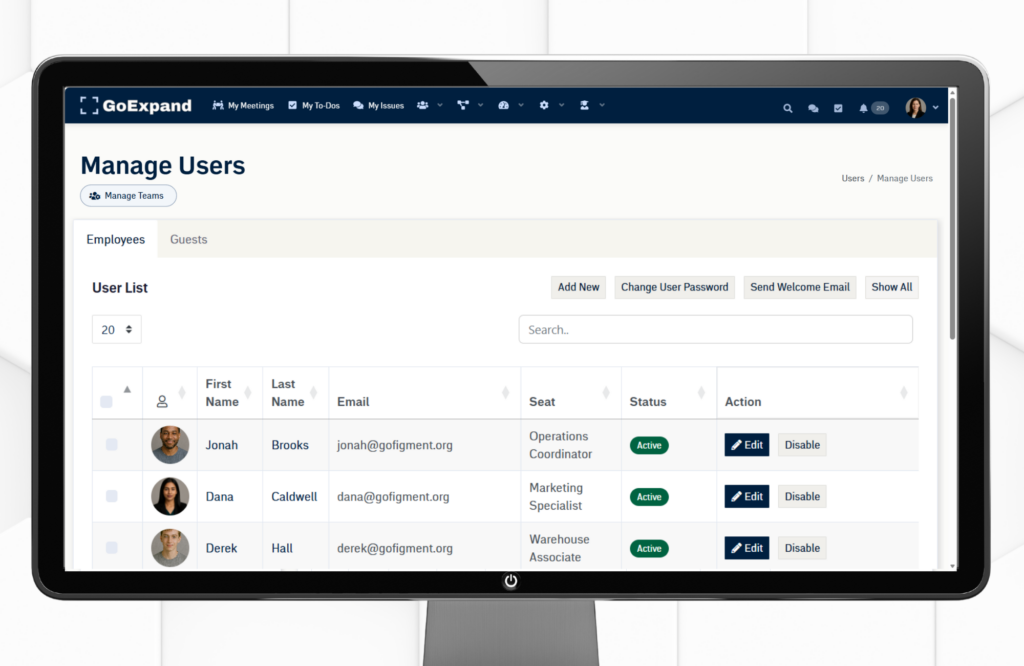
Manage Users page in GoExpand showing user list, Seats, status, and edit options.
The Manage Users section is where you manage the people in your organization inside GoExpand. This is where you add new users, update their information, and ensure they’re assigned the correct Seat and department.
You can also define who they report to, which keeps your Accountability Chart™ accurate and aligned.
Think of this as the control center for keeping your team organized inside the platform. When user details are correct, everything else — reporting structure, visibility, meetings, Metrics, Rocks, and performance tracking — works the way it should.
Edit Users
To edit a user in GoExpand:
- Log in with an Admin-level account.
- Click Administration (gear icon) in the top navigation panel.
- Navigate to Manage Users.
- Select the user you want to update and click their name or the edit icon.
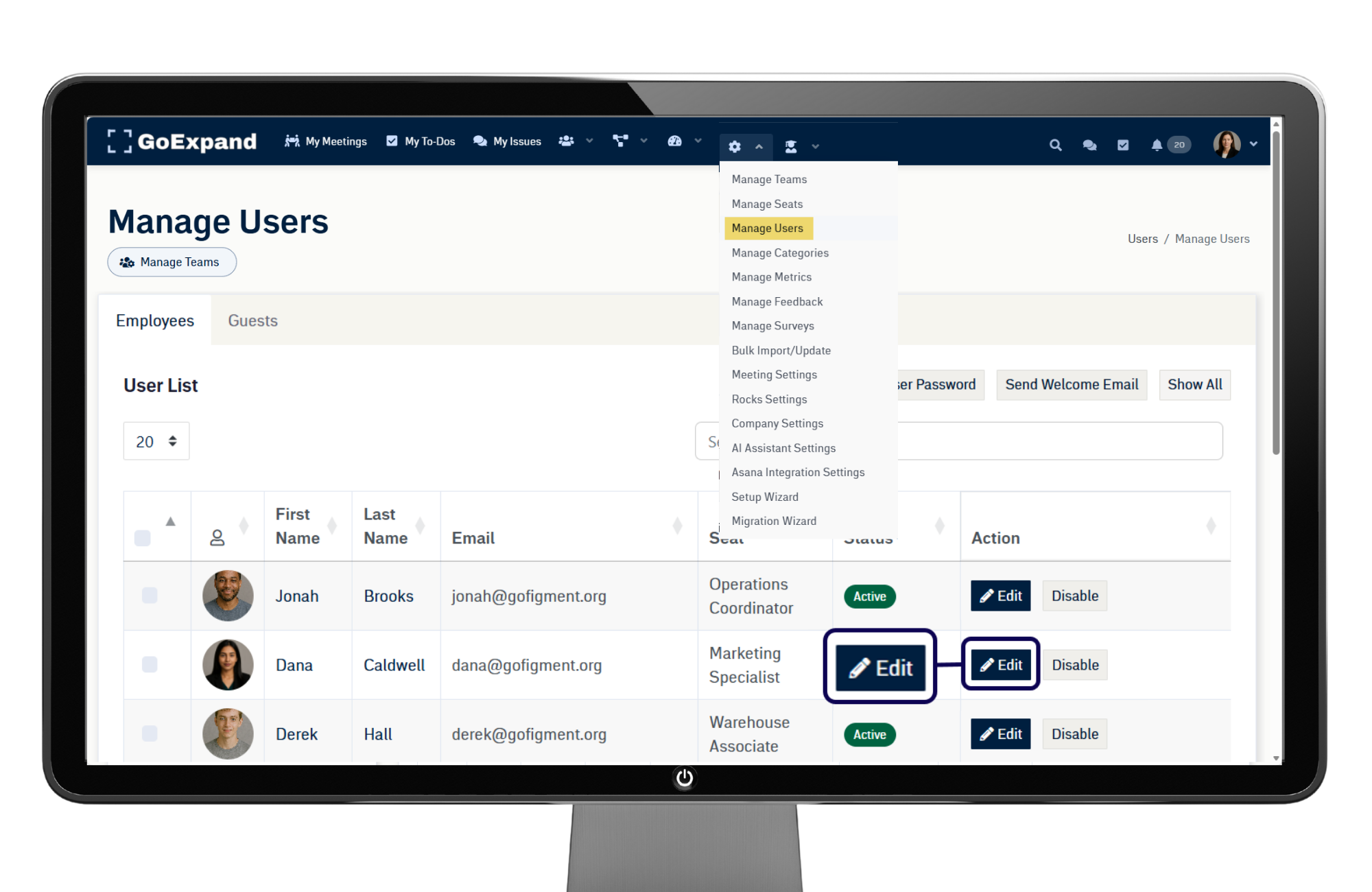
From there, you can update:
- Name
- Seat assignment
- Permission level
- Department
- Reports To
- User status (Active or Inactive)
Be sure to click Save when finished. Some options are only visible to Admin users and may impact billing depending on your subscription plan.
Add New User
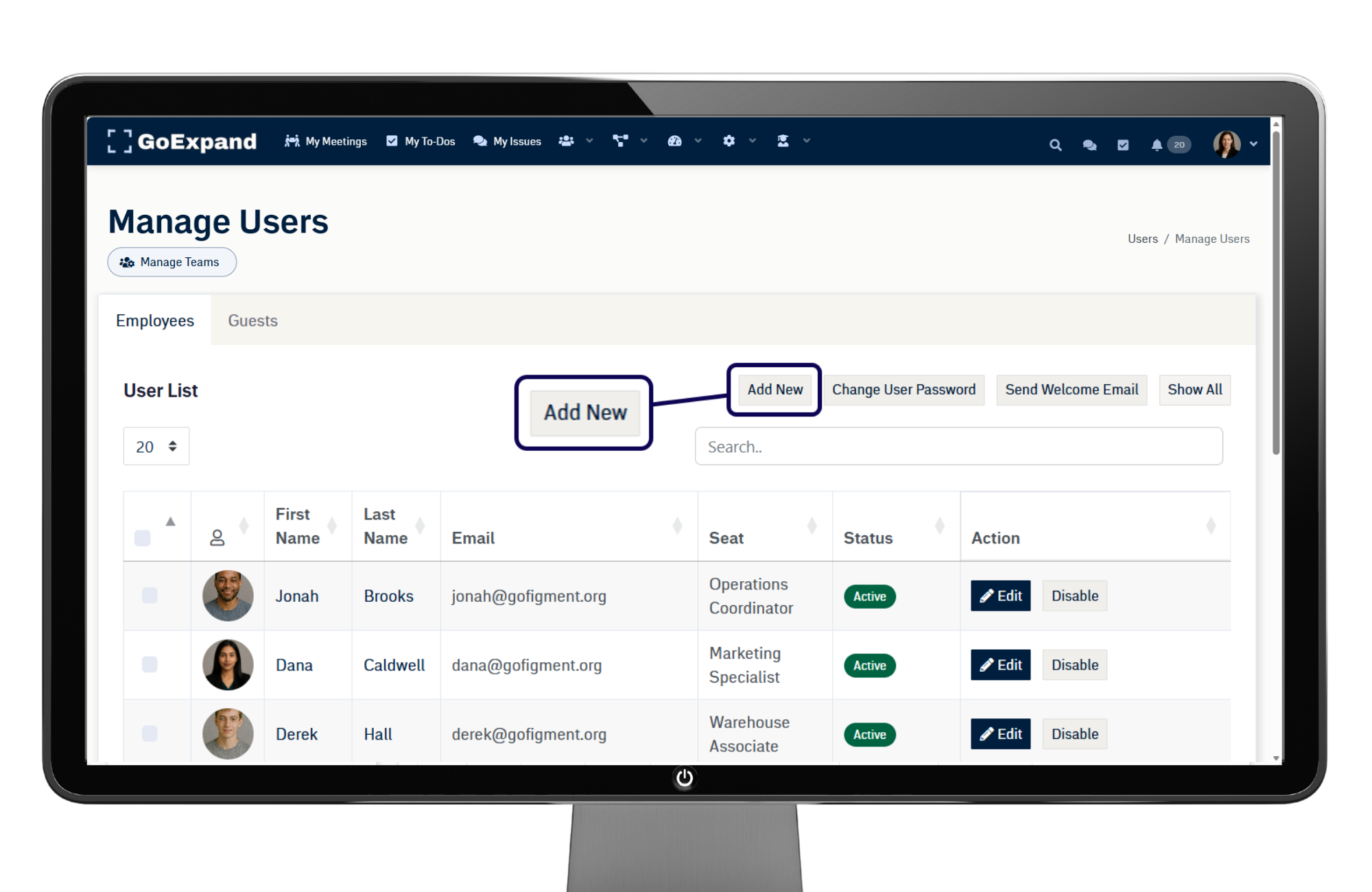
From the Manage Users page:
- Click Add User.
- Enter the new user’s name and email address.
- Assign the appropriate Seat and permission level.
- Complete the Reports To field.
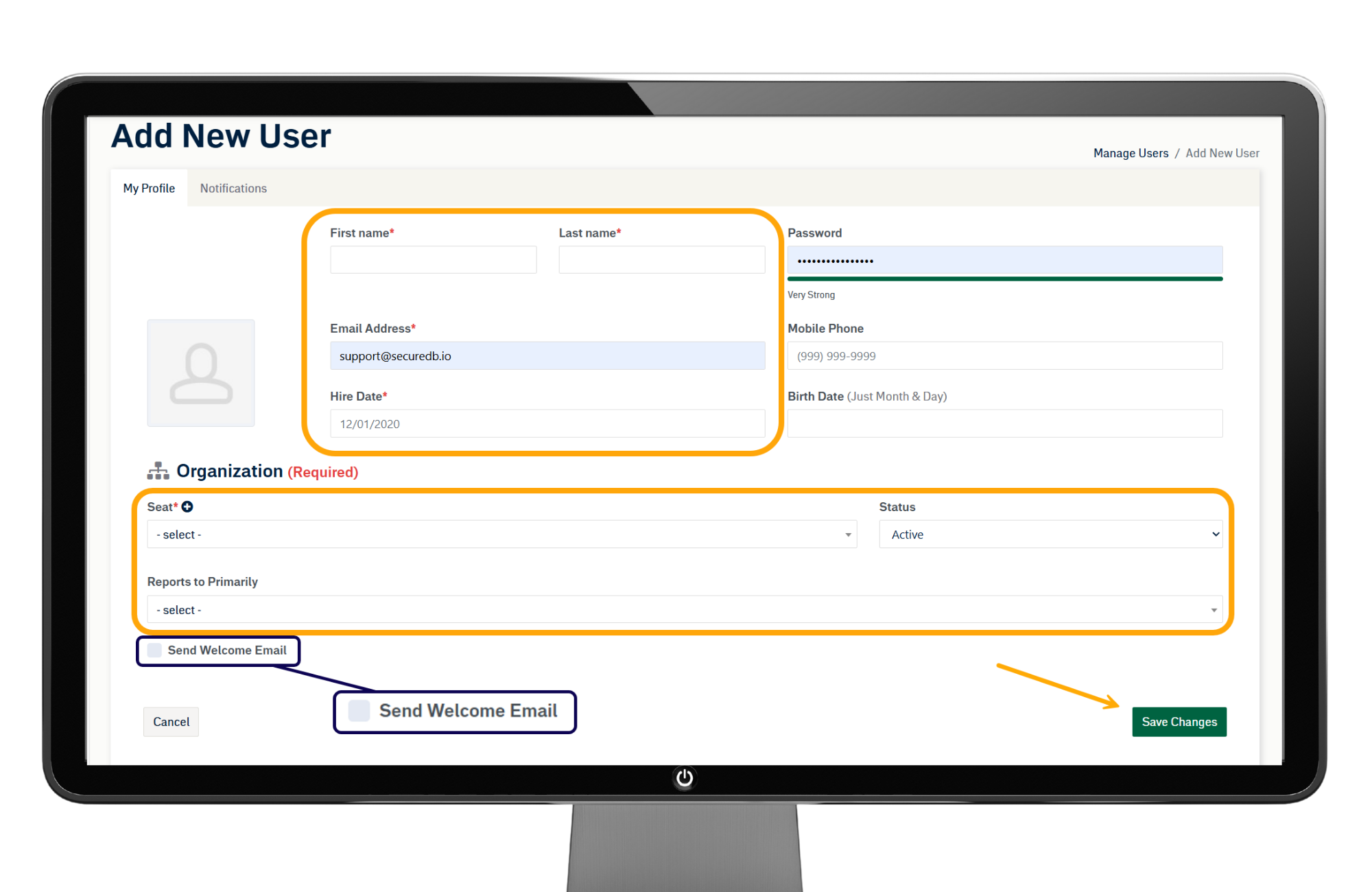
The Reports To field is critical for maintaining an accurate Accountability Chart™.
Optionally, check the box to send a Welcome Email.
Once all required fields are completed, click Save.
Add User via the Accountability Chart™
You can also add a new user directly through the Accountability Chart™.
- Navigate to People → Accountability Chart™.
- Click the three dots ( … ) icon on the tile of the person they will report to.
- Select Add.
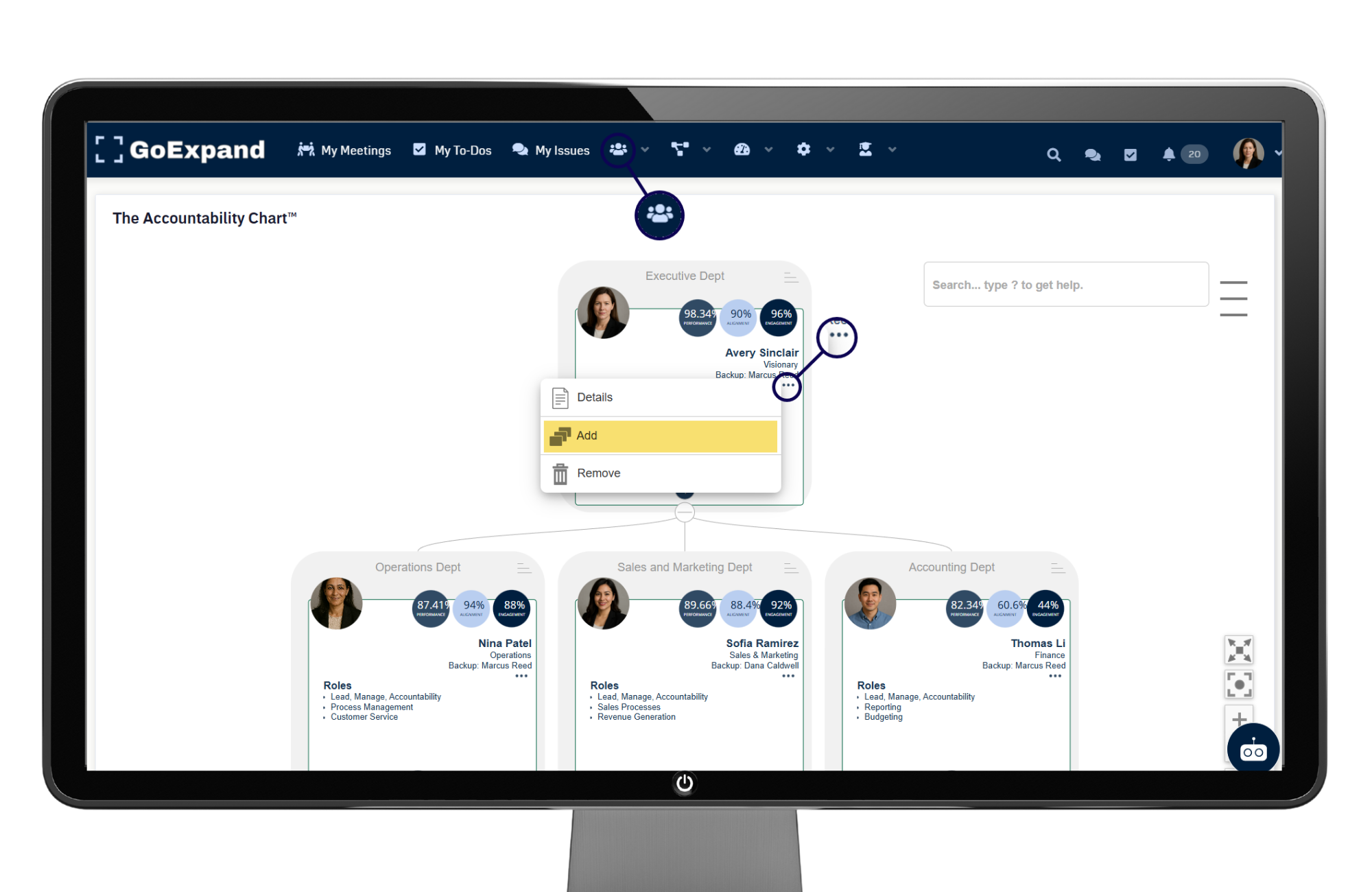
This method automatically creates a new tile directly beneath the selected Seat, clearly reflecting the reporting relationship.
Enter the employee’s information, assign their Seat, and click Save.
This ensures your Accountability Chart™ stays accurate while seamlessly adding the new user to your organization.
When users are added and managed properly, your meetings run smoother, reporting stays clear, and accountability remains aligned with your EOS® structure.
See full training article here.
>Up Next: Set Up and Manage Teams in GoExpand | Team Settings Guide