Welcome to GoExpand! Change is hard — and we get it. Our goal is to provide you and your leadership team with everything you need for a smooth rollout and a strong foundation for running on EOS®.
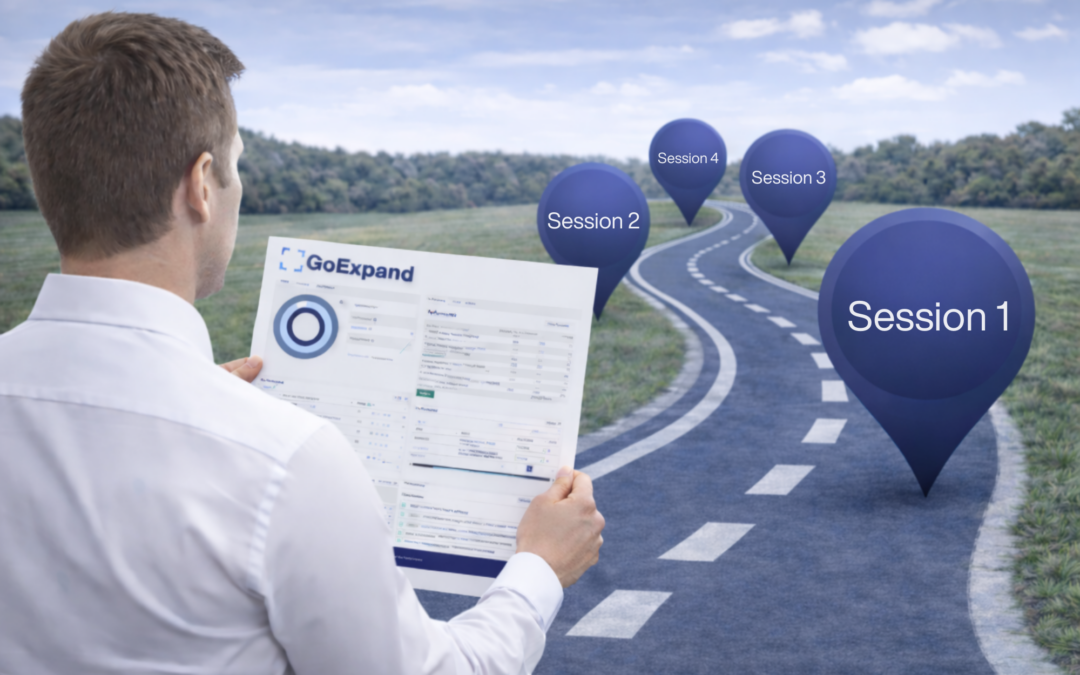
This Knowledge Base Express guide walks Admins and Leadership through the three essential setup steps to ensure your team is ready to gain Traction® using GoExpand.
→ See full GoExpand platform demo here.
Step 1: Core Navigation – Dashboard & Meeting Hub
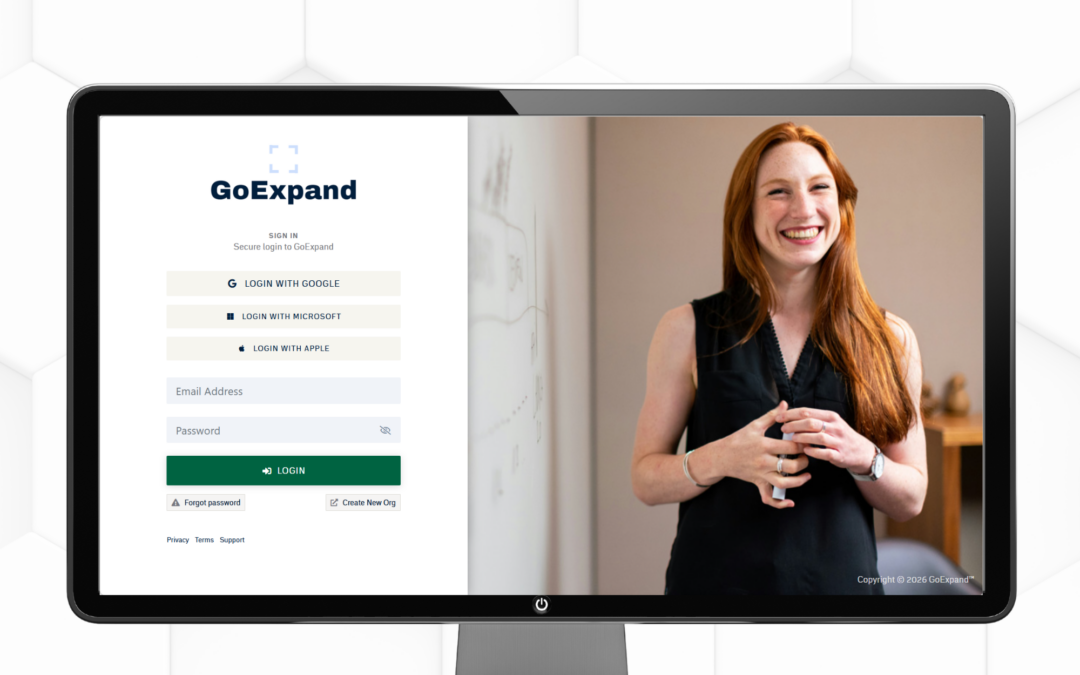
Once logged in, your GoExpand Dashboard will appear.
Navigation Panel Overview
At the top of the platform, you’ll see the Navigation Panel. Modules and features are assigned based on seat-level access and role permissions within your organization.
Tip: Hover over any navigation item to view additional sub-pages.
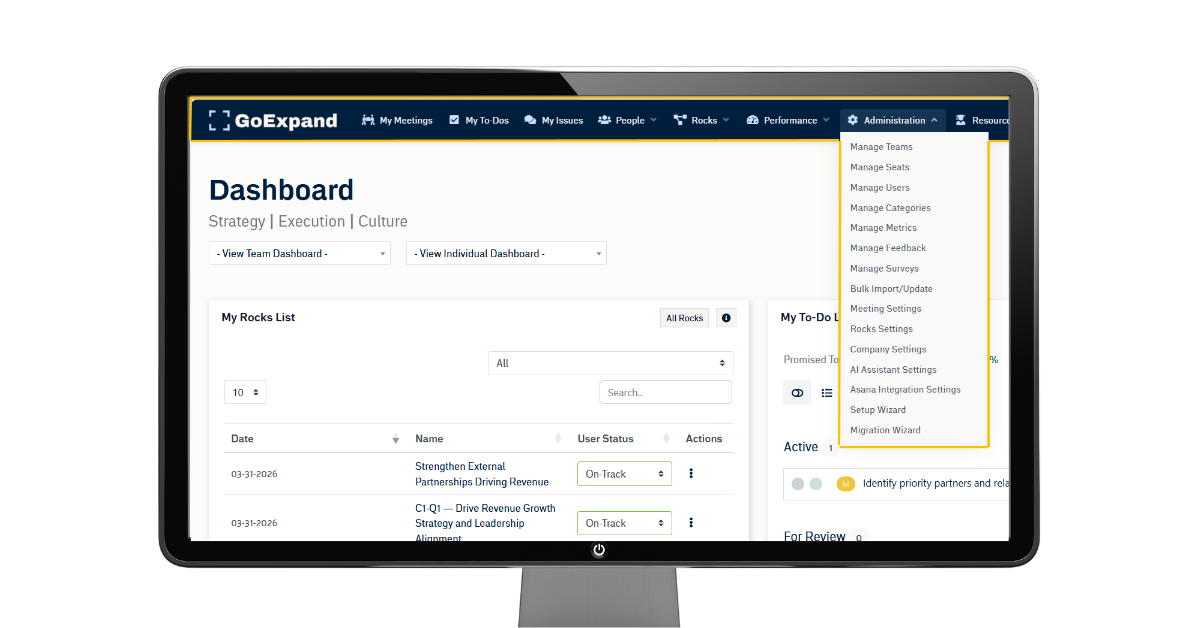
Dashboard
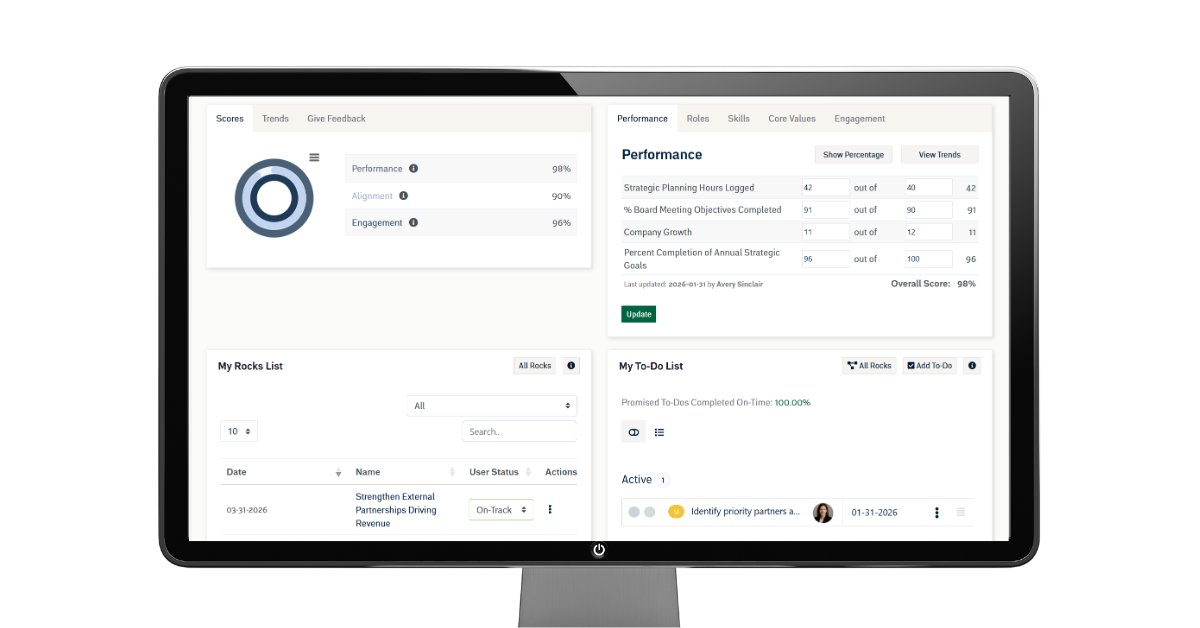
Upon first login, your Dashboard may appear mostly empty. That’s completely normal — GoExpand fills in as your team builds your EOS® Tools.
Key areas include:
- Team & Individual Dashboards
- Scorecard (Measurables and weekly performance)
- To-Do List
- Rock Tracking
- My Meetings (including Level 10 Meetings™)
- Feedback and engagement insights (optional)
Each user dashboard can be customized using the Paint Brush icon in the top-right corner.
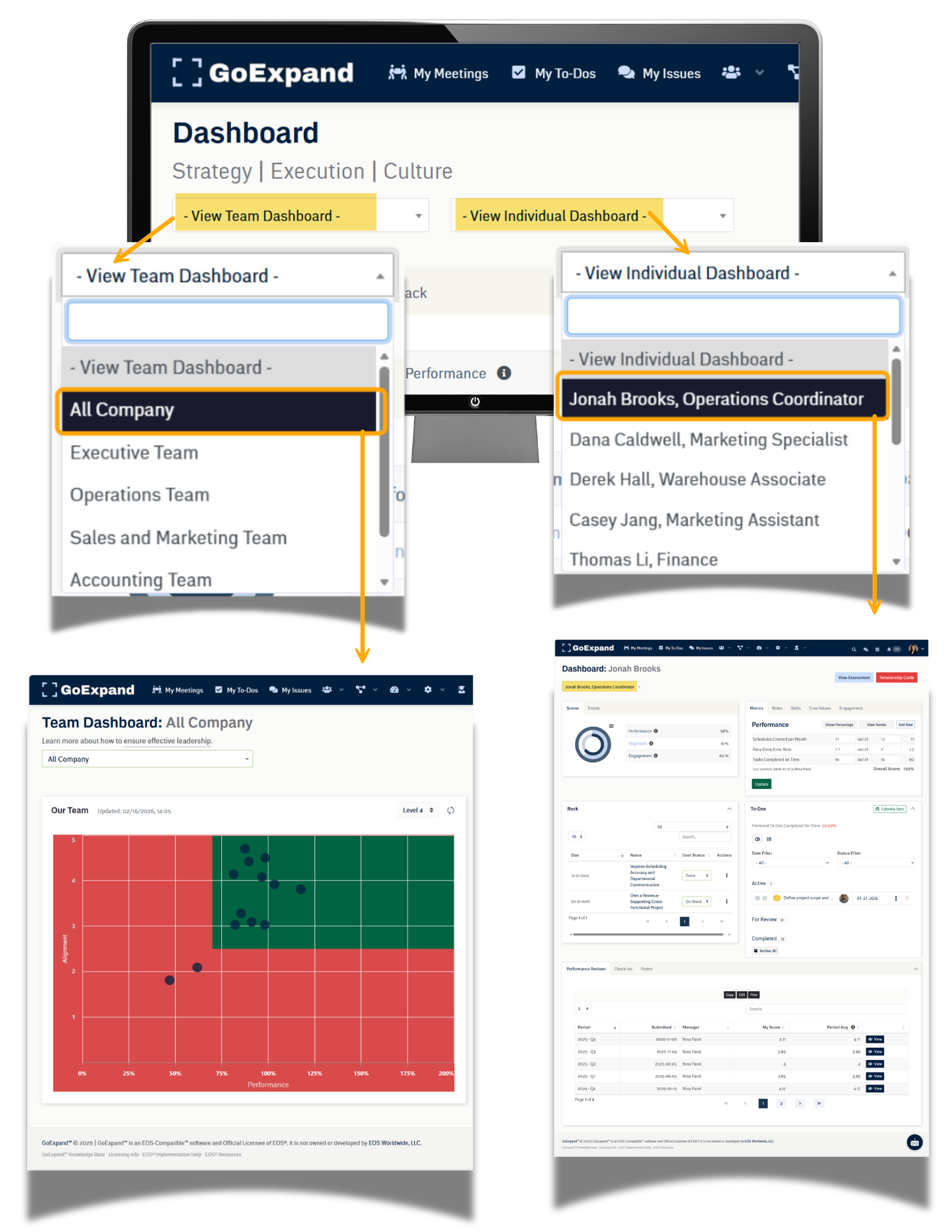
Team and Individual Dashboards
From your main Dashboard, leadership can access performance visibility through:
- Team Dashboard
- Individual Dashboard
The Team Dashboard provides a high-level view of how teams are performing against key measurables and alignment.
The Individual Dashboard allows leaders to click into a specific user to review:
- Owned measurables on the Scorecard
- Assigned Rocks
- Open To-Dos
- Past check-ins and feedback (if enabled)
Basic users may not have access to Team-level views depending on permissions.
My Meetings
All meetings can be accessed through My Meetings, including your weekly Level 10 Meetings™.
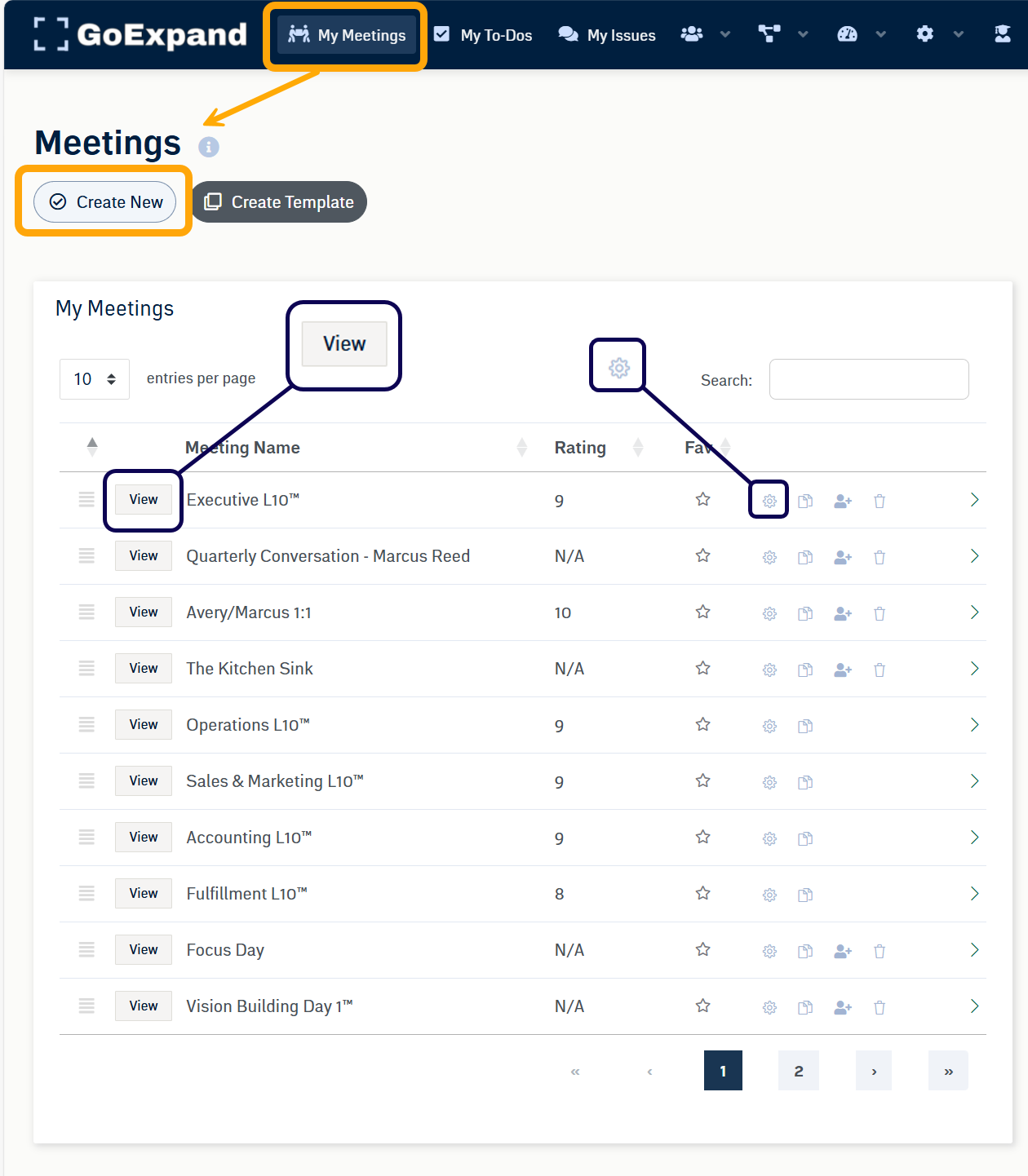
Navigate via:
Dashboard → My Meetings
or
Meetings → My Meetings
Click View to go into the meeting. Use the Gear Icon to go into settings and make any changes to an existing meeting.
Tasks / To-Dos
Your To-Do List is accessible from both the Dashboard and the Navigation Panel.
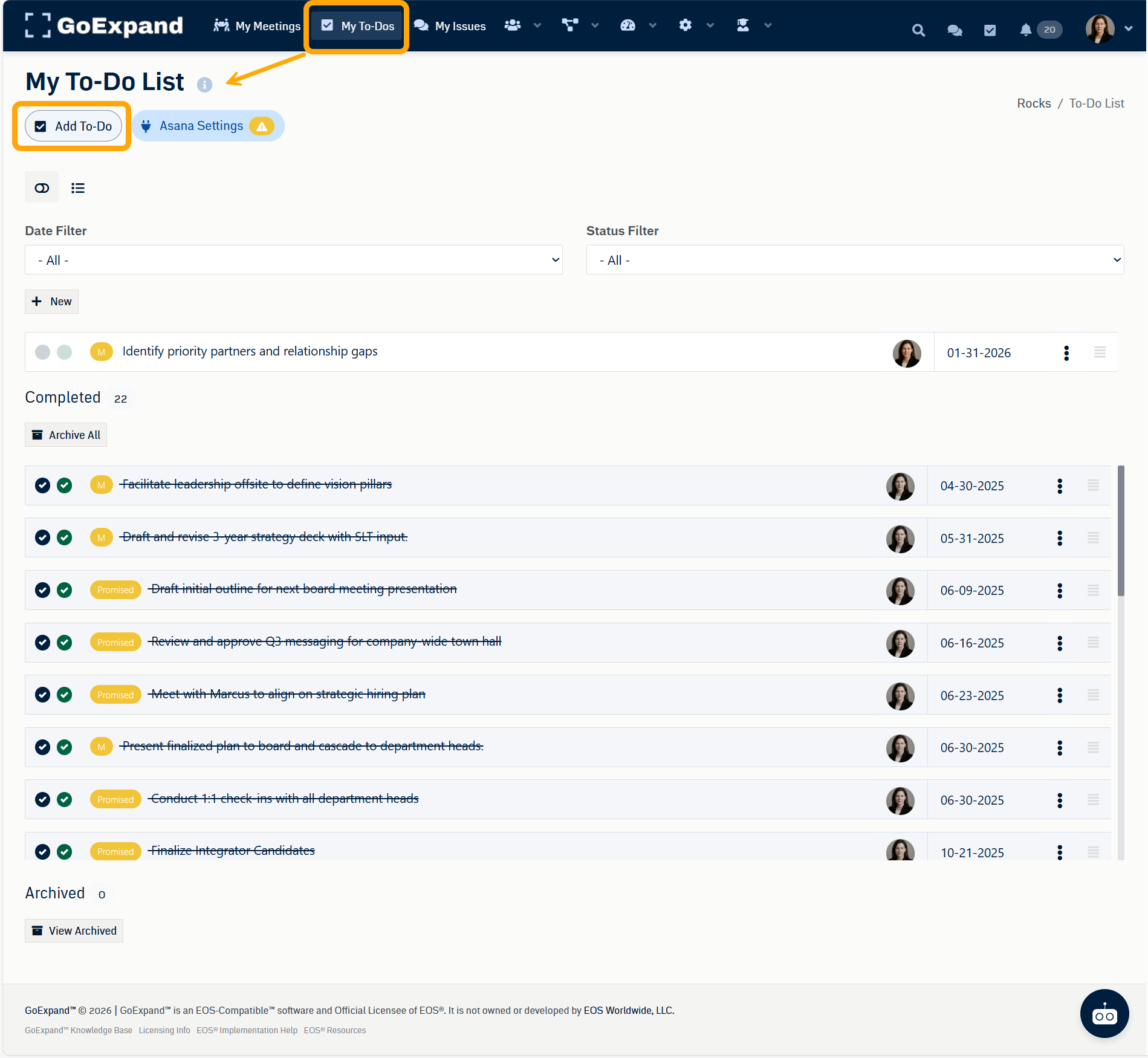
From here, you can:
- Add new To-Dos
- Track completion
- Review ownership and due dates
- Integrate tools like Asana (optional)
Accountability Chart™
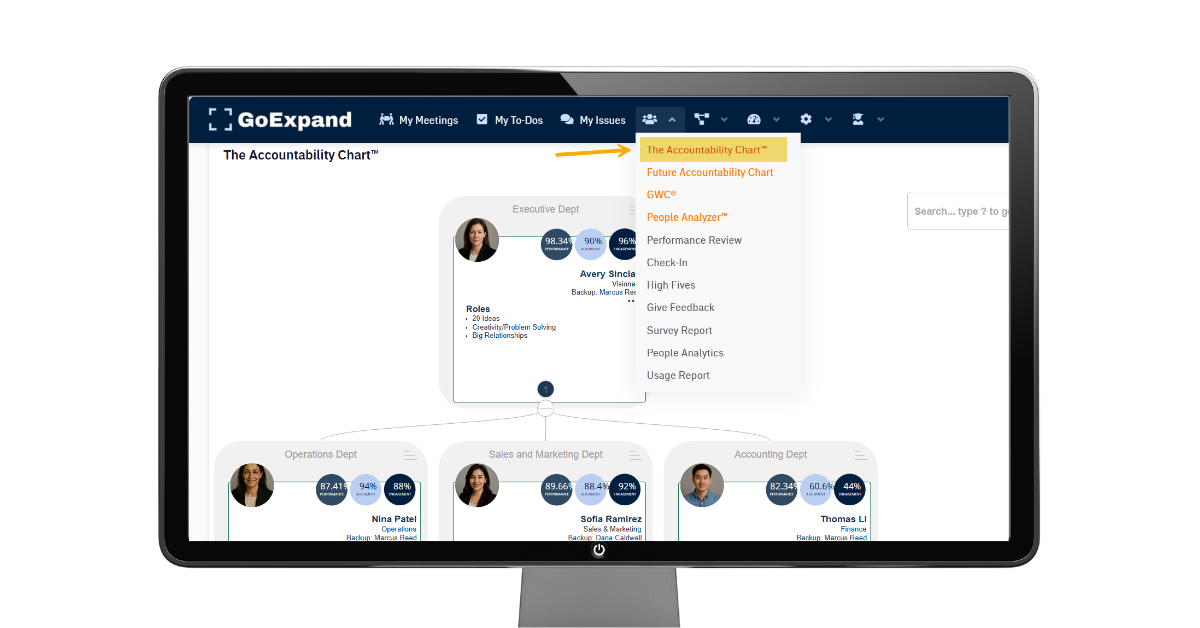
The Accountability Chart™ is accessed via:
People → Accountability Chart™
This is where your leadership structure lives inside GoExpand.
Each seat card includes:
- Seat title
- Assigned leader
- Role clarity
- Key performance ownership
Click any user card to view additional details.
Rocks & Projects
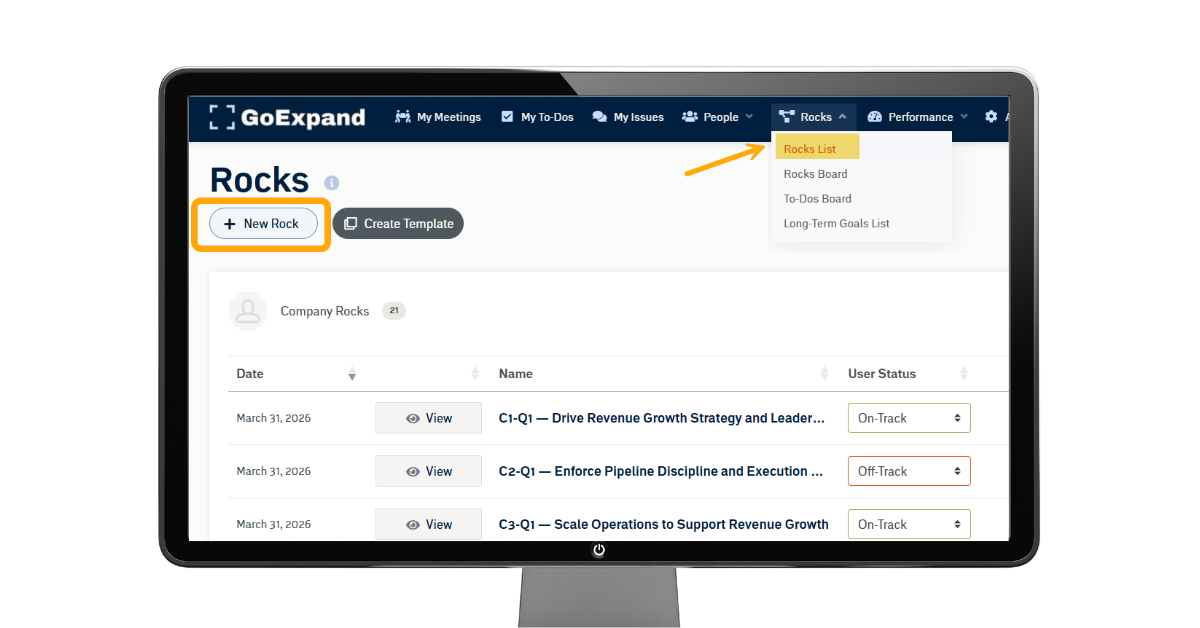
To create or access quarterly priorities, navigate to:
Execution → Rocks
Here you can:
- Assign Company or Individual Rocks
- Track progress weekly
- Connect priorities directly into your Level 10 Meetings™
Administration
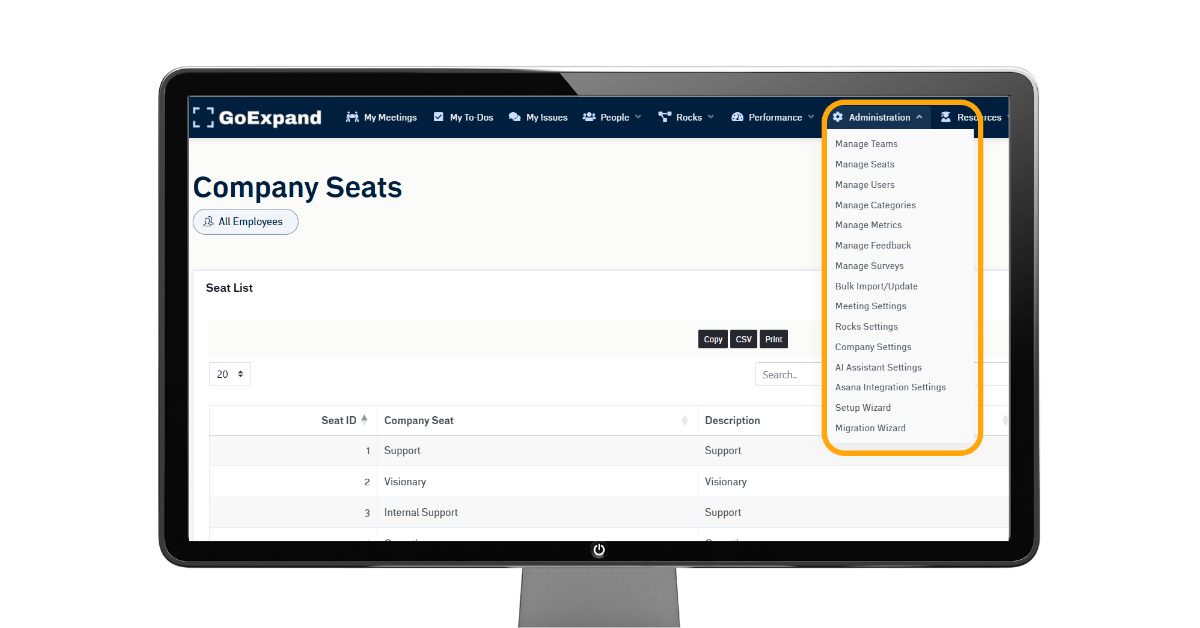
The Administration area is where Admin or Champion users manage the backend setup of GoExpand.
If you’re involved in rollout, you’ll spend plenty of time here early on.
Step 2: Organization Setup
Now that you understand core navigation, it’s time to complete your company setup.
Tackling the following items in order ensures your organization is built on a strong EOS® foundation.
Company Settings
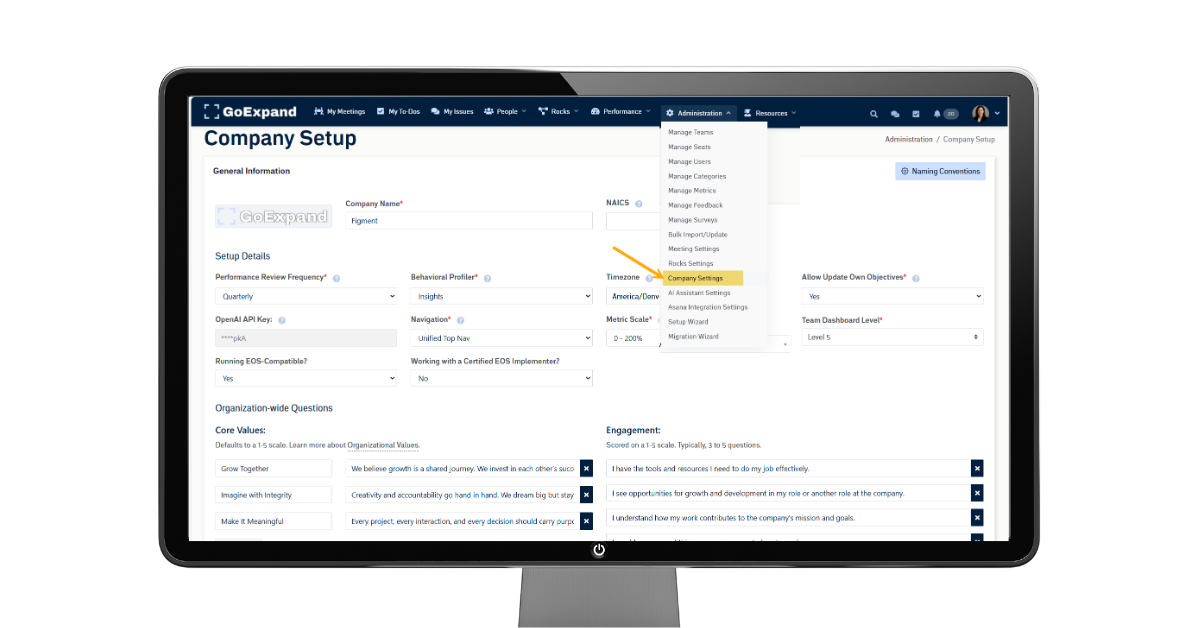
In Company Settings, confirm the items selected during initial company creation, including:
- Company name and details
- Departments / teams
- Core Values
- Leadership structure alignment
These settings support:
- Seat clarity
- Filtering and reporting
- Team organization inside the Accountability Chart™
Be sure to SAVE changes at the bottom of the page.
Manage Roles (Seats & Permissions)
GoExpand comes pre-loaded with standard seat-based role permissions.
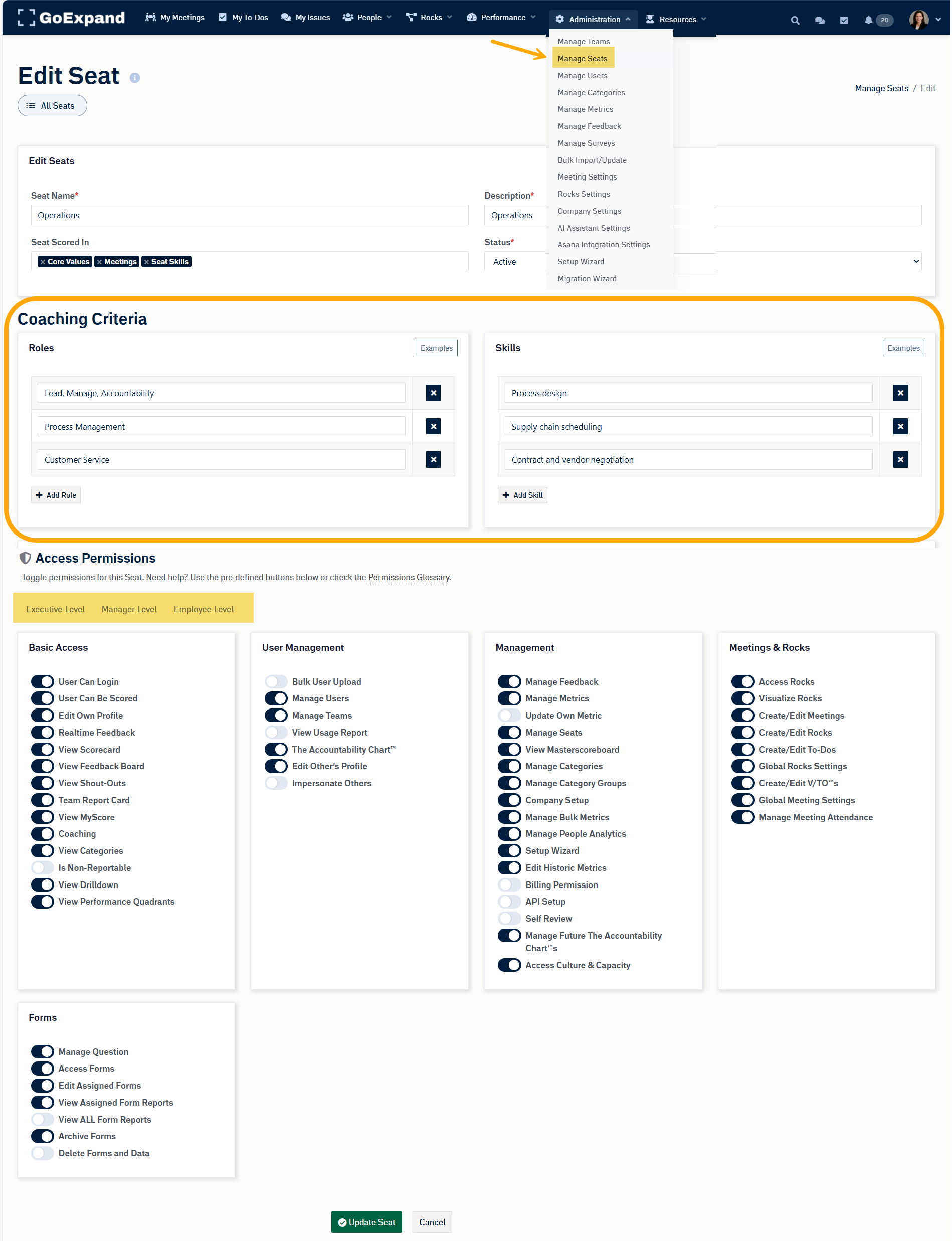
Each user must be assigned a role that reflects:
- Their seat in the organization
- Visibility inside meetings
- Access to tools like Scorecards, Rocks, and IDS® Issues
Add New Seats (Optional)
If needed, Admins can create custom seats by cloning an existing one.
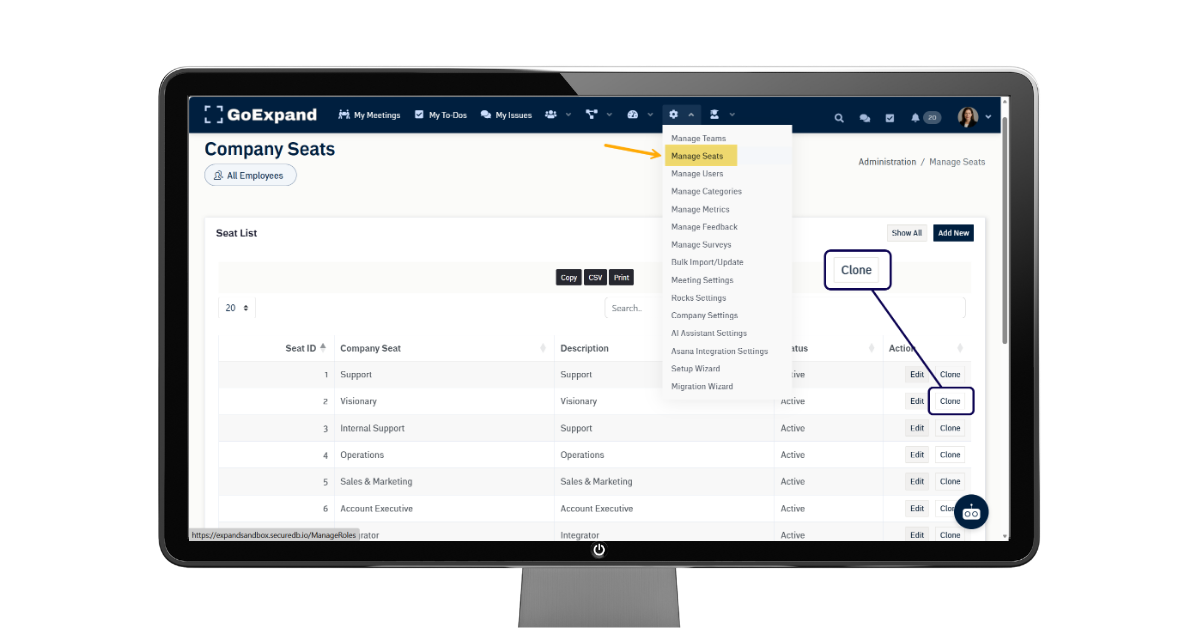
Each role includes:
- Responsibilities
- Skills (optional)
- Permission levels (Executive / Manager / Employee)
Save all updates once complete.
Manage Users
While users can update personal information, Admins should verify leadership profiles early on.
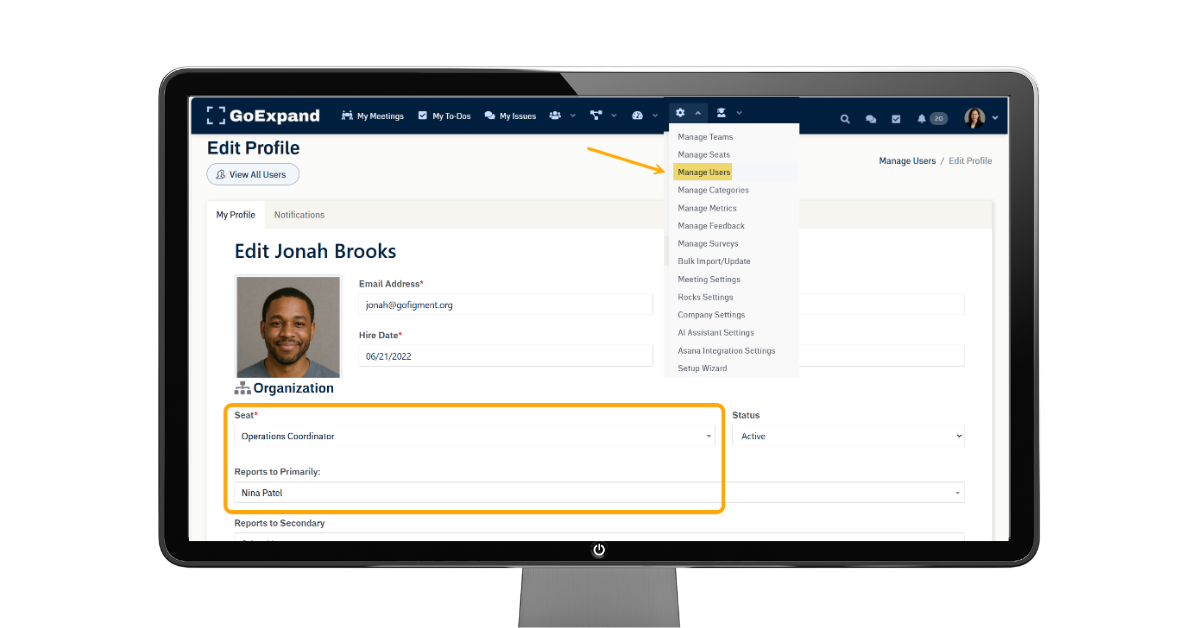
Key fields include:
- Department (used for grouping)
- Function (optional internal categorization)
- Reports To (critical for the Accountability Chart™)
We recommend adding profile photos to improve clarity and engagement across the platform.
Add New User
Users can be added through:
Administration → Manage Users → Add New
or directly through the Accountability Chart™
Required fields:
- First name
- Last name
- Role / Seat assignment
Highly recommended:
- Department
- Reports To
Send Welcome Email (optional), then Save.
Add a New User via the Accountability Chart™
Navigate to:
People → Accountability Chart™
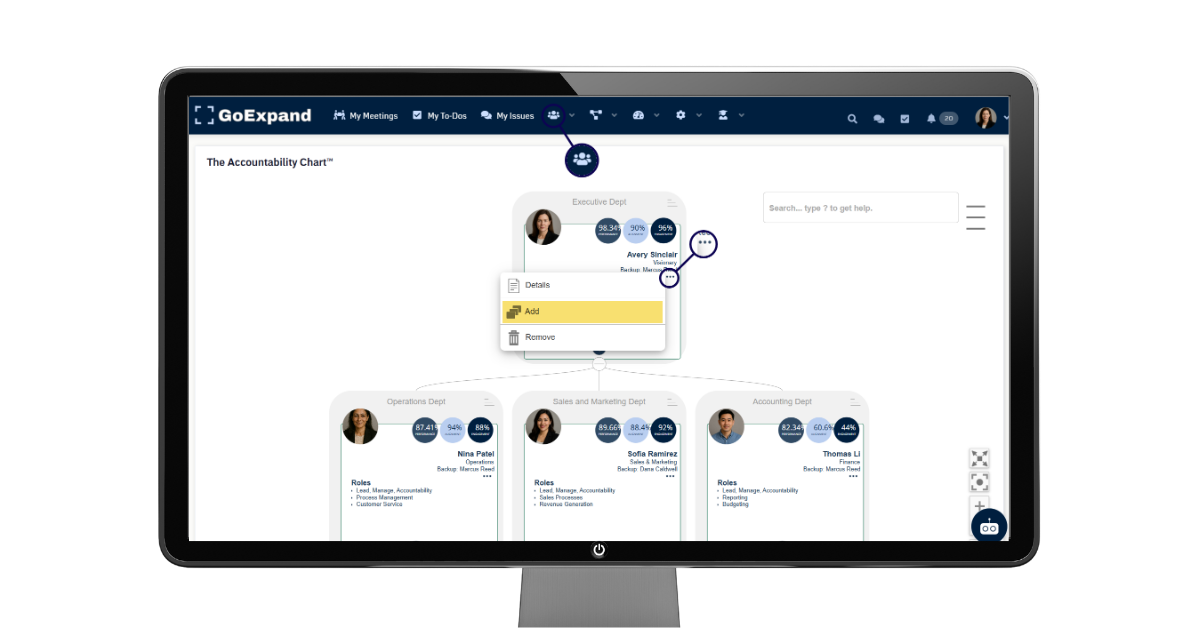
- Select the leader the new user will report to
- Click the three-dot menu
- Choose Add
- Enter user details
- Save and Close
Step 3: Create Teams
Now that your users are in place, it’s time to build Teams.
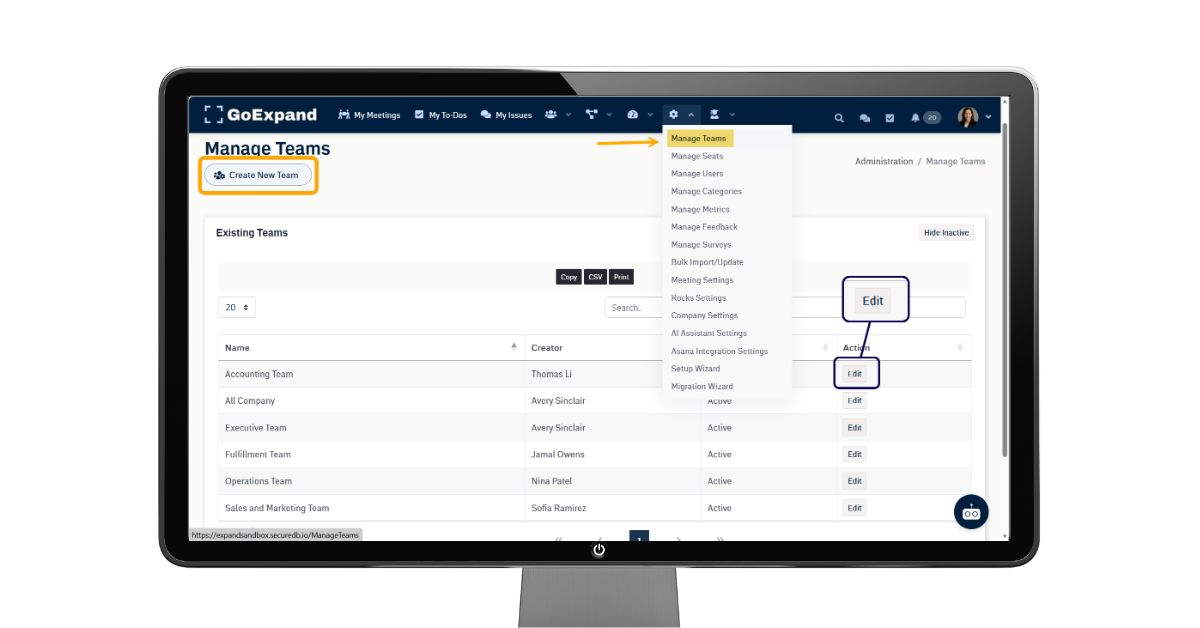
Teams support:
- Filtering dashboards
- Assigning shared Rocks
- Building meeting groups
- Supporting long-term planning (1-Year Plan, 3-Year Picture™)
To create a team:
Administration → Manage Teams → Create New Team
Assign:
- Team Name (often matches department)
- Team Creator (typically the manager)
- Viewers (optional)
- Employees included in the team
Click Add New to complete setup.
You’re Ready to Run on EOS® with GoExpand
Once these three steps are complete, your leadership team is ready to begin running structured, accountable meetings inside GoExpand — supported by:
- The Scorecard
- Quarterly Rocks
- Clear ownership through the Accountability Chart™
- Consistent execution through the Level 10 Meeting™ Pulse
- Issue-solving with IDS®
Welcome to GoExpand.
Welcome to clearer execution.
Welcome to Traction®.
See full platform training articles here.
>Up Next: Create & Manage EOS® To-Dos in GoExpand | Knowledge Base Express
Learn about Admin Advanced Features.
Further reads on the benefits of an EOS
What is EOS? A Guide to the Entrepreneurial Operating System – Guru
A clear explanation of EOS’s six key components and how implementing them promotes clarity, accountability, efficiency, and sustained growth in organizations.
🔗 https://www.getguru.com/reference/what-is-eos
Case Studies: The Impact of EOS in the Food & Ag Industry – 3P Partners
Business case examples showing how EOS implementation improved vision alignment, accountability, issue solving, and growth in real companies.
🔗 https://3ppartners.com/case-studies-the-impact-of-an-entrepreneurial-operating-system-eos-within-the-food-ag-industry/
EOS: An Entrepreneurial Operating System for Business Success – TwentyEighty
Highlights key benefits of EOS, including improved clarity, accountability, focus, and problem-solving that can lead to smoother operations and increased effectiveness.
🔗 https://www.twentyeighty.co/post/eos-an-entrepreneurial-operating-system-for-your-business-success