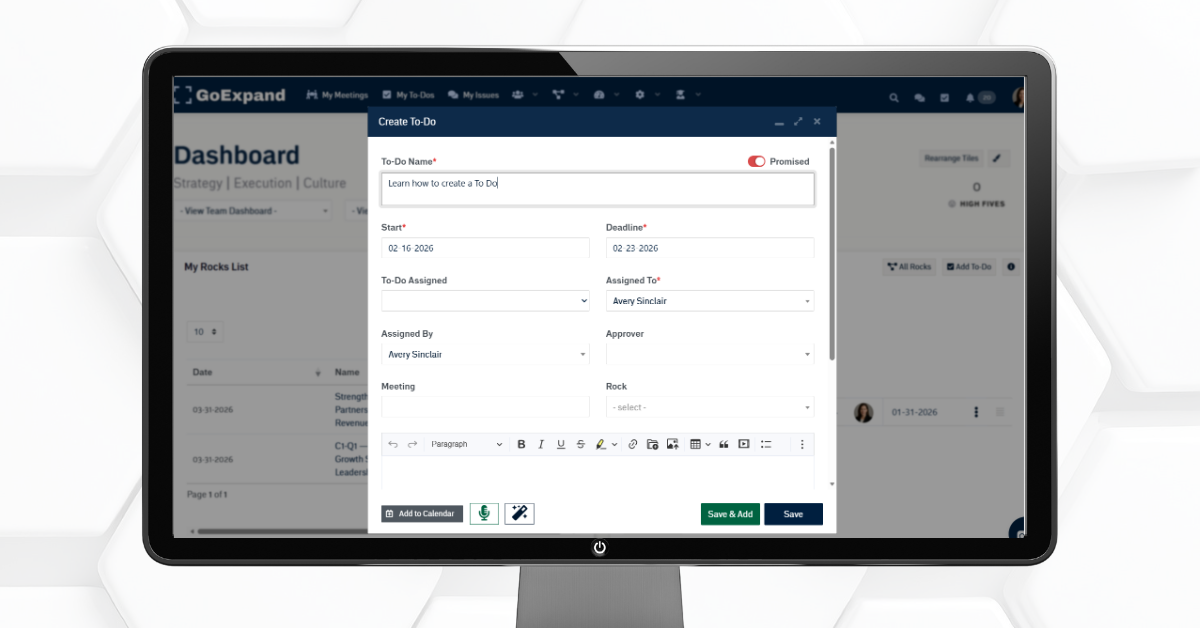
Edit To-Do screen in GoExpand showing assignment, due date, and Level 10 Meeting™ linkage
What Are To-Dos in GoExpand?
In GoExpand, a To-Do is a clear, specific action assigned to one person that supports a Rock, measurable on the Scorecard, or an Issue solved during IDS®.
Its purpose is simple: turn Vision into execution.
To-Dos create ownership, accountability, and measurable progress inside your EOS® Meeting Pulse™. They make work visible and trackable so leadership teams can:
- Drive accountability
- Improve alignment
- Track weekly progress
- Strengthen execution discipline
Every To-Do has one owner and one due date.
Watch the training video:
Accessing Your To-Dos
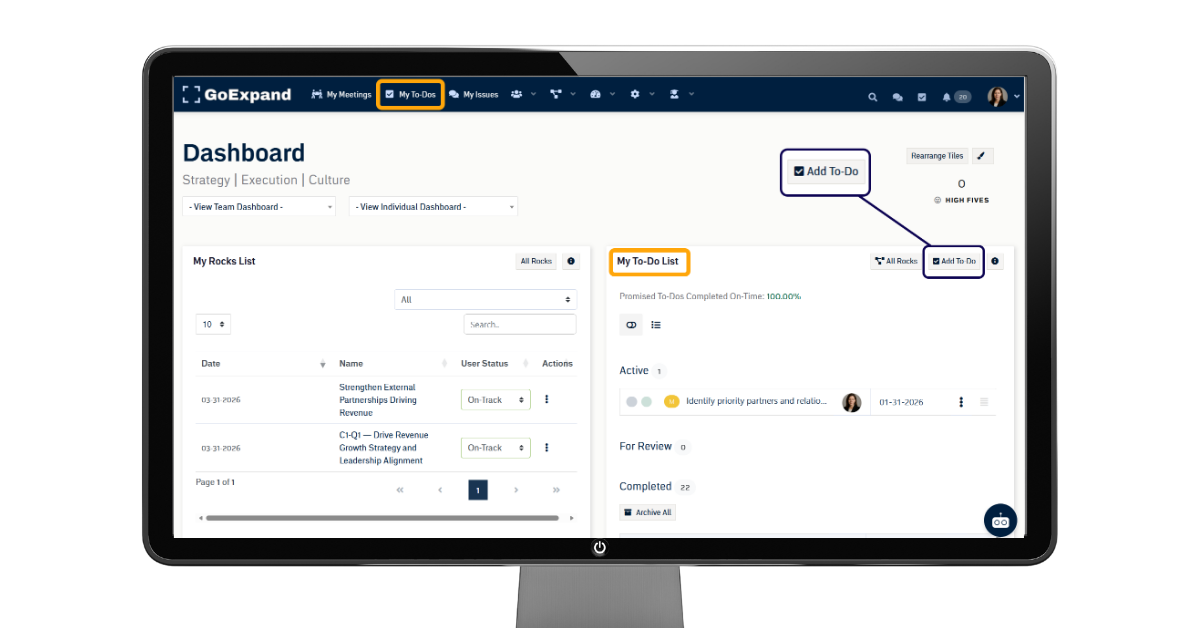
You can view your To-Dos at any time by:
- Clicking My To-Dos in the top navigation panel
- Using the My To-Do List widget on your Dashboard
Both options take you to the same centralized view, keeping execution visible and accessible.
To create a new To-Do, click the Add To-Do button.
Linking a To-Do to a Level 10 Meeting™
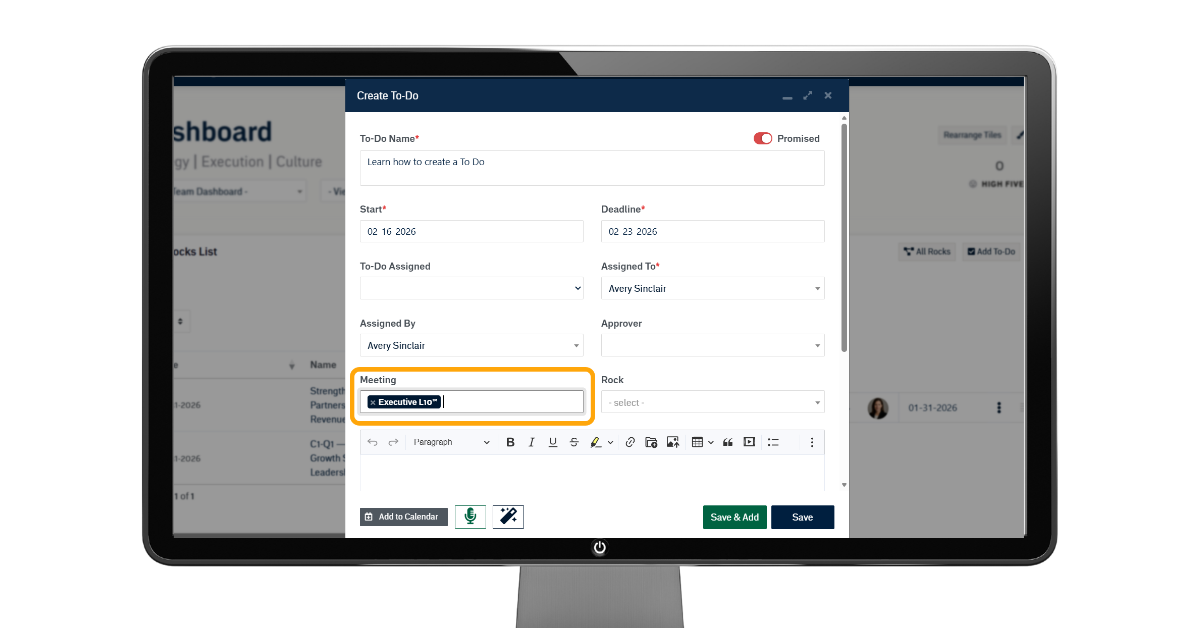
Attaching a To-Do to a meeting is important because it creates a clear, accountable connection between what needs to be done and when it will be reviewed.
When a To-Do is linked to a Level 10 Meeting™, it:
- Appears in the To-Do List portion of the agenda
- Is reviewed weekly during your meeting
- Stays visible until completed
Simply put, it ensures nothing falls through the cracks.
Creating a To-Do inside a meeting automatically links it to that specific Level 10 Meeting™.
Adding To-Dos Directly From Within a Level 10 Meeting™
You can create To-Dos during meetings in multiple ways.
From the Issues List Using IDS®
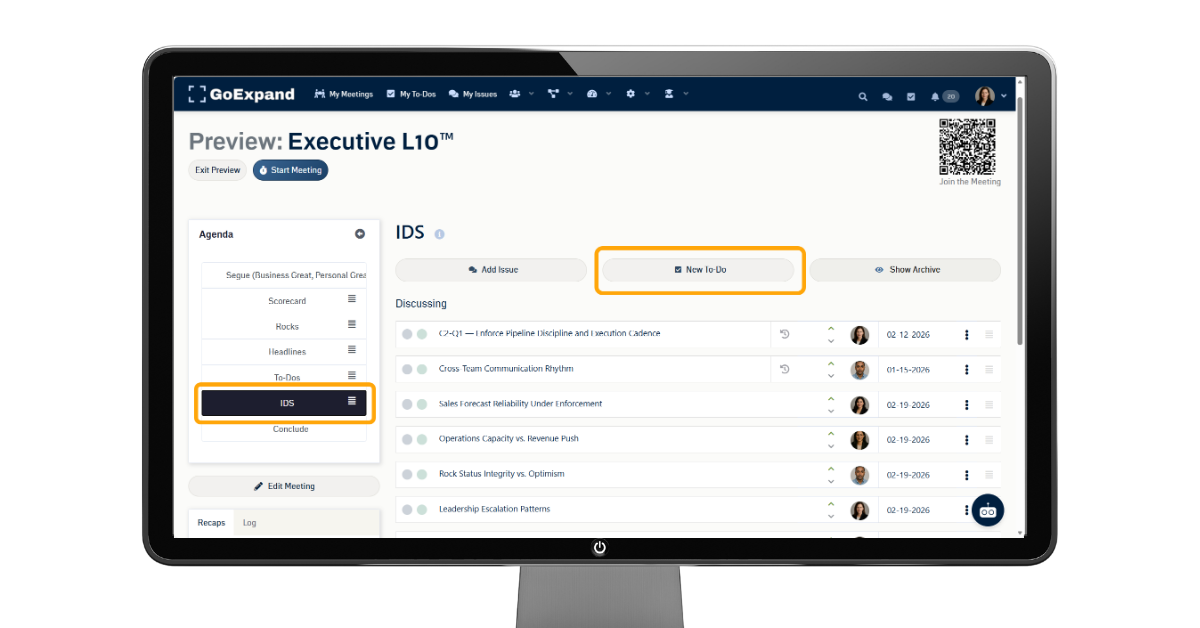
While running IDS® (Identify, Discuss, Solve):
- Open the Issue being discussed
- Select the option to create a To-Do
- Assign one owner
- Set a due date
- Save
This ensures the discussion turns into a clear, trackable action item with accountability.
From the Scorecard During a Meeting
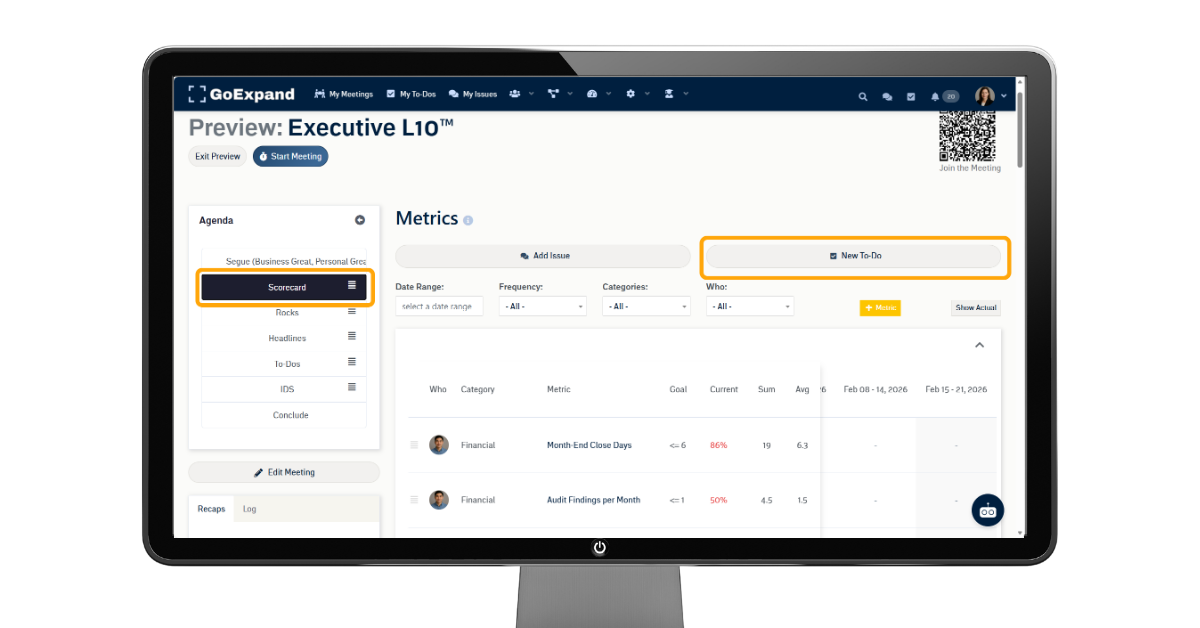
You can also create a To-Do directly from the Scorecard inside a Level 10 Meeting™.
If a measurable is off track:
- Click New To-Do at the top of the Scorecard
- Assign an owner
- Set a due date
- Save
This connects weekly measurables to action immediately.
Why To-Dos Matter in EOS®
Strong teams running on EOS® use To-Dos to:
- Execute quarterly Rocks
- Solve Issues through IDS®
- Improve measurables on the Scorecard
- Maintain discipline in their Level 10 Meetings™
Without To-Dos, meetings become conversations.
With To-Dos, meetings drive Traction®.
Read full training article here.
>Up Next: Add & Manage Metrics in GoExpand | Scorecard KPI Tracking Guide
Further reads:
MindTools – Get Organized With To-Do Lists
https://www.mindtools.com/axlsiha/get-organized-with-to-do-lists/
MindTools – Ten Tips for To-Do Lists
https://www.mindtools.com/a111tma/ten-tips-for-to-do-lists/
Microsoft 365 Life Hacks – How to optimize your to-do list (task management tips)
https://www.microsoft.com/en-us/microsoft-365-life-hacks/everyday-ai/to-do-list
Atlassian – The psychology of checklists (why small goals drive follow-through)
https://www.atlassian.com/blog/productivity/the-psychology-of-checklists-why-setting-small-goals-motivates-us-to-accomplish-bigger-things
Verywell Mind – The Eisenhower Matrix (prioritizing tasks to reduce stress and improve execution)
https://www.verywellmind.com/eisenhower-matrix-benefits-and-application-8779812