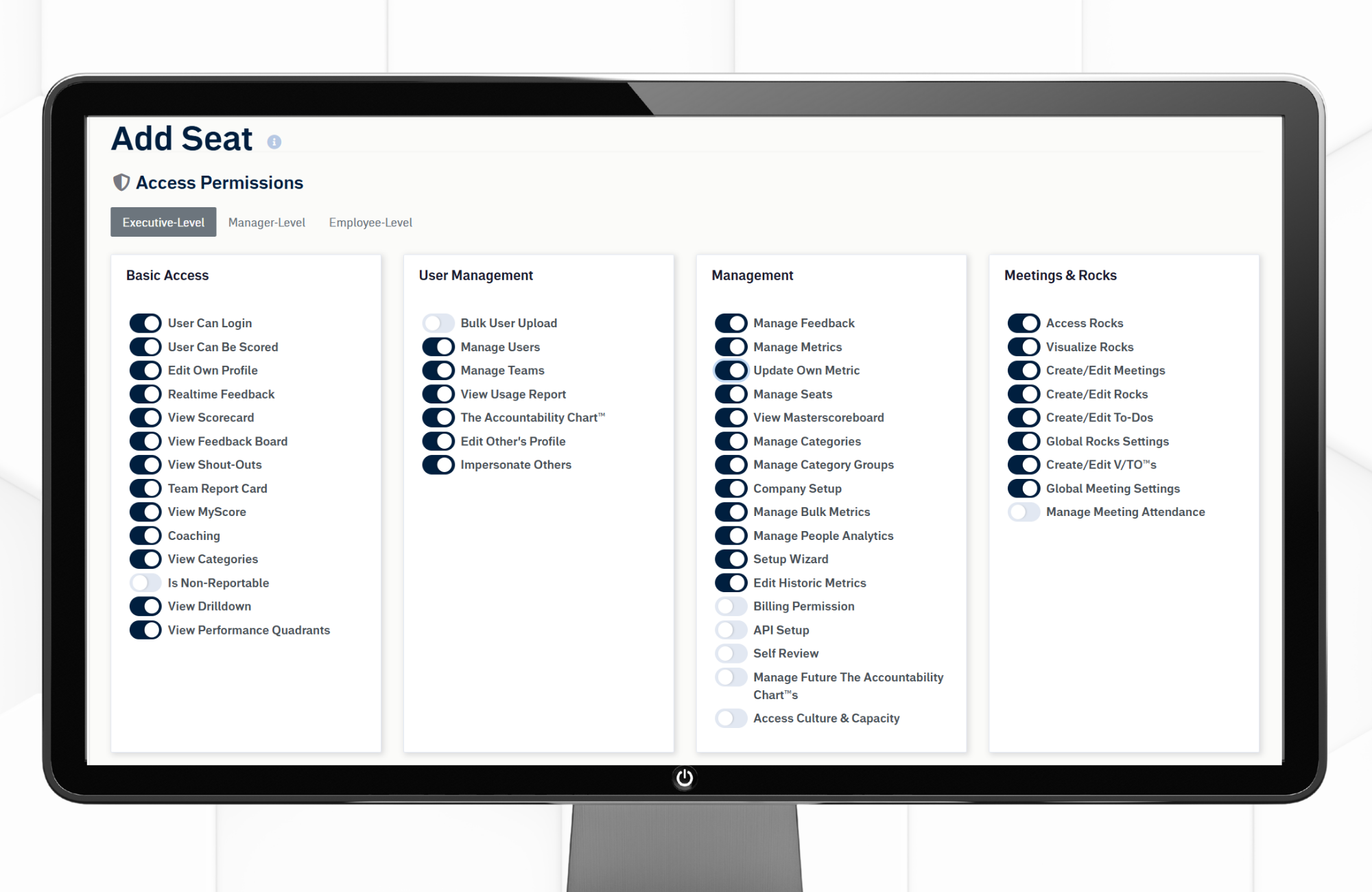
GoExpand access permissions screen showing seat-based toggles for user access, meetings, Metrics, Rocks, and administration.
Platform Access and Permissions
Seat permissions in GoExpand control what users can access and manage within the platform. Assigning the correct permissions ensures team members have the tools they need to perform their Seats while maintaining clarity, security, and accountability.
This guide provides a simple overview to help you understand, assign, and manage Seat permissions effectively.
Viewing Seat Permissions
Seat permissions determine what users can see and access within GoExpand. To review permissions, navigate to the Seat settings and open the permissions view to see which features, tools, and sections are enabled.
This visibility helps ensure users have the right level of access based on their responsibilities.
Navigation:
Administration → Manage Seats → Edit Seat or Add New → Scroll to the bottom
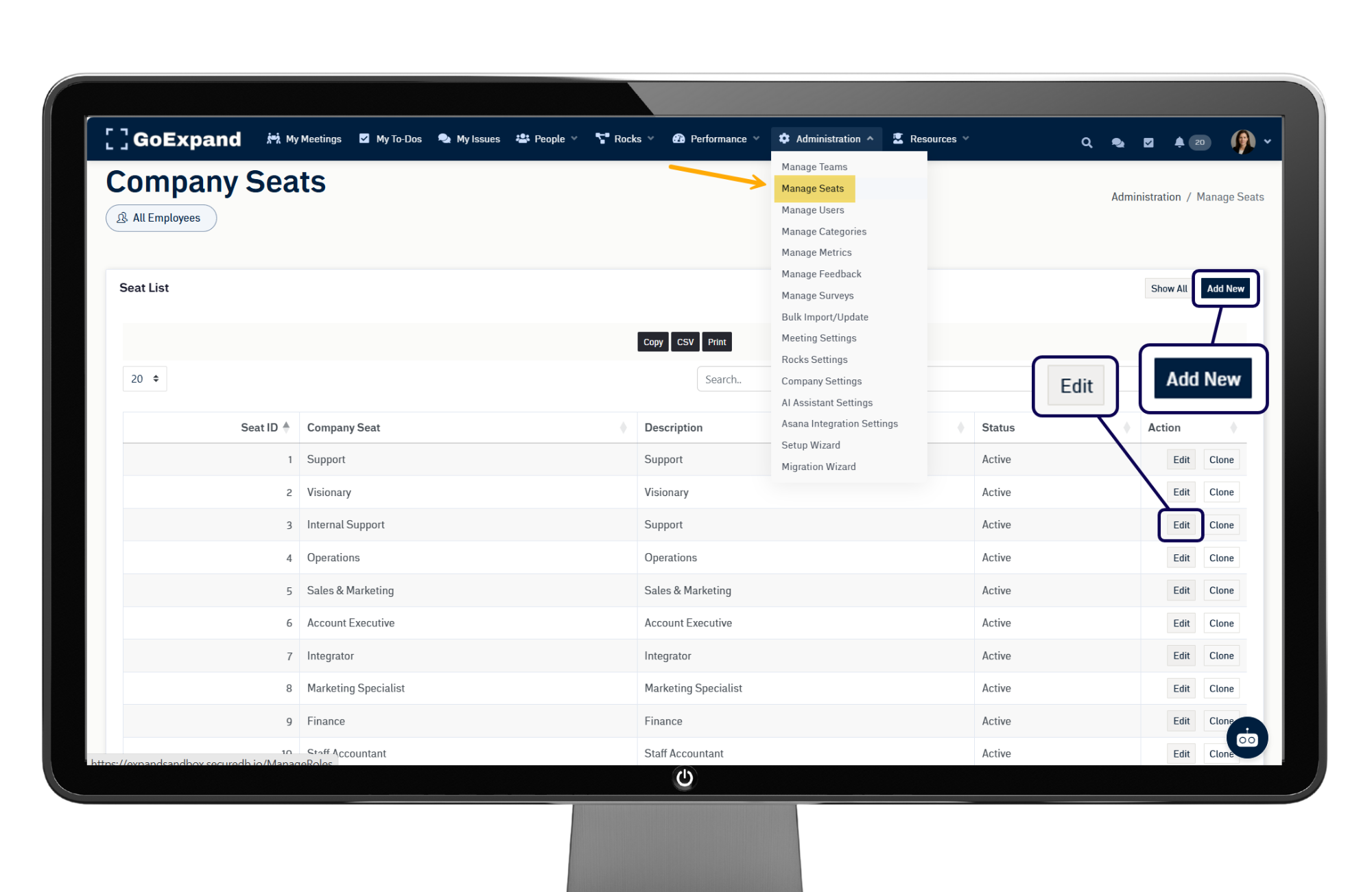
Editing Seat Permissions
The Executive, Manager, and Employee tabs under Permissions represent different levels of access within GoExpand.
- Executive permissions provide visibility and control over strategic planning, reporting, and company-wide settings.
- Manager permissions support team oversight, including managing meetings, To-Dos, Rocks, and performance tools.
- Employee permissions are designed for individual contributors to manage their own work without access to administrative or strategic areas.
If you have permission to make changes, you can adjust Seat permissions by selecting the appropriate options for each access level.
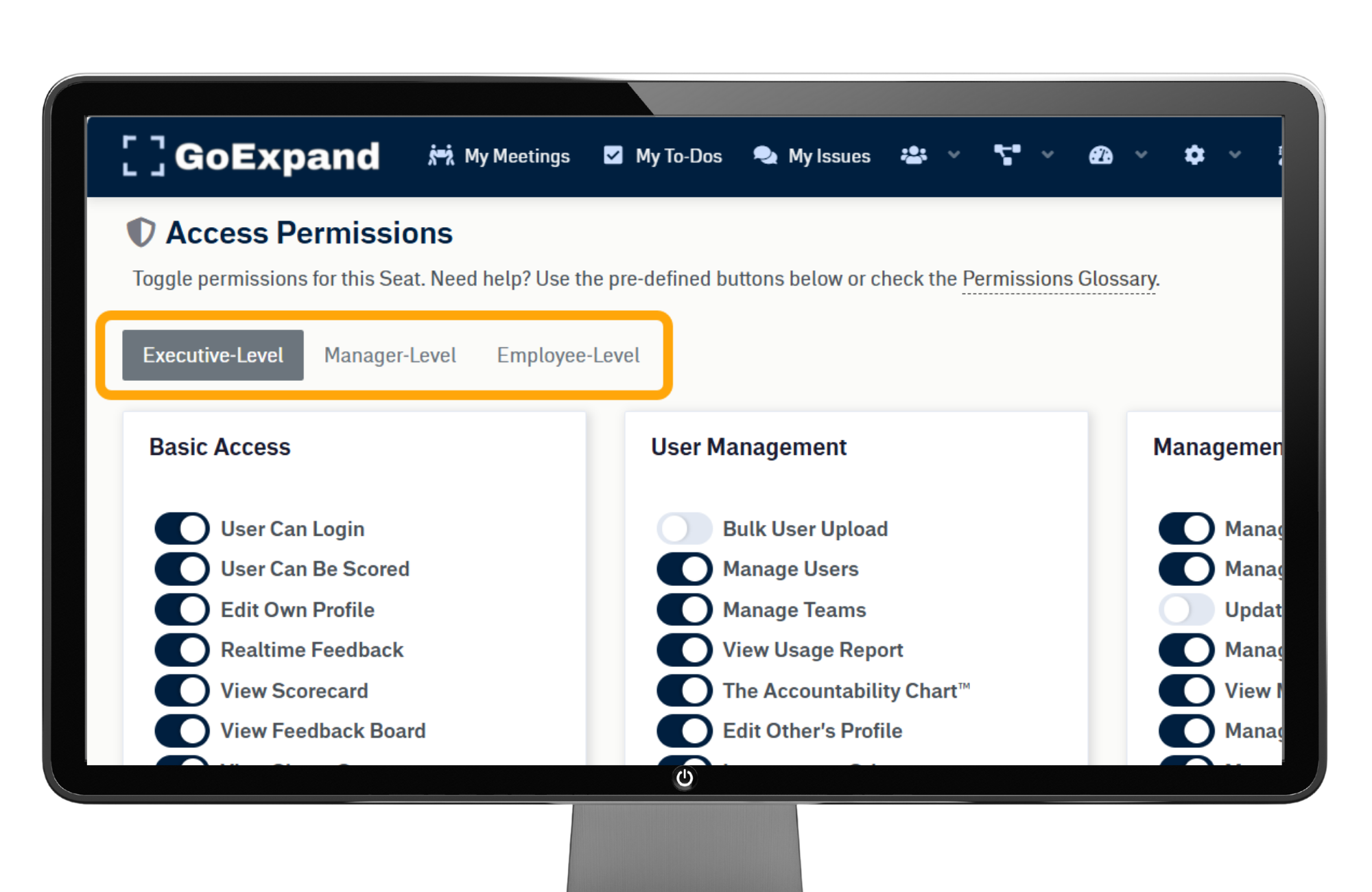
Permissions control access to:
- Level 10 Meetings™
- Scorecards and Metrics
- Rocks and execution tools
- Dashboards and reporting
- Administration features
Changes take effect immediately, so review selections carefully before saving.
Best Practices for Managing Permissions
Assign permissions based on Seats rather than individuals to keep access consistent as your organization grows or changes.
Limit administrative permissions to only those who truly need them to maintain data integrity and security.
Review permissions regularly to ensure alignment as responsibilities evolve.
Once permissions are set, click Update Seat to save changes.
Metric Editing Permissions
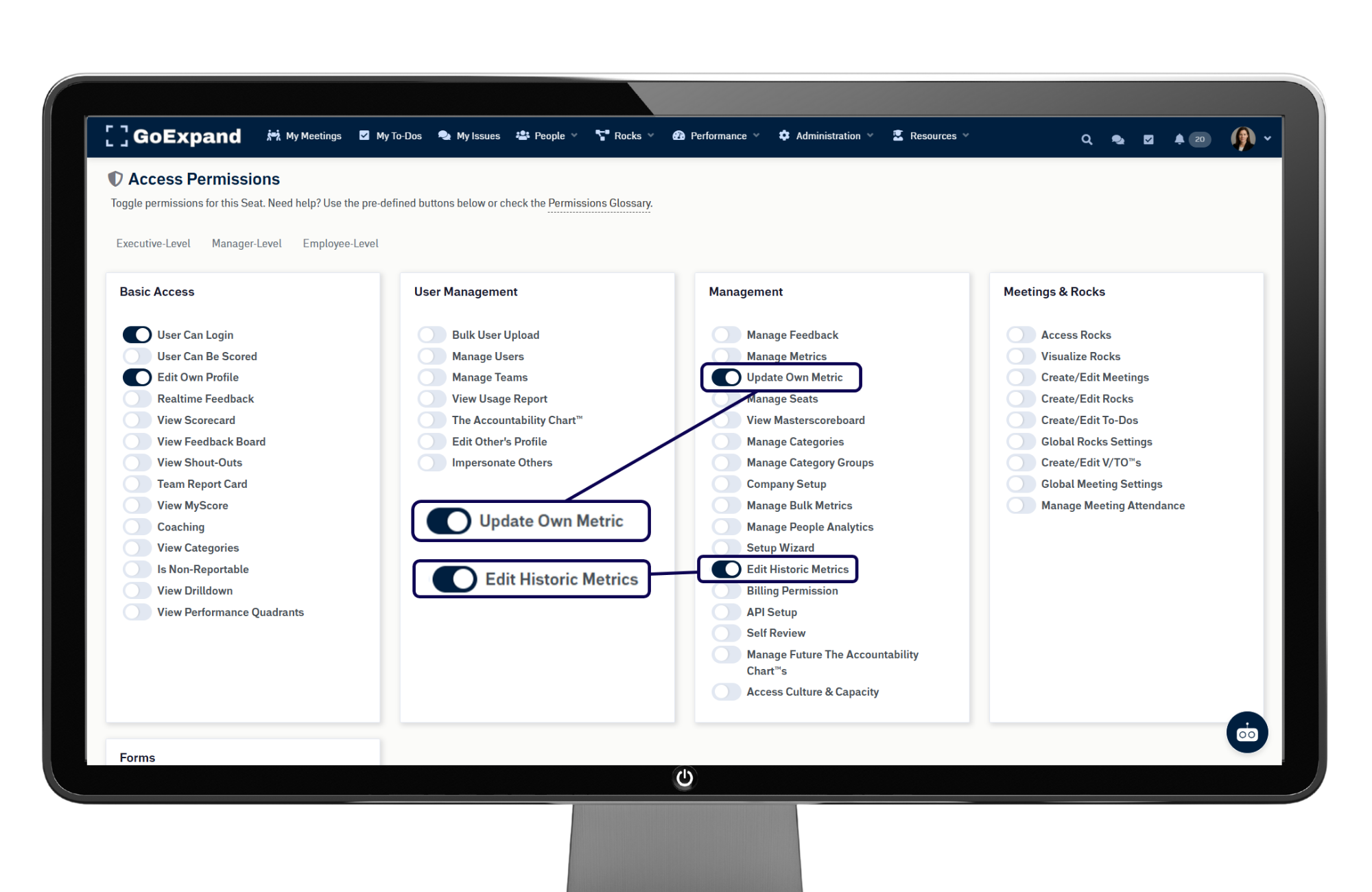
If you want users to update their own Metrics, Scorecard values, and performance data, enable:
- Update Own Metrics
- Edit Historic Metrics
These permissions allow users to manage and maintain their weekly performance data accurately over time.
See full Knowledge Base training article here.
Permissions Glossary
Basic Access
- User Can Login: The Seat will have the ability to log into to the application.
- User Can Be Scored: The Seat will have the ability to be scored by other users.
- Edit Own Profile: The Seat will have the ability to edit their own profile.
- Realtime Feedback: User will have the RealTime Feedback menu option visible to them.
- View ScoreBoard: The Seat will have the ability to view the ScoreBoard for themselves and their reporting users.
- View FeedackBoard: The Seat can view the FeedbackBoard for themselves and their reporting users.
- View Shout-Outs: The Seat will have the ability to view Shout-Outs for themselves and their reporting users.
- Team Report Card: Formerly called the “Team Report Card” this allows users to view their Team Dashboard.
- View My Score: Allows the Seat to view its own score.
- Coaching: Enables the “Coaching” module for this Seat.
- View Categories: Enables this Seat to view Feedback and Metric categories.
- Is Non-Reportable: This permission means that nobody can Report To users in this Seat and they cannot be scored.
- View Drilldown: Enables visibility of the ScoreBoard Drilldown chart on the Dashboard and in the Menu.
- View Performance Quadrants: Enables the visibility of the Performance/Engagement Scatter Plot on the Team Dashboard for users in this Seat.
User Management
- Bulk User Upload: The Seatwill have the ability to bulk upload/update/import users for this company, IF they have permission to Manage Users.
- Manage Users: The Seat will have the ability to add and edit other users.
- Manage Teams: Formerly “User Groups,” this allows users in this Seat to Add, Create, and Edit Teams
- View Usage Report: The Seat will have access to see the usage report which shows who logged-in and how many times.
- The Accountability Chart: The Seat will have access to an interactive Org Chart, showing all reporting users.
- Edit Other’s Profile: Allows users in this Seat to edit the profiles of other users in the application, regardless of Reports To structure.
- Impersonate Others: The Seat with have the “Impersonate” function available in their profile menu.
Management Permissions
- Manage Feedback: The Seat will have the ability to create and edit factors in the Feedback Categories in which they can score.
- Manage Metrics: The Seat will have the ability to create and edit Metrics in the Metric Categories in which they can score. Metrics are not available in the Lite Edition.
- Update Own Metrics: If your organization allows this in Company Settings, this permission allows the logged-in user to update the current value of their own Metrics.
- Manage Seats: The Seat will have the ability to create and edit Seats.
- View Masterscoreboard (Admin Level): The Seat has the ability to view the entire organization’s ScoreBoard with every active Scorecard Category. It skips the Reports To structure completely.
- Manage Categories: Enables users to add and edit Metric and Feedback categories.
- Manage Category Groups: Enables users to create and edit Category Groups which are used in the Drilldown Chart if there are a lot of active Metric or Feedback Categories and you want them grouped.
- Company Setup (Admin Level): Allows users in this Seat to edit organization-wide settings originally created during Company Creation.
- Create New Company (Super-Admin Level): Allows this Seat to create new organizations.
- Manage Questions: Enables creation and editing of questions for Pulse Surveys and 1-on-1s.
- Manage Bulk Metrics: Allows this user to mass update Metrics for the users that Report To them. Metrics are not available in the Lite Edition.
- Manage People Analytics: Access information about all users within an organization and run reports.
- Setup Wizard: Allows users (managers and up usually) to quickly setup or re-setup Metrics and hierarchy for the users that report to them. Metrics are not available in the Lite Edition.
- Edit Historic Metrics: Grants users in this Seat the ability to add/edit Metrics in the meeting Scorecard backwards in history. By default, being able to “Manage Metrics” only lets the user add/edit Metrics‘ current Core Value. This permission lets them go back in time to add or update Metrics in the past.
- Billing Permission: Grants the logged-in user the right to view and update payment information regarding your subscription to GoExpand.
- API Setup: Allows access to create and modify Zapier integrations for your organization.
- Self Review: Typically, the logged-in user is not included as an option to select themselves for Performance Reviews. Turning on this permission allows them to conduct Performance Reviews on themselves.
- Manage Future Accountability Chart: Grants access to view and create Future Accountability Charts.
- Access Culture & Capacity: Enables access to the Culture & Capacity Review tool.
Meetings & Rocks
There are 8 permissions for Meetings and Rocks. The rest of the visibility/permissions are handled by an invitation/acceptance system. In this way, you are invited to a Rock or a meeting and, if you accept, you can see everything included in that Rock or meeting–regardless of Reporting structure. After all, you’ve been invited to take a “seat at the table.”
- Access Rocks: Enables or Disables access to any and all parts of Meetings and Rocks.
- Visualize Rocks: Enables use of the Gantt chart for visualizing Rocks and updating start/end dates.
- Create/Edit Meetings: Grants this Seat permission to create meetings and edit meetings they have created.
- Create/Edit Rocks: Grants this Seat permission to create Rocks and edit Rocks they have created.
- Create/Edit To-Dos: Grants this Seat permission to create or edit To-Dos as well as the Manager View.
- Global Rock Settings: Grants this Seat permission to edit global Rock defaults, Rock templates, and high-level 1 and 3 Year Goals.
- Create/Edit V/TO: Allows access to GoExpand‘s V/TO Planner tool.
- Global Meeting Settings: Grants this Seat permission to edit global meeting defaults, meeting templates, and meeting segues.
- Manage Meeting Attendance: The Seat will be allowed to update meeting attendance choices regardless of reporting structure.
Forms
These 6 permissions govern our Custom Survey Forms tool.
- Access Forms: Grants the user access to see the tool, though they can’t make any edits to forms.
- Edit Assigned Forms: Allows users to make edits to forms they have been granted specific access to edit.
- View Assigned Form Reports: This permissions allows this user to view the data gathered from reports they have been assigned.
- View ALL Form Reports: This admin-level permission skips any visibility requirements, allowing this user to see form data for every form in the organization.
- Archive Forms: Allows users to archive forms they have been granted specific access to edit.
- Delete Forms and Data: Allows users to delete forms (and all data associated) they have been granted specific access to edit.
>Up Next: Add & Manage Users in GoExpand | Seat and Access Setup