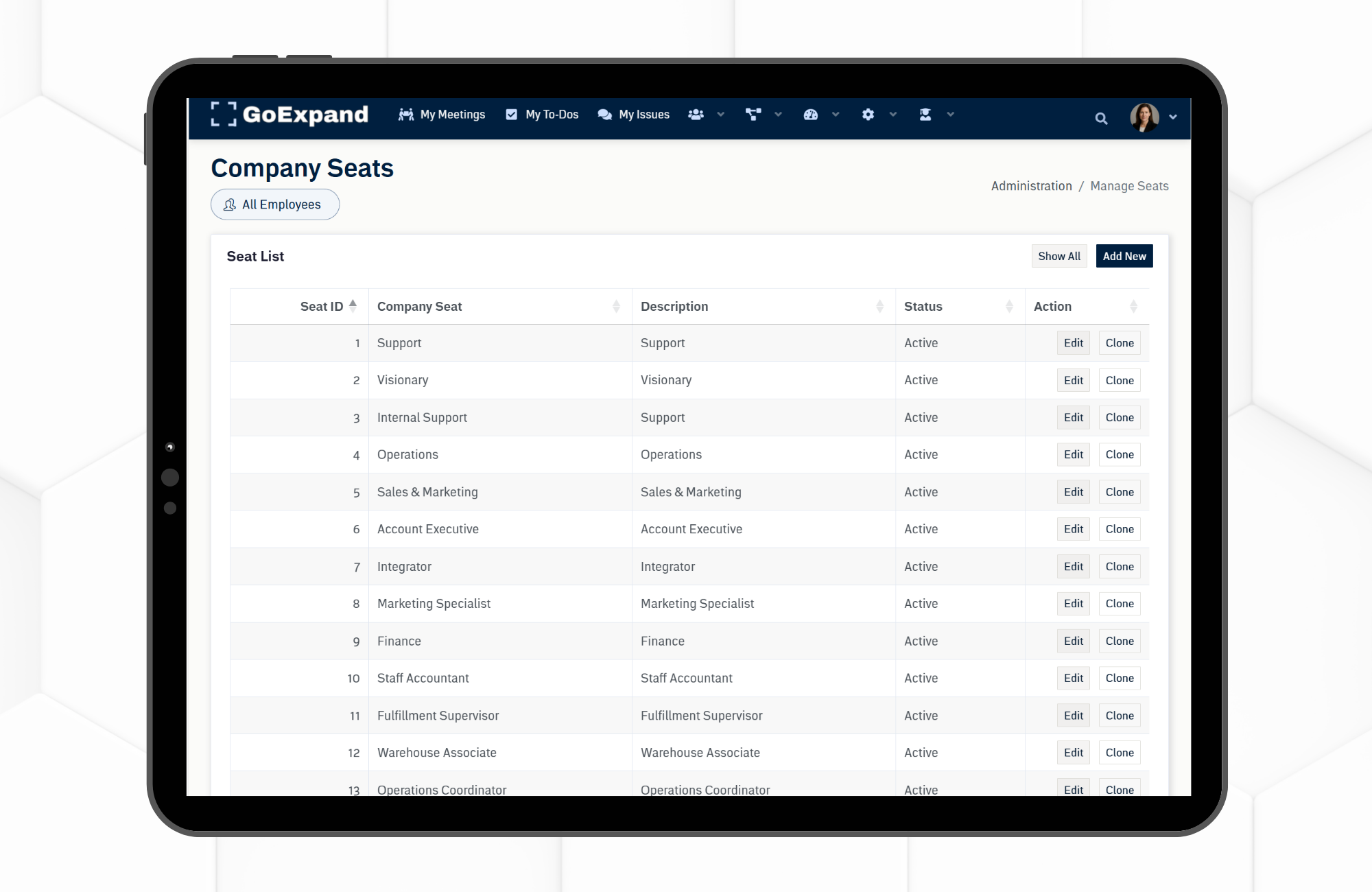
GoExpand Seats page showing seat list, descriptions, status, and edit options.
Managing Seats in GoExpand ensures every user has the correct access, visibility, and responsibilities inside the platform. When Seats are set up properly, your Level 10 Meetings™ run smoother, your reporting structure stays clear, and your data remains secure.
This guide walks you through how to view, create, and manage Seats effectively.
Understanding Seats in GoExpand
Seats determine what users can see and do inside GoExpand. Instead of assigning permissions to individuals one-by-one, GoExpand uses Seats to keep access consistent and organized.
Each Seat includes:
- Permission settings (what the user can access)
- Assigned responsibilities
- Skills tied to performance reviews
- Visibility into meetings, Metrics, Rocks, and administrative features
Common examples include Executive, Manager, and Employee Seats — but these can be customized to match your organization’s structure.
Best Practice:
Assign permissions based on the Seat someone fills — not the person. This keeps the platform clean and consistent as team members change or responsibilities shift.
Editing and Creating Seats
To manage Seats:
- Click Administration (gear icon) in the top navigation.
- Select Manage Seats.
- Choose an existing Seat to edit or click Add New Seat.
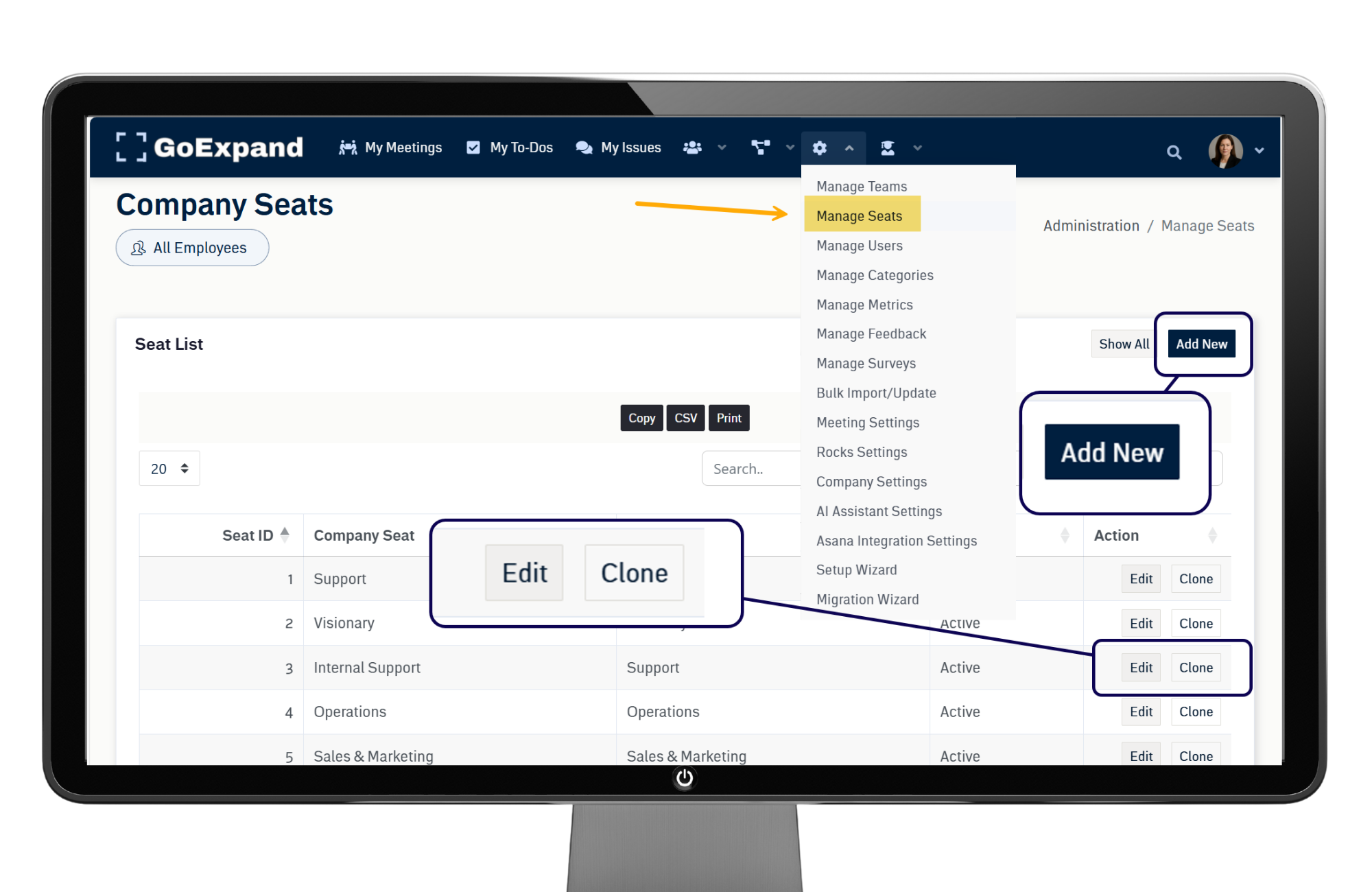
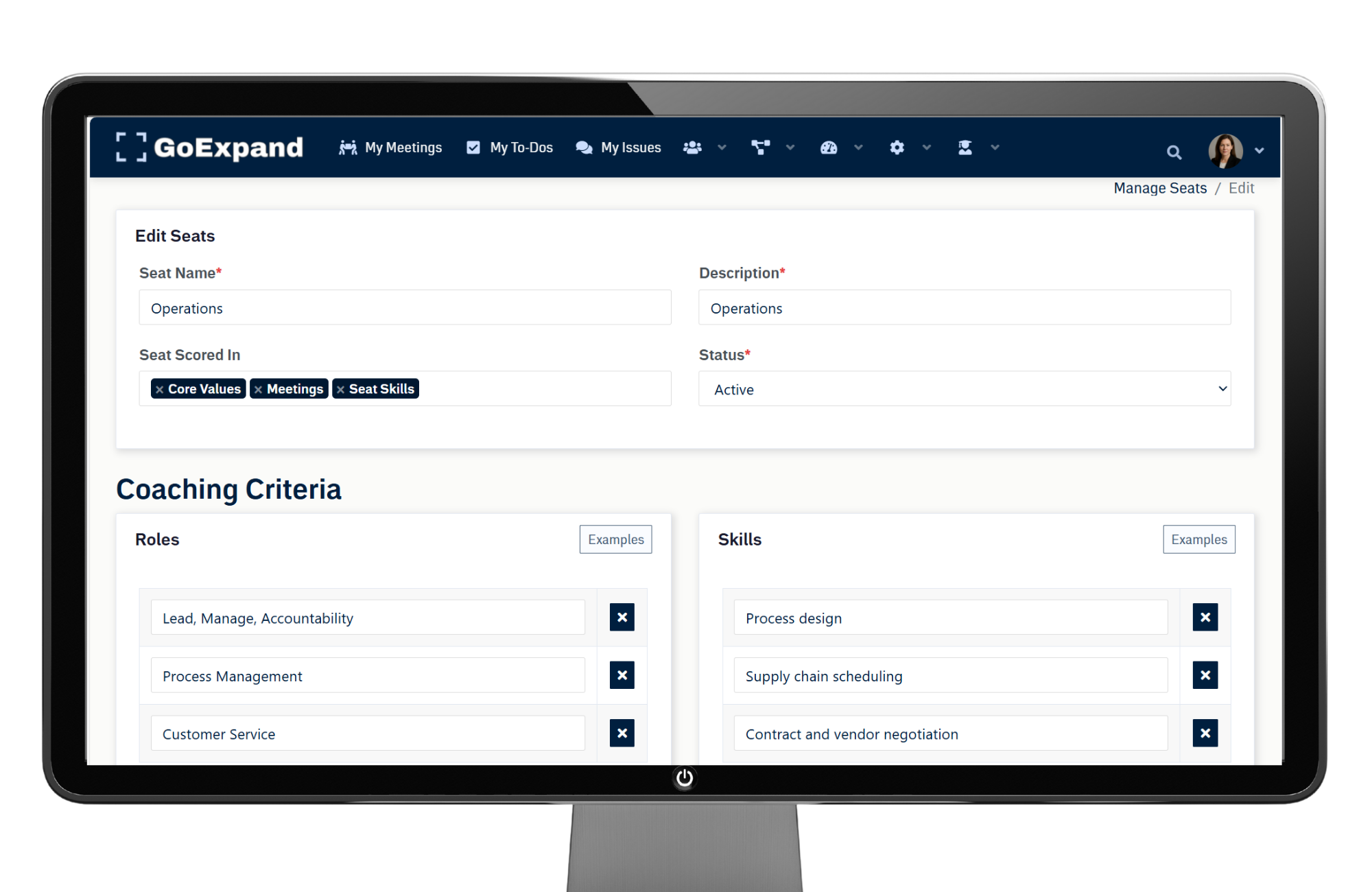
Editing a Seat
When editing a Seat, you can:
- Adjust permissions (Meetings, Metrics, Dashboards, Administration, etc.)
- Update responsibilities
- Modify skills (used in performance reviews)
- Control access to reporting and visibility tools
Be thoughtful when adjusting permissions, especially administrative access, as changes take effect immediately.
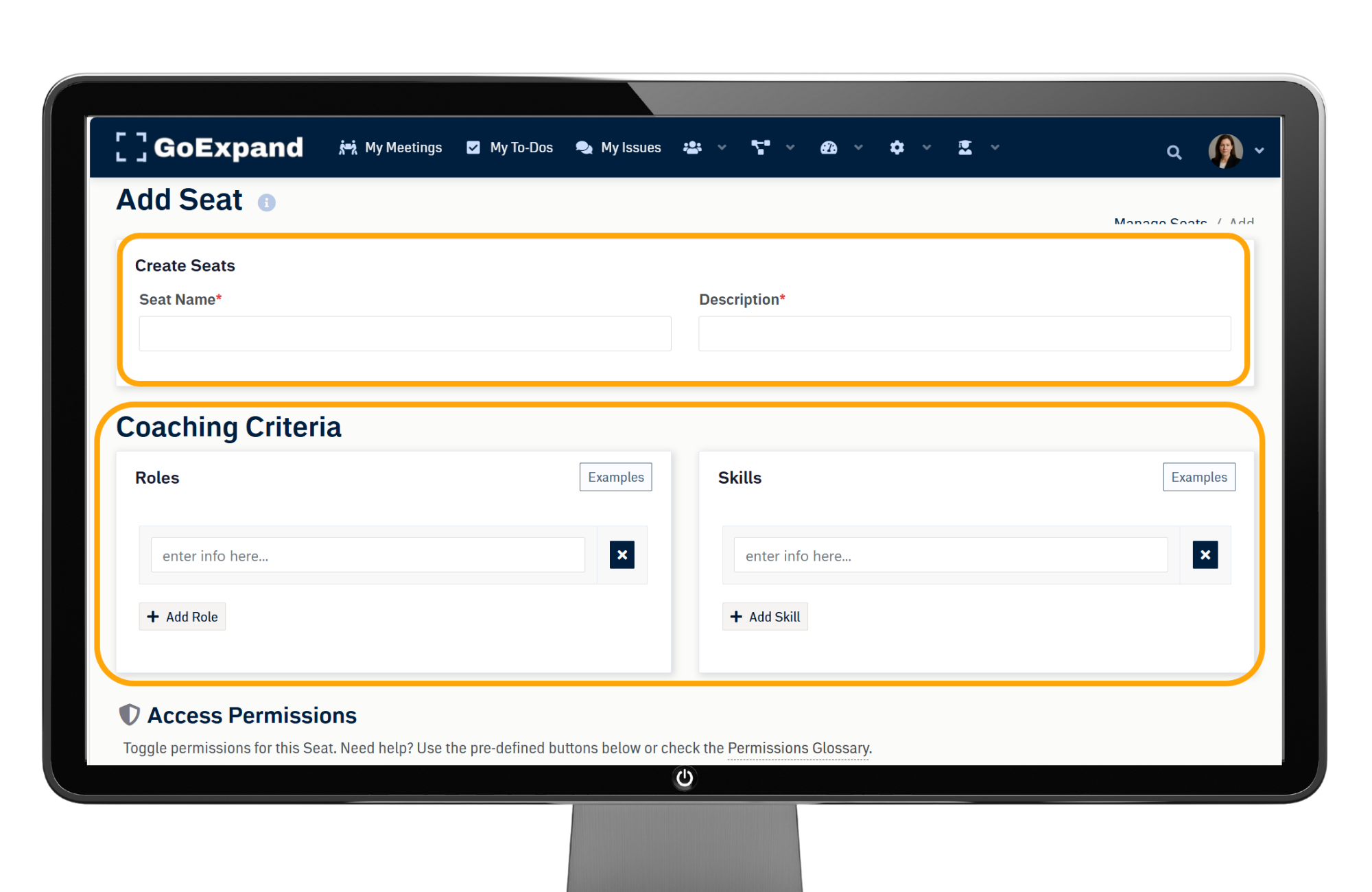
Creating a New Seat
To create a new Seat:
- Clone an existing Seat to copy its permissions, or
- Select Add New Seat and build one from scratch
- Assign a clear Seat name
- Define responsibilities and skills
- Configure permission levels (Executive, Manager, or Employee tabs)
- Click Save
Cloning is often the fastest way to create a Seat with similar permissions while making small adjustments.
Seat Management Best Practices
Managing Seats effectively keeps your platform secure and aligned with your EOS® structure.
Keep It Simple
Avoid creating too many custom Seats unless necessary. Most organizations operate well with a small number of clearly defined Seats.
Limit Administrative Access
Only grant high-level permissions to users who truly need them. This protects sensitive data and prevents accidental changes.
Review Seats Regularly
As your organization grows or restructures, revisit Seats to ensure permissions still match responsibilities.
Think Long-Term
Seats directly impact:
- The Accountability Chart™
- Reporting structure
- Meeting visibility
- Metric ownership
- Rock ownership
- Performance reviews
Taking a few extra minutes to set them up correctly will save hours of confusion later.
When Seats are managed properly, GoExpand becomes easier to use, more secure, and better aligned with how your organization actually operates.
See full training article here.
>Up Next: Platform Access and Permissions in GoExpand | Seat Settings Guide