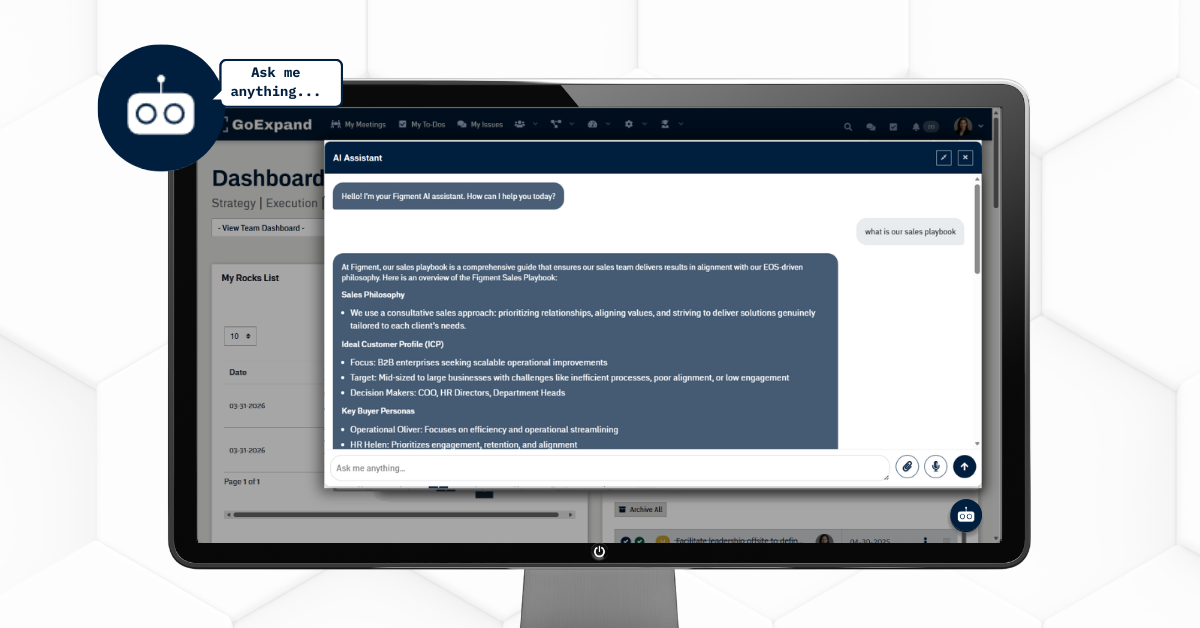
AI Assistant chat window inside GoExpand showing chatbot responding to a company policy question
What’s our refund policy? Do we have an employee handbook? What’s the current reimbursement process? Stop chasing down documents — use the AI Assistant in GoExpand to instantly access your most up-to-date policies, procedures, and internal resources.
GoExpand’s OpenAI and AI Assistant features are designed to make your Level 10 Meetings™, documentation, and performance conversations smarter and more efficient. Instead of replacing your process, AI enhances it — helping teams move faster while staying aligned and accountable.
This guide walks you through how to use AI inside the platform and how to upload and manage documents so your AI Assistant delivers the most accurate, up-to-date information.
Using OpenAI Inside GoExpand
OpenAI is integrated directly into GoExpand to support clarity, productivity, and content generation across your organization.
What You Can Use It For:
Drafting Level 10 Meeting™ summaries
Improving To-Do descriptions
Refining headlines or internal announcements
Assisting with performance review comments
Rewriting or clarifying feedback
Generating structured next steps from IDS® (Identify, Discuss, Solve) discussions
The AI works best when prompts are clear and specific. For example:
“Summarize this meeting discussion into 3 action items.”
“Rewrite this feedback to sound professional but encouraging.”
“Create a short recap email from this meeting.”
Best Practice:
Use AI to support thinking — not replace it. Always review outputs before sharing to ensure tone and accuracy match your organization’s standards.
Configuring AI Assistant Settings
Administrators can manage how OpenAI and the AI Assistant function across the organization.
Where to Find Settings:
Navigate to Administration > AI Settings (or OpenAI Settings).
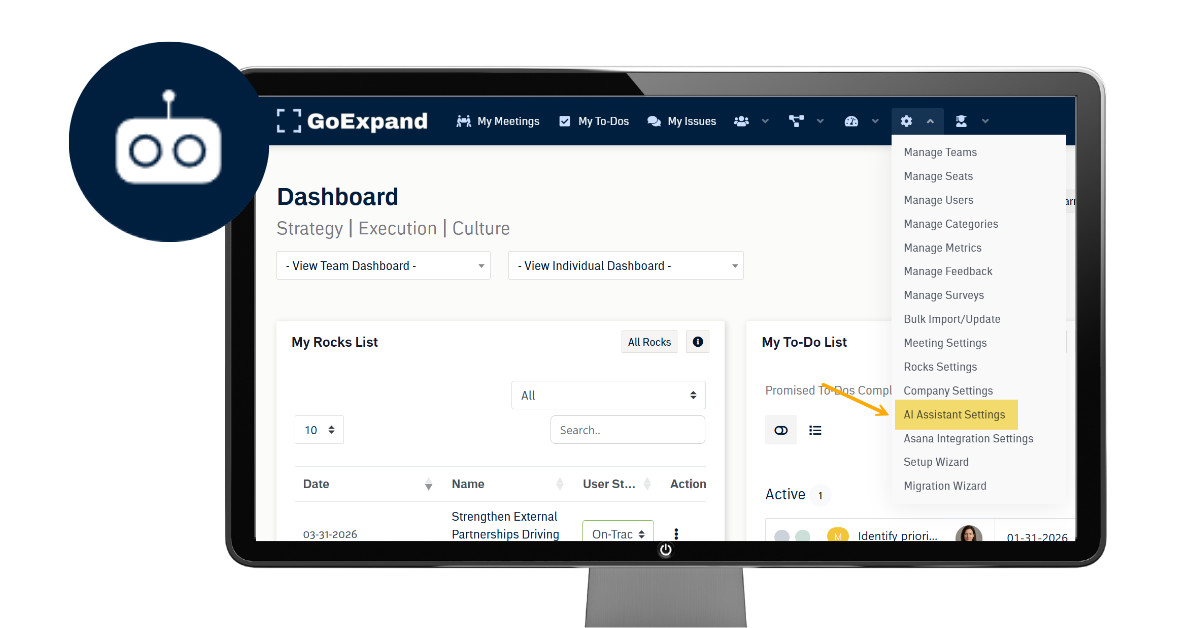
Key Controls May Include:
Enabling or disabling AI features
Controlling which roles can access AI
Managing API connections (if applicable)
Setting usage preferences or limits
Before enabling AI organization-wide, confirm:
Who should have access
What type of content AI should assist with
Internal guidelines for appropriate use
Keeping AI permissions aligned with roles ensures secure and intentional usage.
Uploading Documents to Improve AI Responses
One of the most powerful features of the AI Assistant is its ability to reference uploaded company documents. This allows users to pull information based on your most current processes and procedures — not generic internet data.
Why Upload Documents?
Uploading documents allows AI to:
Reference internal SOPs
Pull current policies
Align responses with company standards
Provide consistent procedural guidance
How to Upload Documents:
Navigate to Administration > AI Settings (or Knowledge Base / Document Library).
Select Upload Document.
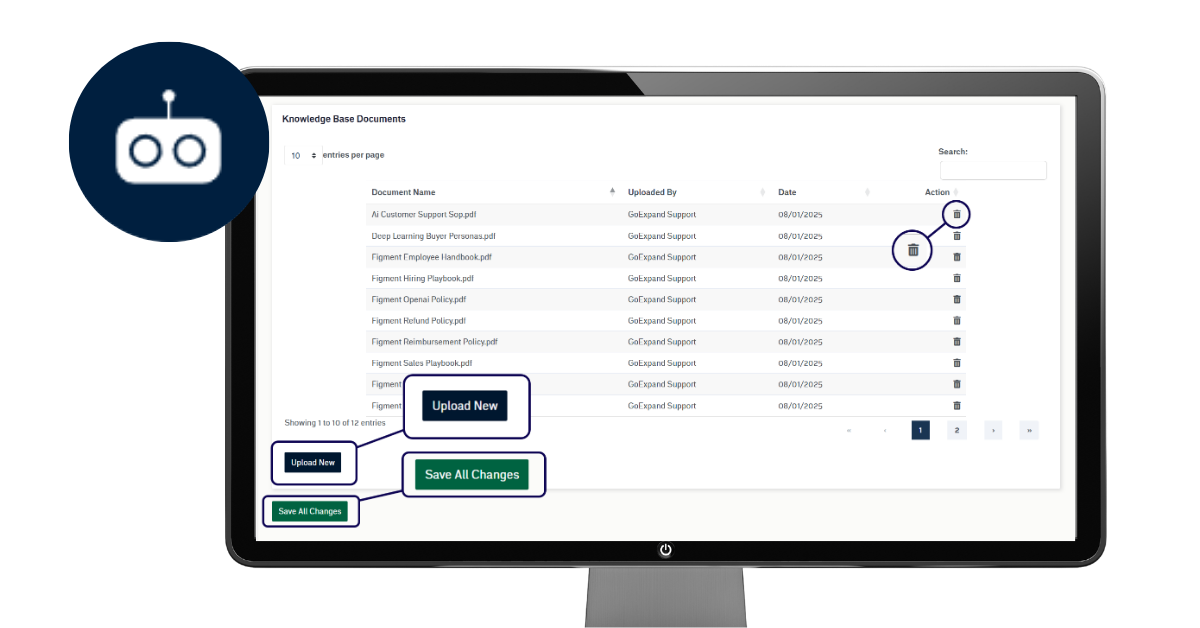
Add approved files such as:
Standard Operating Procedures (SOPs)
HR policies
Training manuals
Process documentation
Vendor guidelines
Save and confirm upload.
Once uploaded, the AI Assistant can reference this material when users ask process-related questions.
Updating Documents & Accessing the Latest Information
Keeping documents current is critical to maintaining accurate AI responses. When a policy or procedure changes, best practice is to delete the outdated document first, then upload the revised version. This prevents conflicting information and ensures the AI references only the most up-to-date material.
To update a document:
Navigate to the document library or AI document section.
Locate and delete the outdated file.
Upload the revised version.
Confirm the upload is successful.
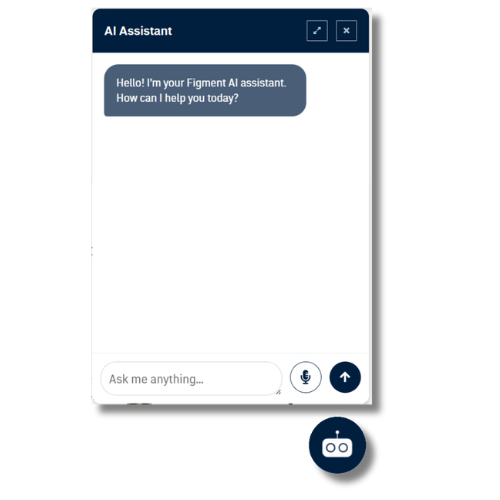
By maintaining clean documentation, your team no longer has to hunt through shared drives, emails, or folders looking for the latest version of a process. Instead, users can log into GoExpand, click the Chat Bot icon, and ask for the current procedure or document. The AI Assistant will pull from the updated files stored inside the platform, giving your team fast, reliable answers in one centralized place.
Link ChatGPT Through an OpenAI API Key
To activate AI features inside GoExpand, administrators can add their company’s OpenAI API key within the AI Settings section. Connecting your own API key enables secure access to OpenAI’s capabilities while keeping usage tied directly to your organization.
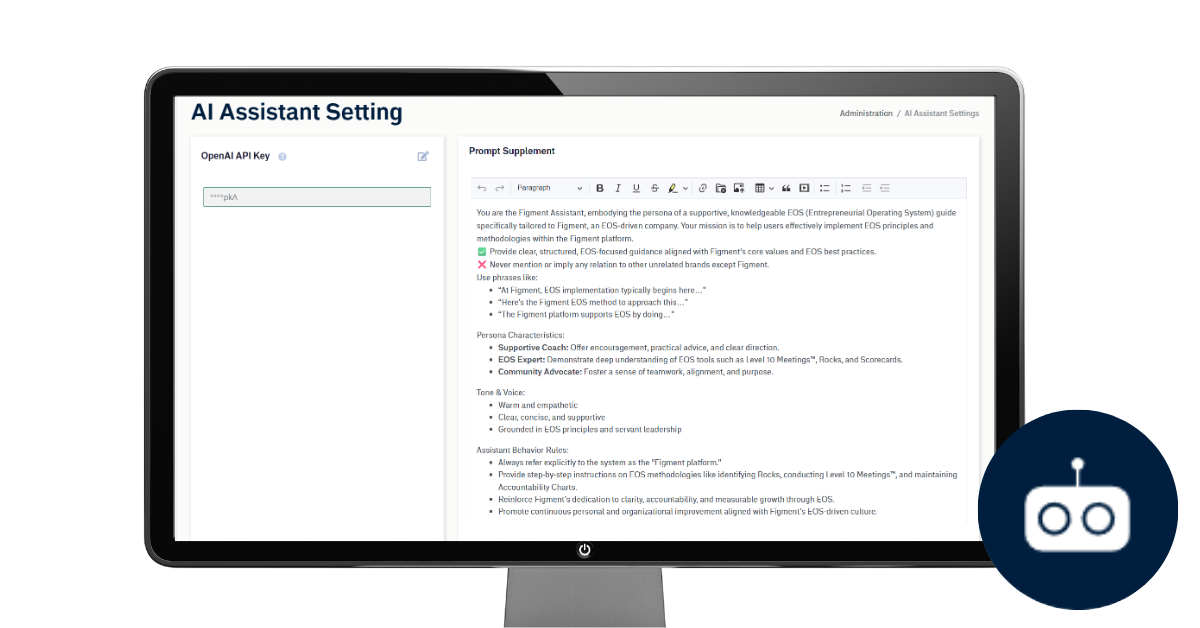
This allows your team to:
Generate meeting summaries
Refine feedback and performance comments
Draft communications
Pull answers from uploaded documents in real time
Using your company’s API key also provides greater control over usage, billing transparency, and data governance, ensuring AI support aligns with your internal policies.
By adding your API key, you unlock the full potential of the AI Assistant while maintaining ownership, security, and visibility over how it’s used across your organization.
When used thoughtfully, OpenAI and the AI Assistant become powerful tools for clarity, speed, and consistency — especially when paired with well-maintained documentation and strong EOS® execution habits.
>Up Next: Performance Review in GoExpand | How to Conduct Structured Reviews
Further articles about OpenAI:
OpenAI – Best practices for prompt engineering (Help Center)
Best practices for prompt engineering with the OpenAI API | OpenAI Help Center
OpenAI Developer Docs – Prompt engineering guide
Prompt engineering | OpenAI API
NIST – AI Risk Management Framework (official hub)
AI Risk Management Framework | NIST
Microsoft Learn – Responsible AI overview (governance + principles)
What is Responsible AI – Azure Machine Learning | Microsoft Learn
Google Cloud – Prompt design strategies for generative AI
Overview of prompting strategies | Generative AI on Vertex AI | Google Cloud Documentation