Clear transcription starts with proper audio setup. If voices are missing, distorted, or inconsistent in your transcripts, the issue is almost always related to how your audio devices are configured—not the transcription tool itself.
This guide walks you through the correct setup to ensure all voices—both in-room and remote—are captured clearly during meetings.
Why Audio Setup Matters
When running remote or hybrid meetings, your computer handles two different audio roles at the same time:
- Playing sound from remote participants
- Capturing sound for transcription
If these roles are not separated correctly, your system may only capture part of the conversation. This is especially common when using built-in microphones or headsets that combine input and output.
Required Setup
To capture all voices reliably, use two separate audio devices:
- Speakers (Output): Computer speakers
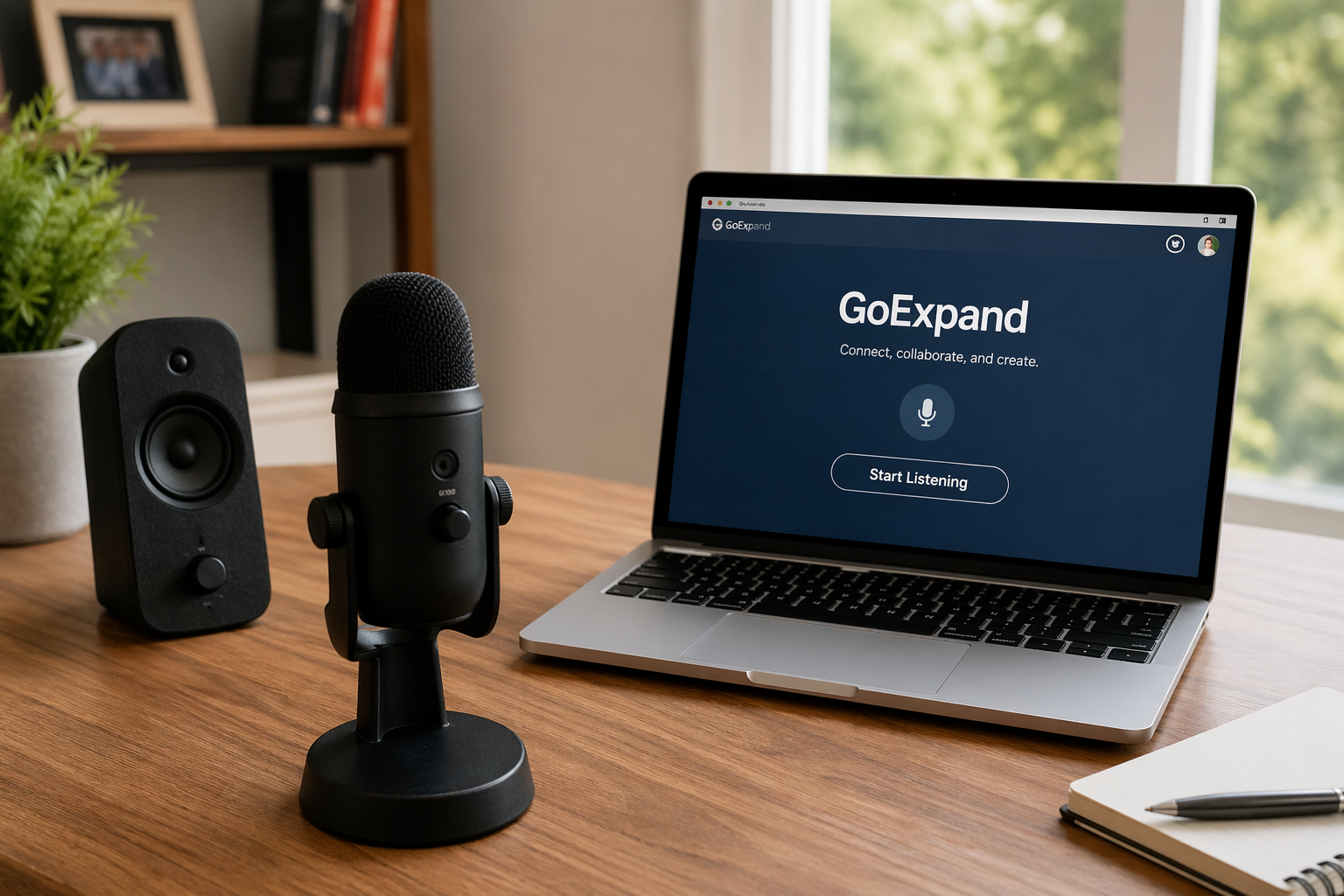
- Microphone (Input): External microphone (USB, wired, or Bluetooth)
The external microphone should be positioned so it can clearly pick up:
- Your voice
- Voices coming from the speakers
What to Avoid
Do not use the following setups, as they limit audio capture:
- Built-in microphone with built-in speakers
- Headsets or earbuds that use both microphone and speaker together
These configurations often isolate audio streams and prevent full transcription of the meeting.
Simple Mental Model
Think of your setup like this:
- Speakers = broadcast the meeting audio
- External microphone = records everything happening in the room
This separation ensures that all voices are picked up consistently.
Step-by-Step Setup
- Set Audio Output (Meeting Software)
In Zoom or Teams:- Set Speaker to your computer speakers
- Do not route audio through a headset or earbuds
- Set Audio Input (Microphone)
- Select your external microphone
- Confirm it can clearly capture both your voice and speaker output
- Verify in Your Browser
- Click the microphone icon in your browser (such as Chrome)
- Select the external microphone (not the system default, if different)
- Start Transcription
- Click “Start Listening”
- Speak and confirm audio is being captured clearly
If Everyone Is in One Room
If all participants are physically present, the setup is simpler. You only need one microphone that can clearly pick up all voices in the room. Placement and volume are key—make sure everyone can be heard evenly.
Final Check
Before starting your meeting, do a quick test:
- Speak at a normal volume
- Play audio through your speakers
- Confirm both are being picked up by the microphone
With the correct setup in place, your transcription will be consistent, complete, and easy to use.