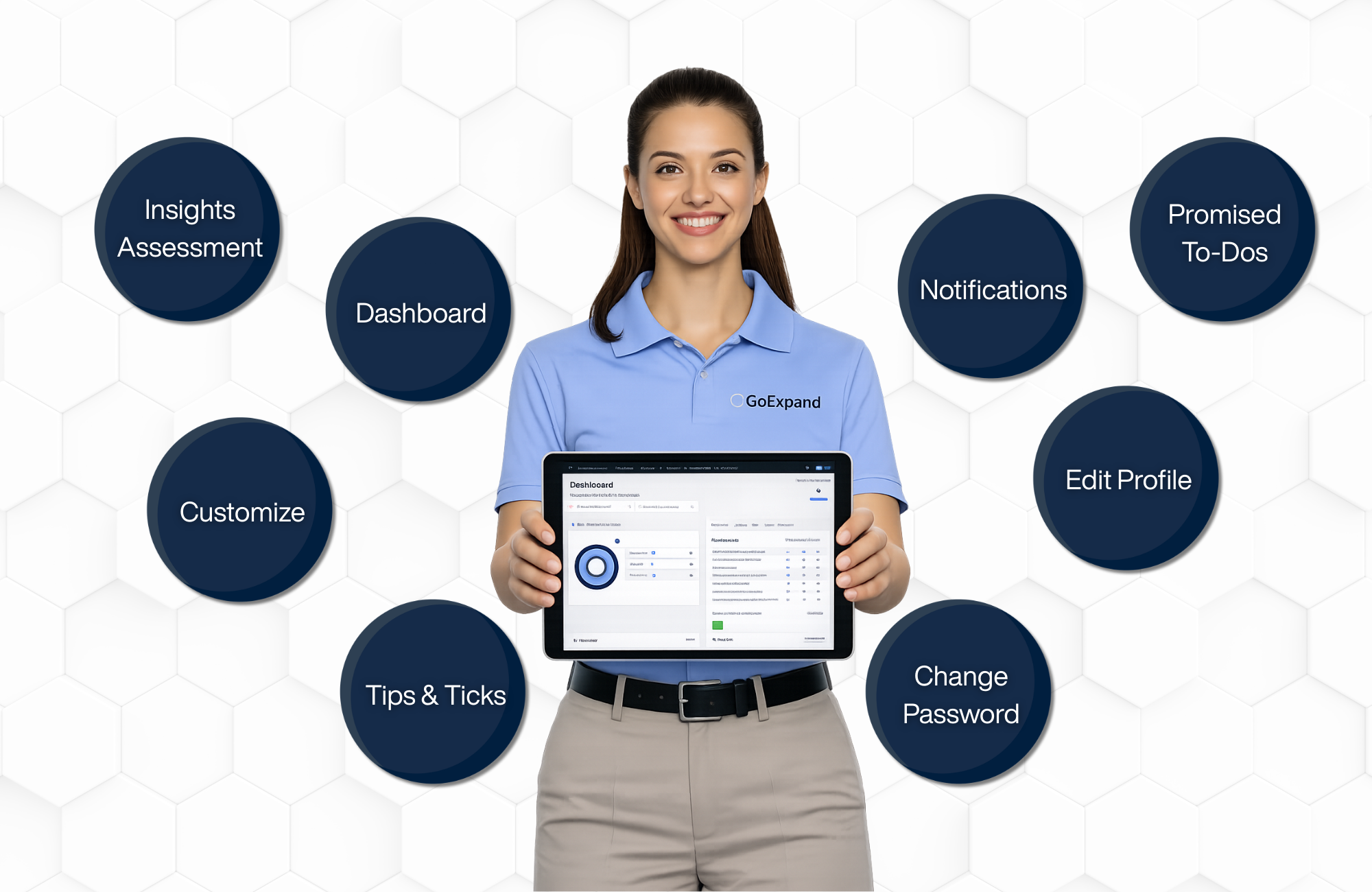
GoExpand includes powerful features beyond meetings, Rocks, and Metrics. These tools help users personalize their experience, improve accountability, and get more value from the platform.
This guide highlights additional features every user and leader should know.
GoExpand Mobile and Tablet Access
Our applications are web-based, allowing them to be accessed from any device that has a web browser without having to download an app from a particular app store. This allows for versatility in development; any updates that are made to the platform are immediately available to all users no matter the device. Being web-based also allows for the user’s browser preferences to apply to the application, and the application auto scales to the device being used so users don’t have to pinch or zoom their screens.
SecureDB does not require a mobile app download or access to your mobile’s memory. Instead, you can create a shortcut on your phone’s home screen that opens the platform just like an app. This allows quick access to meetings, projects, scorecards, and other tools from your mobile device.
Add SecureDB on iPhone or iPad
- Open Safari.
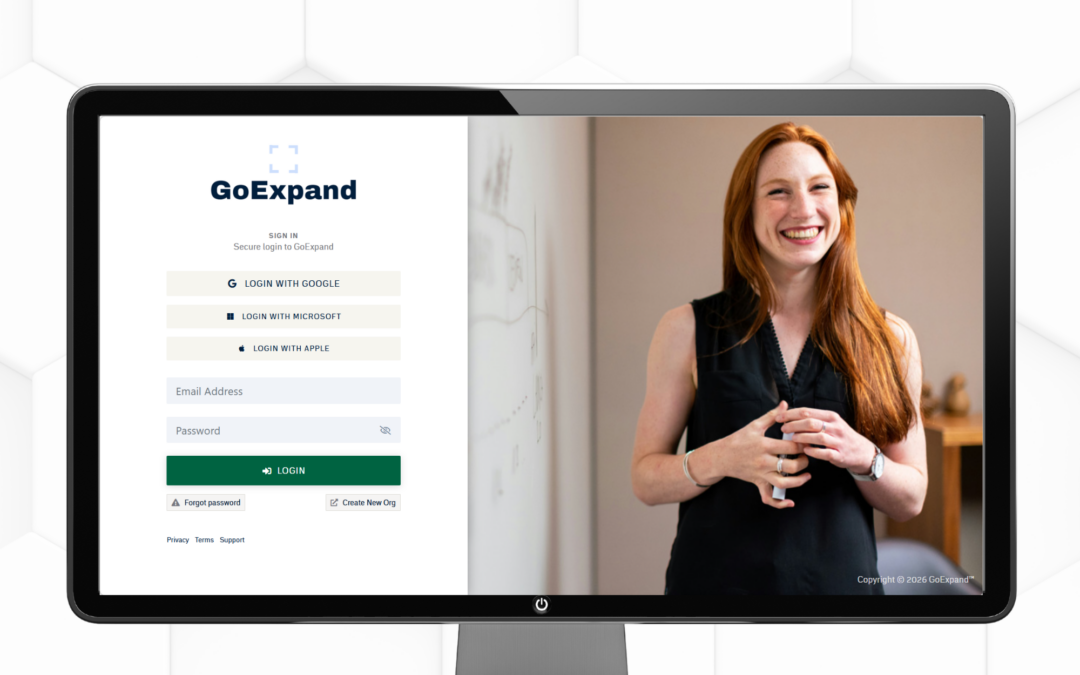
- Enter your SecureDB application URL: Log in — GoExpand
- Tap the Share icon (the square with an upward arrow).
- Select Add to Home Screen.
- Confirm to create the shortcut.
Your SecureDB icon will now appear on your home screen and open directly in your browser when tapped.
Add SecureDB on Android
- Open Chrome.
- Enter your SecureDB application URL: Log in — GoExpand
- Tap the three-dot menu in the browser.
- Select Add to Home Screen.
- Confirm the shortcut.
The SecureDB shortcut will now appear on your Android home screen for quick access.
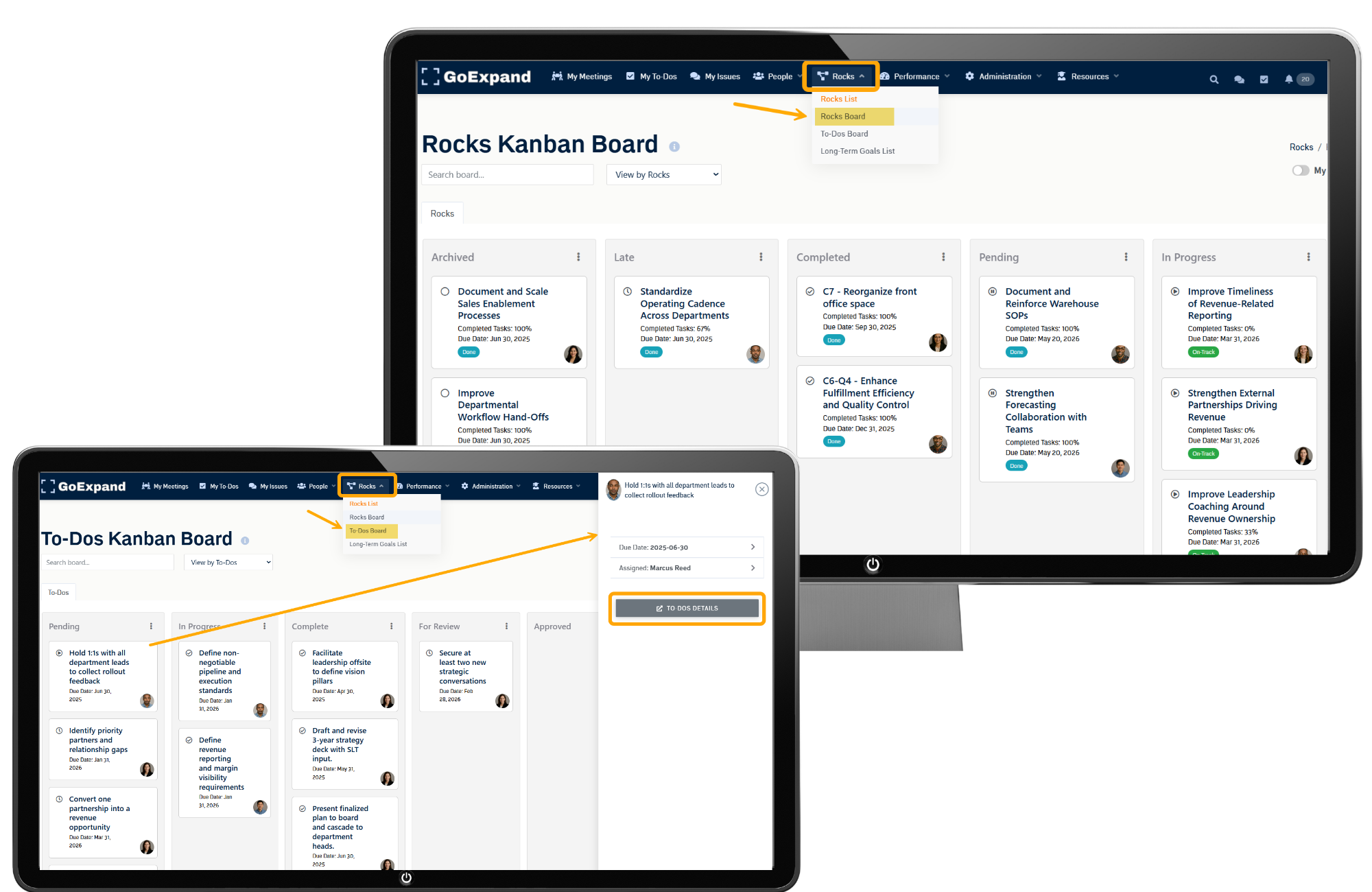
Kanban Boards in GoExpand
GoExpand includes a built-in Kanban Board to help teams visually manage work and track progress day-to-day.
Kanban is especially useful for:
- Project workflows
- Multi-step deliverables
- Teams that prefer visual task tracking
Cards move through simple stages like:
To Do → In Progress → Done
Kanban supports EOS® execution by improving visibility between meetings, reducing bottlenecks, and keeping work aligned with your Rocks and To-Dos.
Find your Kanban Boards under the Rocks icon.
Tip: If a Kanban item becomes urgent or critical, convert it into a formal To-Do so it stays visible in your Level 10 Meeting™.
Take the Insights Assessment
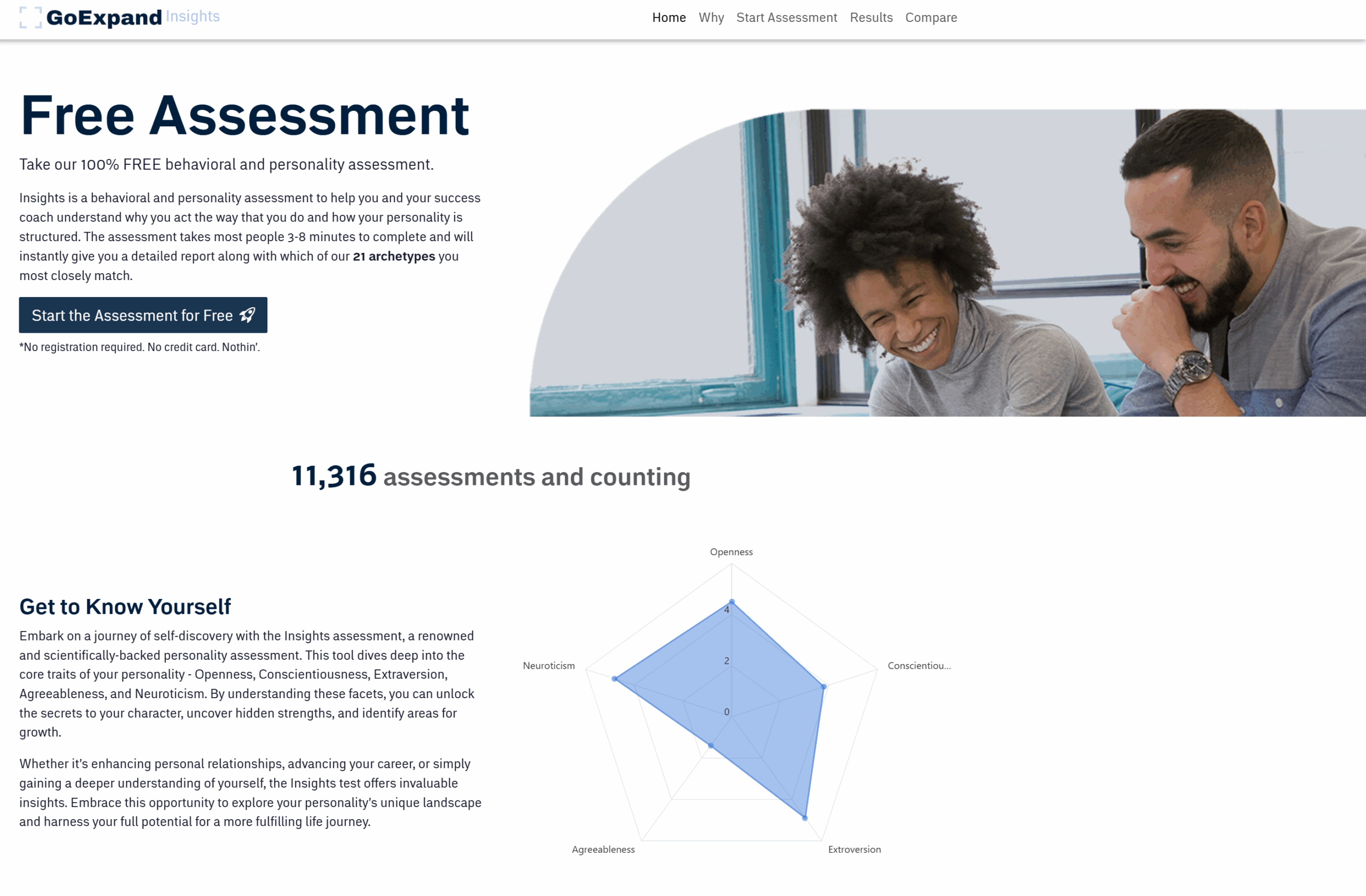
Based on the OCEAN assessment helps users better understand their personality profile and how they naturally operate within a team.
This assessment is especially helpful for:
- Leadership alignment
- Communication improvement
- Self-awareness
- Strength-based development
- Improving collaboration within Seats
Both users and leadership team members are encouraged to complete it.
You can access the assessment here:
👉 https://goexpand.com/assessements/
Documenting Your Team’s Insight Results
After completing the assessment, each user will receive a results code summarizing their personality profile.
It is important to document this code inside GoExpand.
To do this:
- Navigate to Administration → Manage Users
- Select the employee
- Open their Profile
- Enter the Insights results code in the designated field (or notes/profile section, depending on your setup)
- Click Save
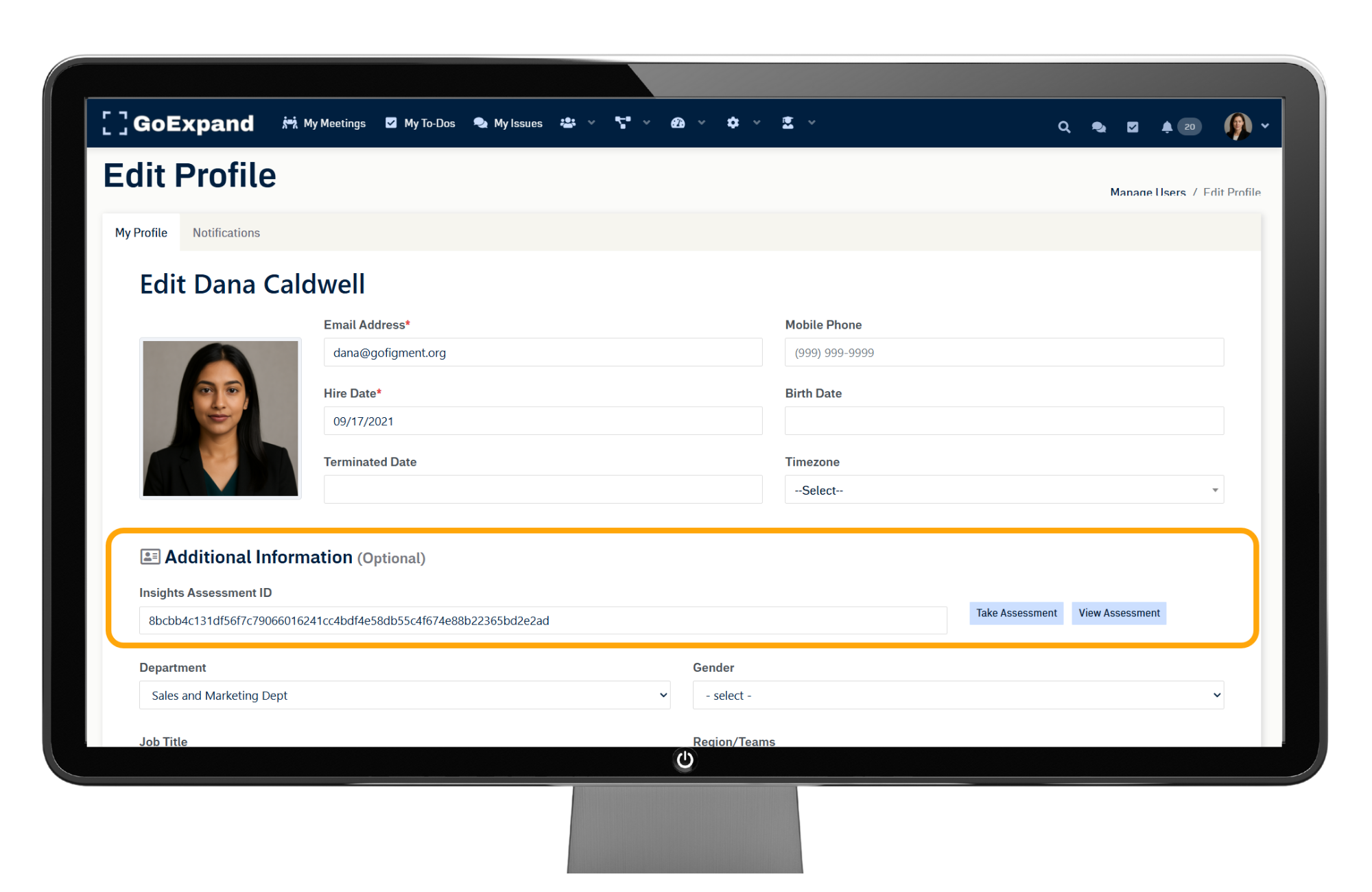
Storing the results in the user profile ensures leadership can reference personality insights during:
- Performance reviews
- Seat discussions
- Conflict resolution
- Team development conversations
Best Practice: Review OCEANs results during leadership sessions to better understand communication styles and natural strengths across your Accountability Chart™.
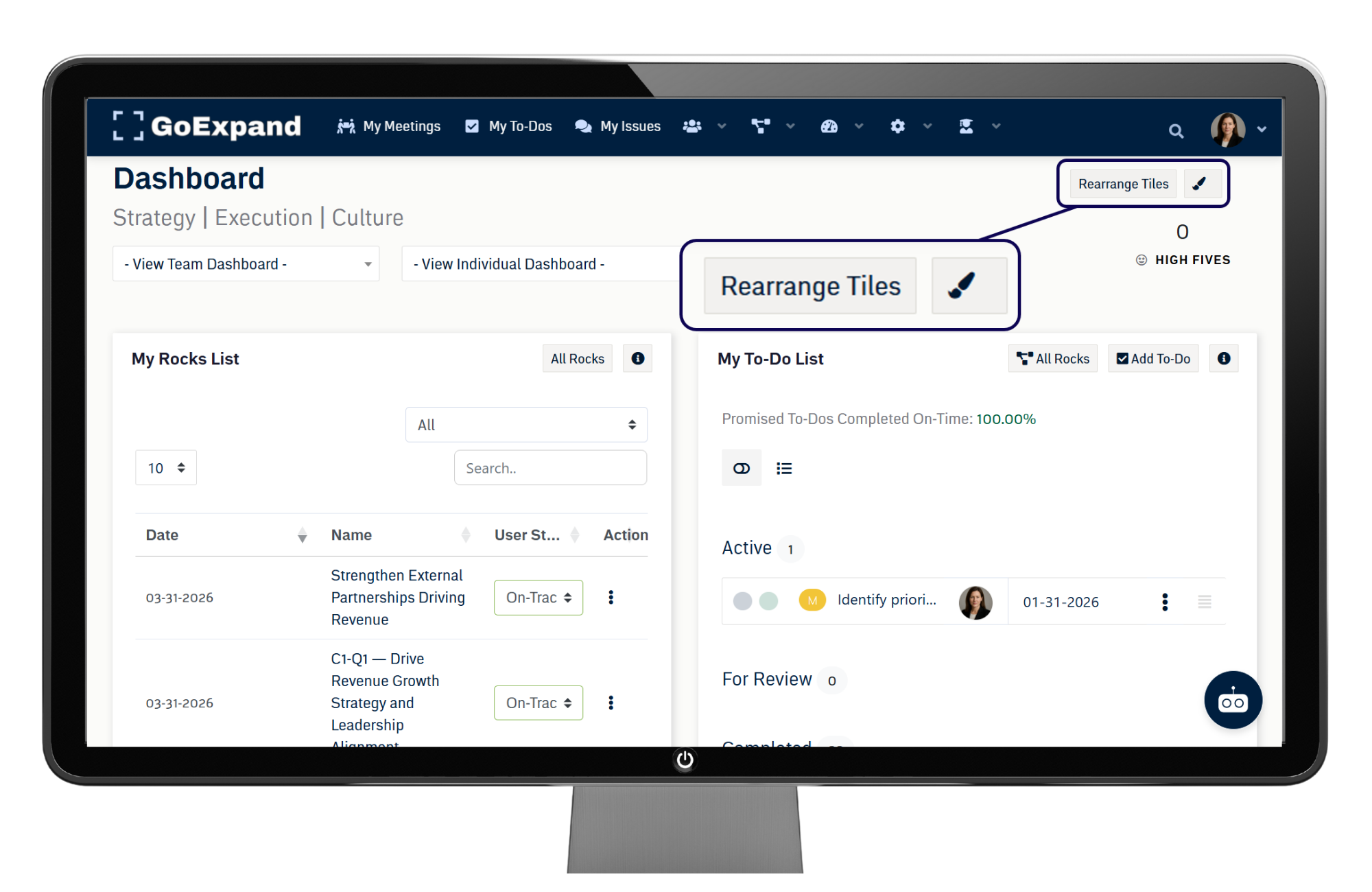
Rearrange Dashboard Tiles
Your Dashboard is customizable.
To rearrange tiles:
- Click and hold a tile
- Drag it to your preferred position
- Release to drop it in place
This allows you to prioritize what matters most — whether that’s To-Dos, Rocks, Metrics, or Meetings.
Tip: Place your My To-Dos and Scorecard near the top to keep execution visible daily.
Customize Your Dashboard (Paint Brush Feature)
Click the paint brush icon in the top-right corner of your Dashboard to customize:
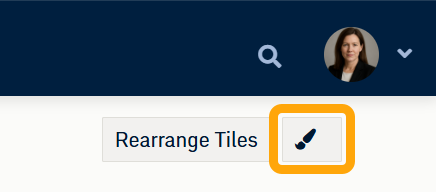
- Which widgets are visible
- Layout preferences
- Dashboard structure
This allows each user to tailor their workspace based on their Seat and responsibilities.
Tip: Leaders may want Team Dashboards visible, while individual contributors may prefer a simplified personal view.
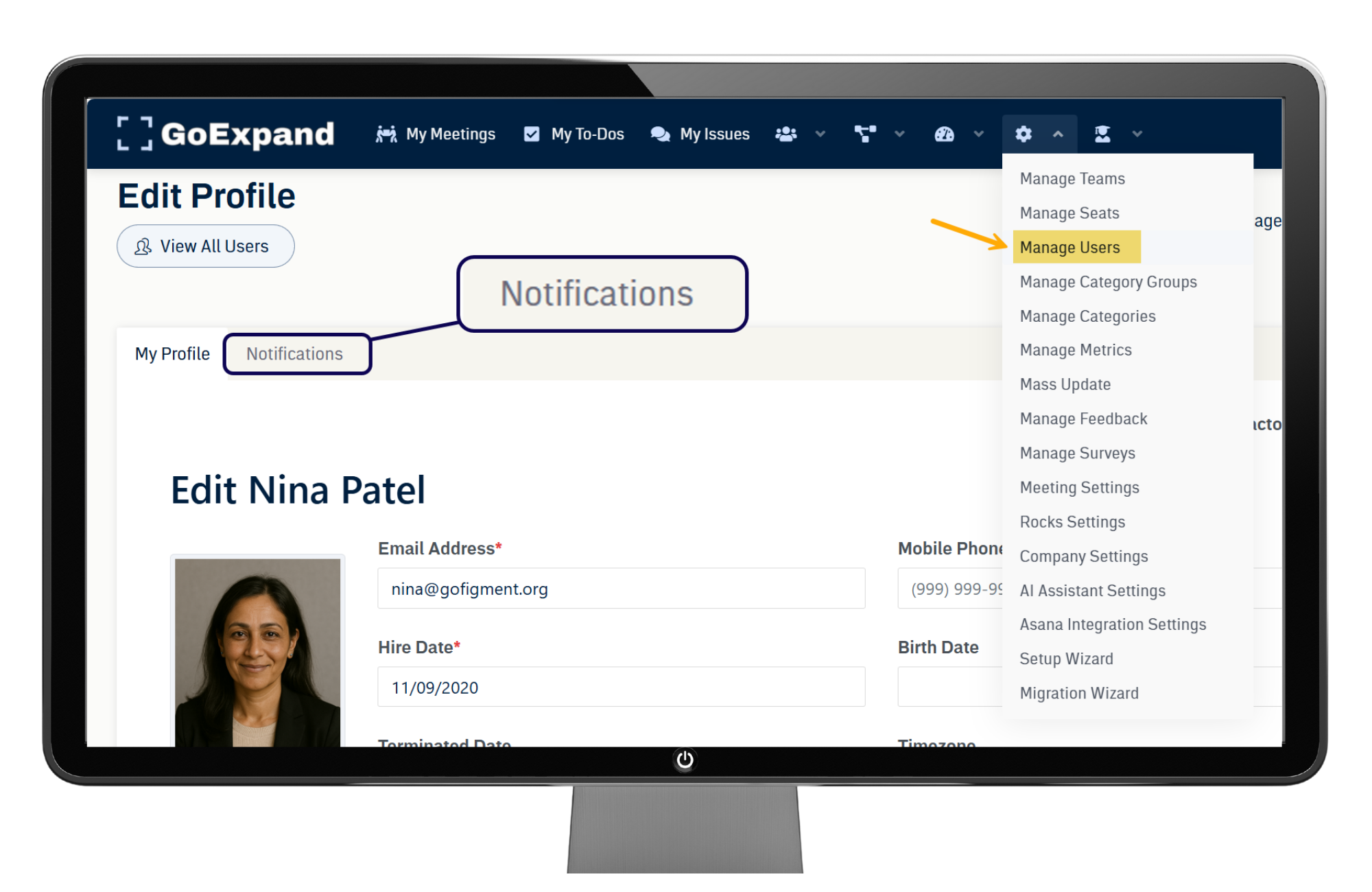
Manage Platform Notifications
GoExpand sends notifications to keep you aligned and accountable.
To manage notifications:
- Navigate to your Profile or Settings area
- Review notification preferences
- Adjust email or in-platform alerts
You can control alerts for:
- Assigned To-Dos
- Meeting updates
- Rock changes
- Mentions or comments
Tip: Keep To-Do and meeting notifications enabled to maintain 90%+ completion rates.
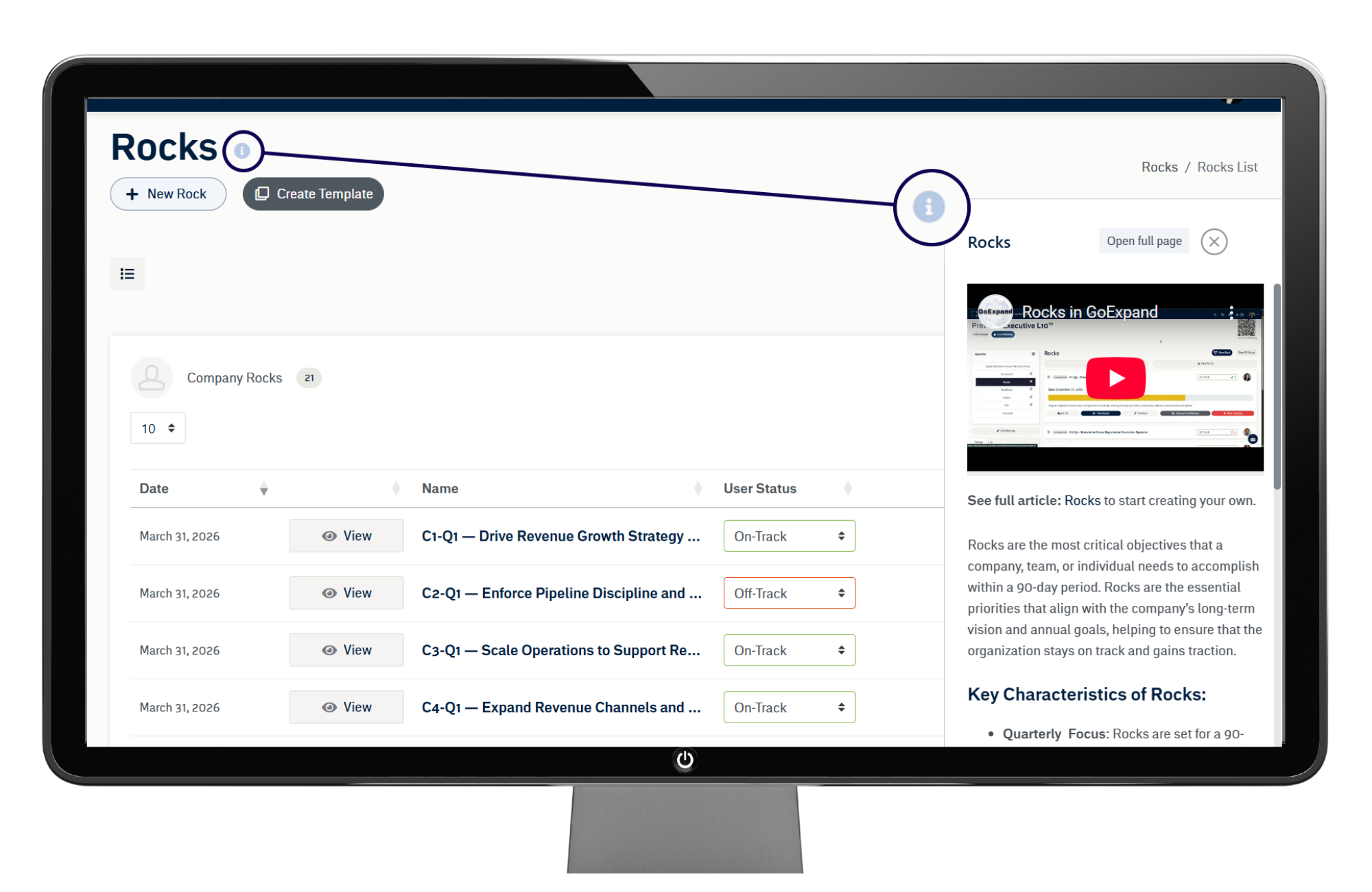
Help & Information Slide-Out
Throughout the platform, you’ll see an information icon (ℹ️) or help icon.
Clicking this opens a slide-out panel with:
- Contextual guidance
- Quick tips
- Feature explanations
This is especially helpful during onboarding or when exploring a new feature.
Tip: Before contacting support, check the Help slide-out — many common questions are answered there.
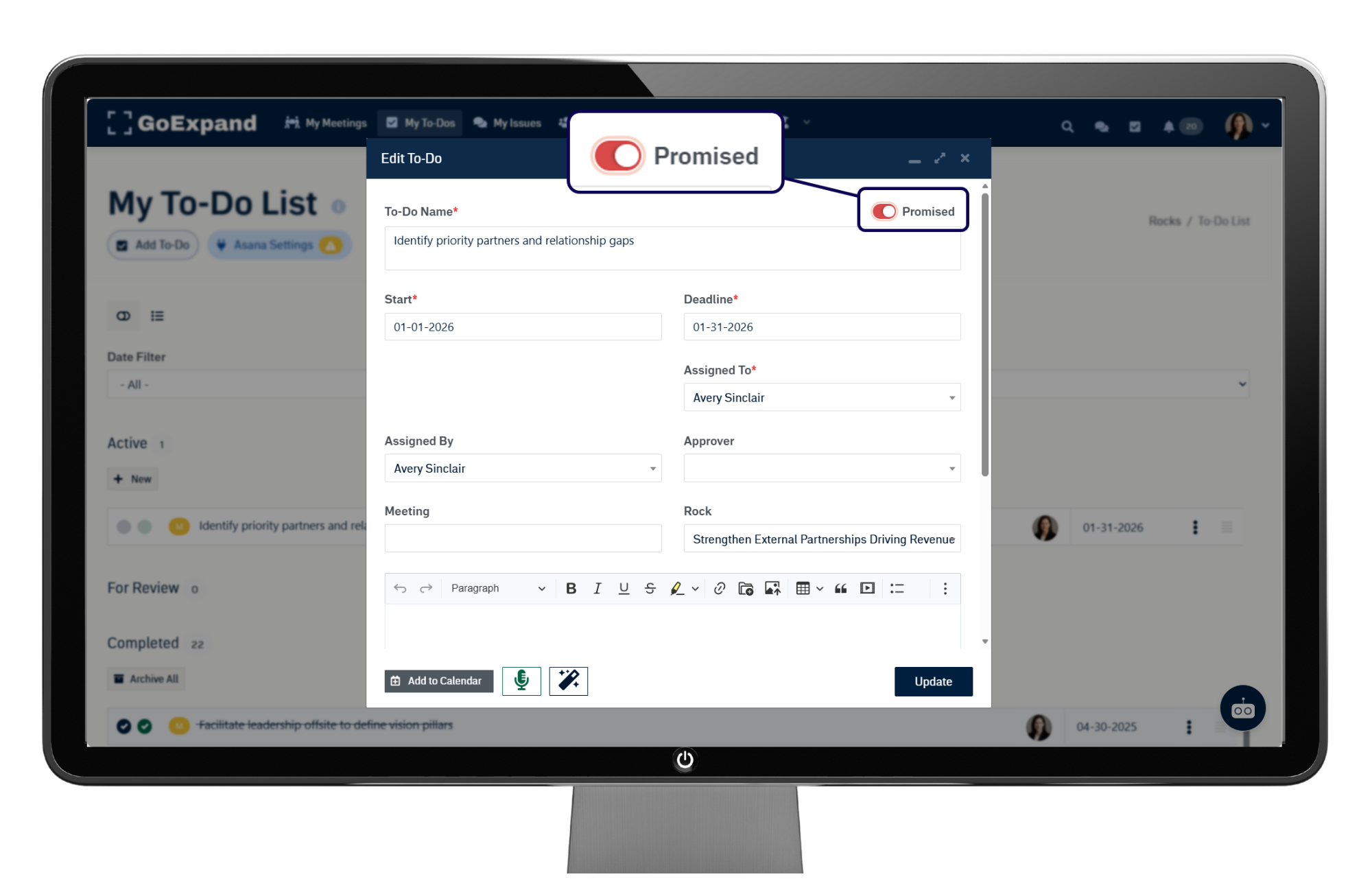
Promised To-Dos
Promised To-Dos are commitments made during a Level 10 Meeting™.
These are:
- Assigned to one owner
- Given a due date
- Reviewed weekly
Promised To-Dos reinforce discipline and accountability between meetings.
Tip: Aim for 90% or higher completion. If your team is consistently below that threshold, discuss it during IDS®.
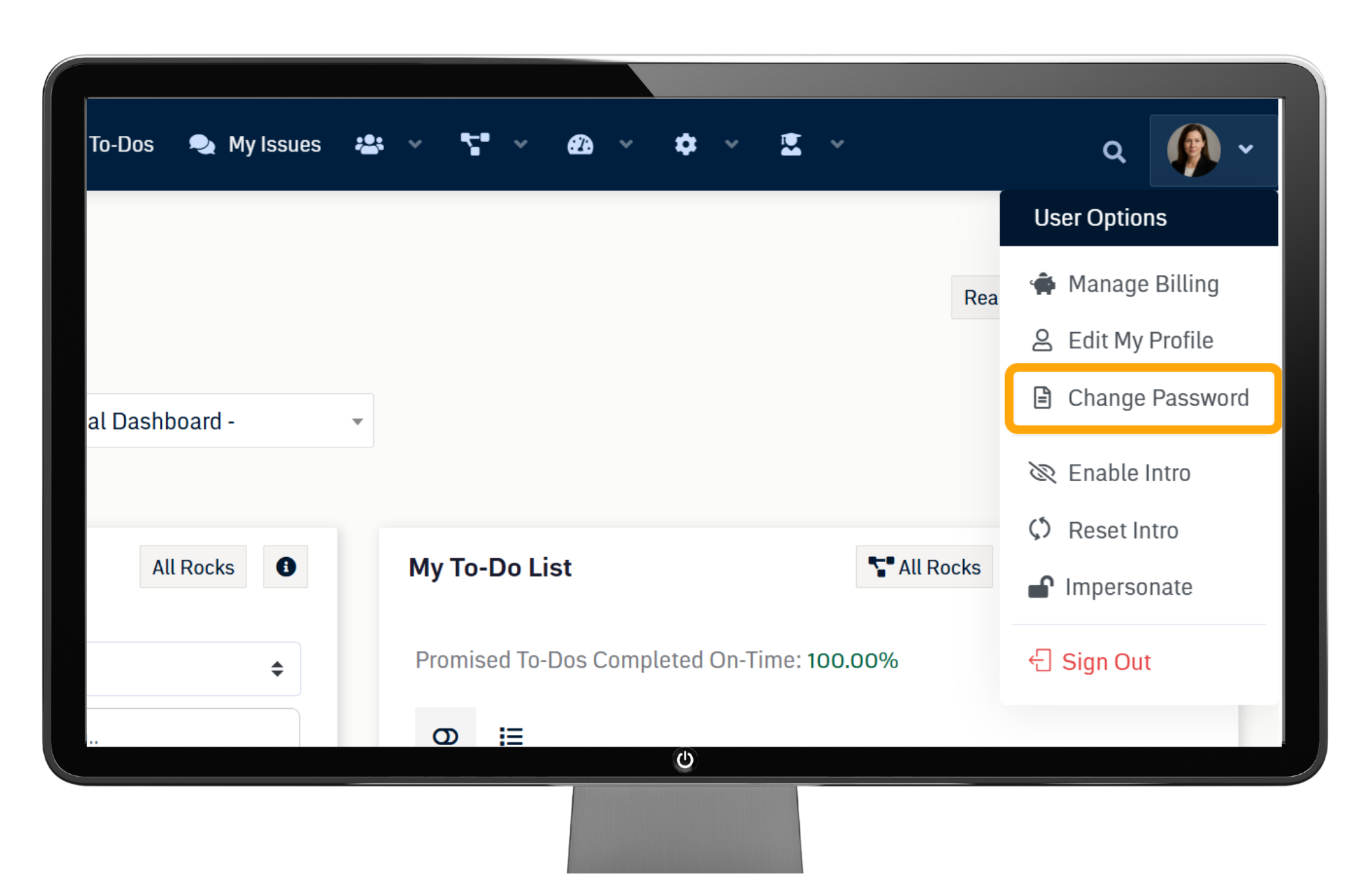
Change Your Password
To change your password:
- Navigate to your Profile settings
- Select Change Password
- Enter your new credentials
- Save changes
Maintaining secure login information protects your data and organizational access.
Edit Your Profile & Profile Picture
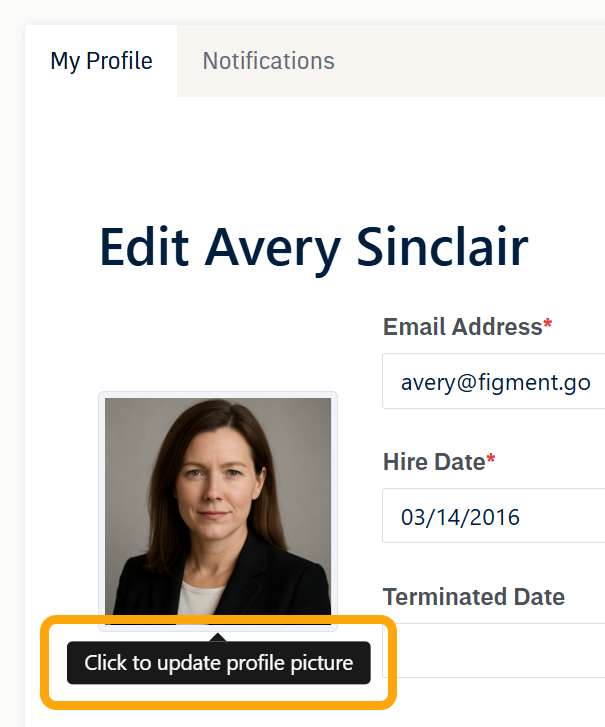
To edit your profile:
- Click on your name or avatar in the top-right corner
- Select Edit Profile
From here you can update:
- Name
- Title
- Contact information
- Profile photo
Uploading a profile picture improves clarity during meetings and strengthens team connection.
Tip: Encourage all leadership members to upload professional photos for better visibility in the Accountability Chart™.
Final Thoughts
Small adjustments inside GoExpand can make a big difference in clarity and usability.
From customizing your Dashboard to managing notifications and completing the OCEANs Assessment, these features help strengthen:
- Alignment
- Accountability
- Visibility
- Execution discipline
Explore these tools regularly to get the most out of your GoExpand experience.