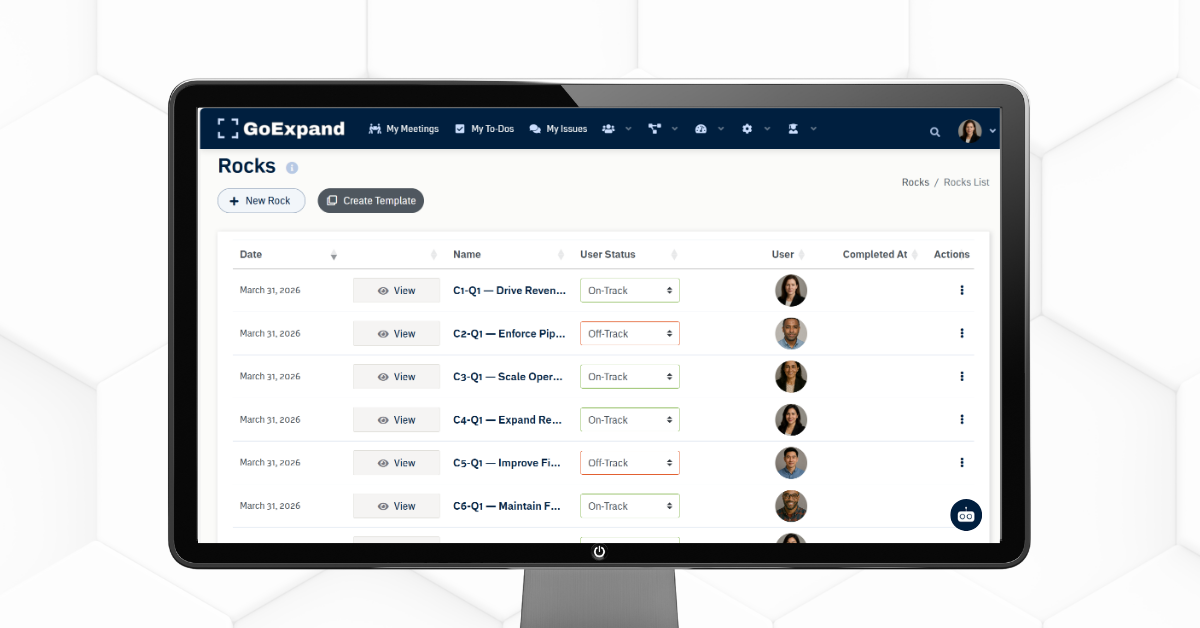
GoExpand execution dashboard showing quarterly priorities, To-Do progress, owners, due dates, and completion status.
What are Rocks in GoExpand?
In GoExpand, Rocks are short-term priorities made up of multiple To-Dos that typically last 30–90 days. Rocks help teams execute on quarterly priorities and stay aligned with the company’s V/TO™ (Vision/Traction Organizer™).
Rocks may support your broader business plan, or they may be stand-alone priorities that require focused execution.
An additional feature of adding Rocks to a meeting is the Rock Feelings option. Simply put, this allows a leadership override of the automatic progress calculation so teams can reflect real-world context.
There are two ways to add a Rock to a meeting:
- Linking a Rock to an existing To-Do
- Creating a Rock from scratch within a meeting
Create a Rock from the Navigation Panel
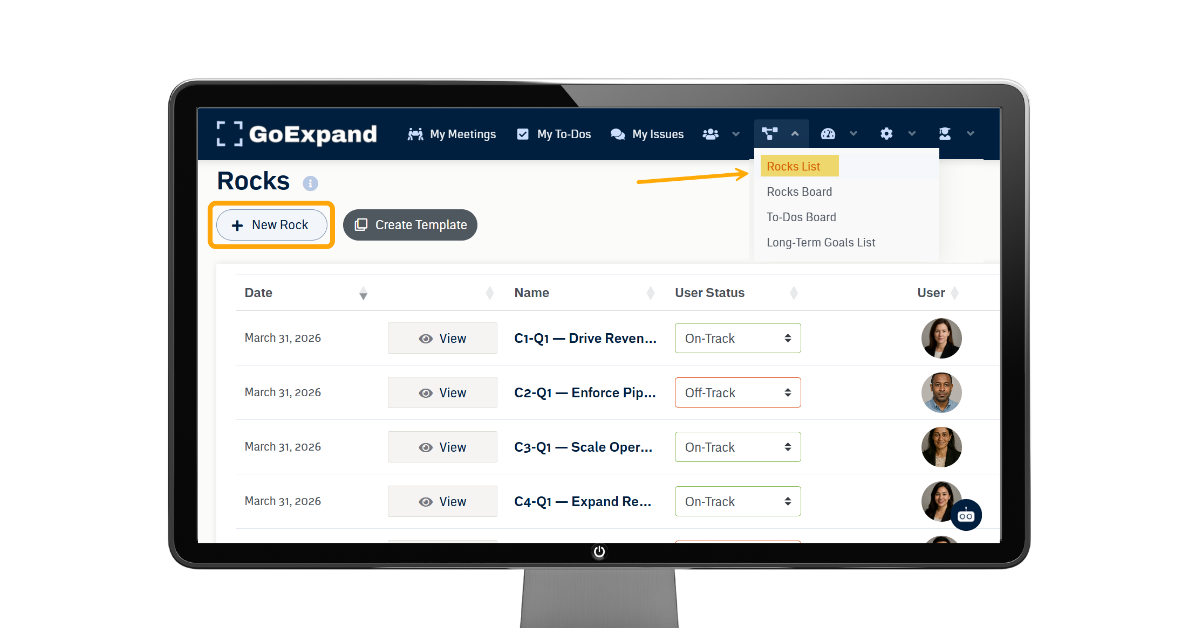
From the navigation panel, select:
Execution → Rocks
Once on the main Rocks page, click the:
+ New Rock button at the top.
This will open the New Rock window where you can enter basic information such as the Rock name, owner, due date, and meeting linkage.
Understanding the Fields in a New Rock
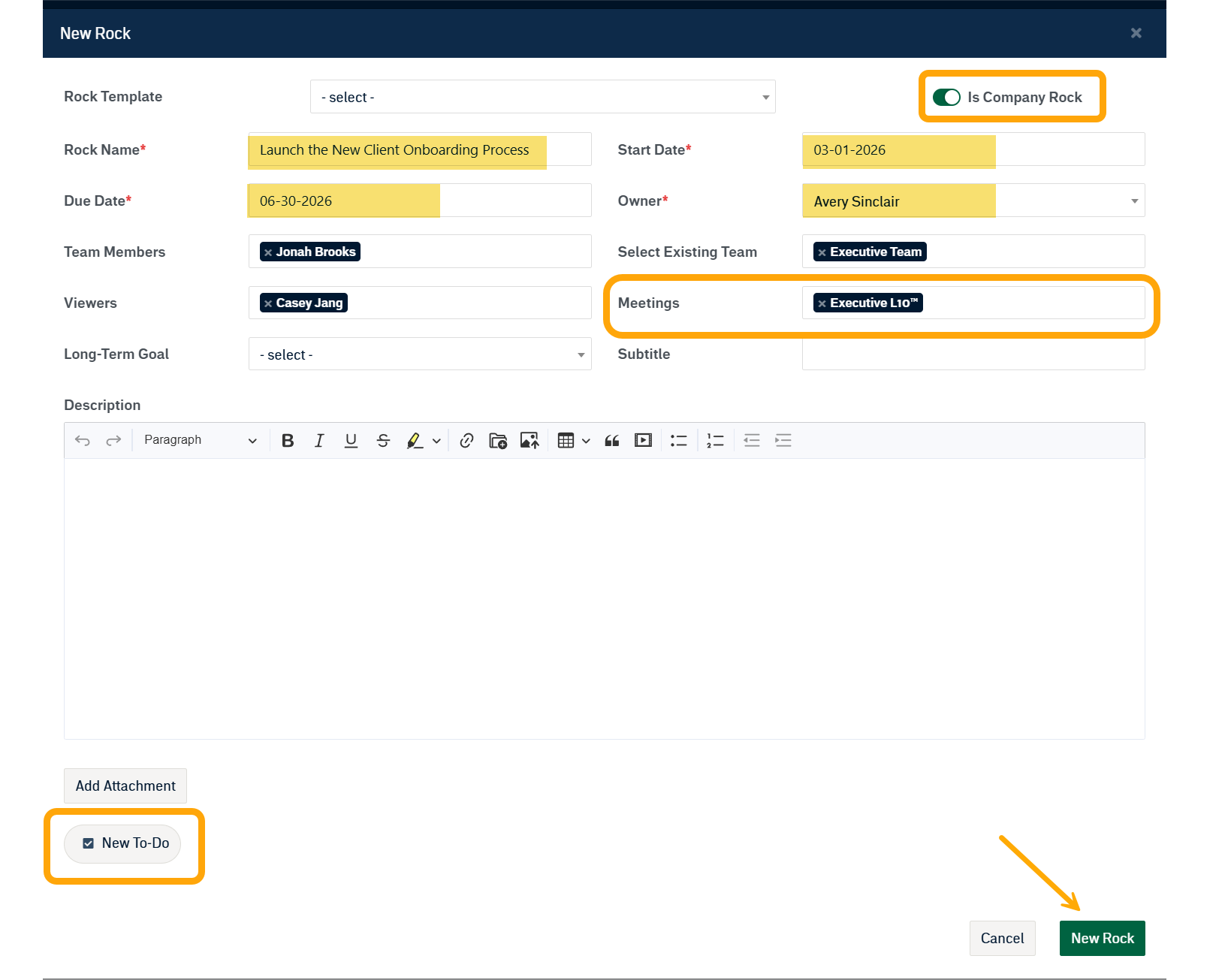
Below is a breakdown of each field and what it means:
- Rock Name: A clear, outcome-focused title that describes the result of the quarterly priority (ex: “Launch New Website”).
- Owner: The one person fully accountable for completing the Rock, even if others contribute.
- Rock Type: Choose whether the Rock is a Company Rock (leadership-wide priority) or an Individual Rock (owned by a specific leader).
- Start Date: The date the Rock officially begins, typically at the start of the quarter.
- Due Date: The completion deadline, usually aligned with the end of the quarter.
- Description: A short explanation of scope, expectations, and what “done” looks like to prevent confusion.
- Meeting Linkage: Select the Level 10 Meeting™ where the Rock will be reviewed weekly for accountability.
- Rock Status / Progress: Updated weekly during Level 10 Meetings™ and may include a manual override to reflect real-world context.
Creating Rocks Within Meetings
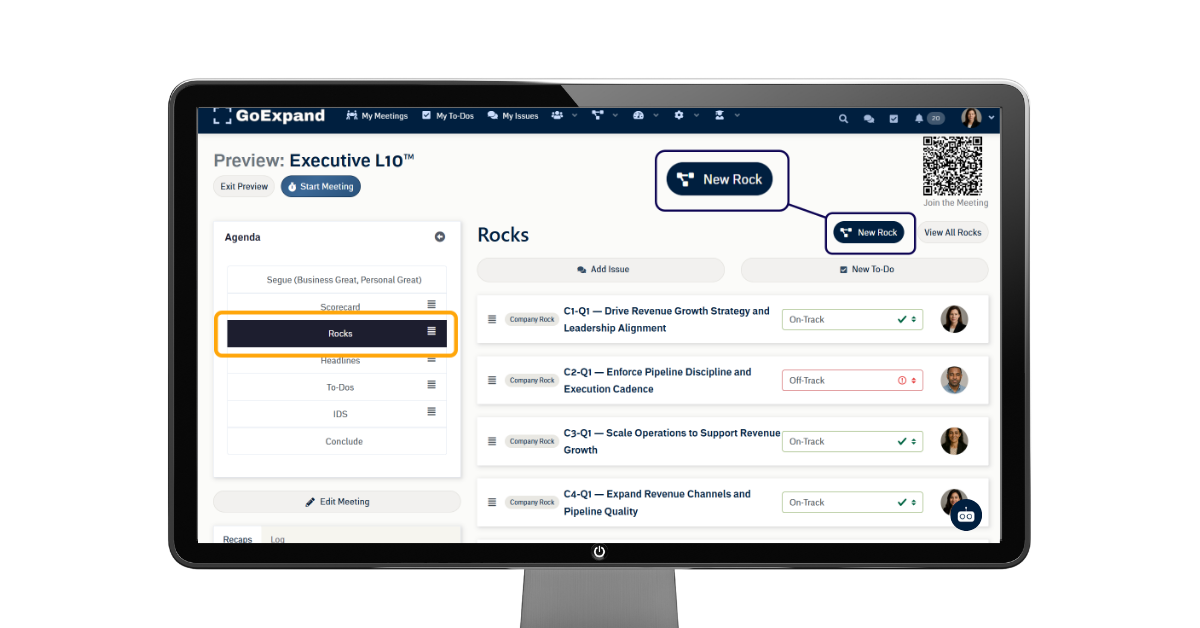
Rocks can also be created directly inside a meeting.
From the Rocks section of your Level 10 Meeting™ agenda, click:
New Rock
Both methods will open the same Rock creation window.
Note: Creating a Rock within a meeting will automatically attach it to that specific Level 10 Meeting™ for weekly review and accountability.
See full Knowledge Base training article here.
>Up Next: Set Up and Overview of Your Level 10 Meeting™ in GoExpand
Further reads and references:
How To Turn Business Goals Into Actionable Projects — Projeqt
Explains how big business goals must be translated into clear steps, deadlines, and roles to actually get done.
https://projeqt.com/how-to-turn-business-goals-into-actionable-projects/
How to Set Long-Term Business Goals the Right Way — Dynamic Business
Discusses breaking ambitious visions into yearly and quarterly priorities with defined milestones to keep progress tangible.
https://dynamicbusiness.com/leadership-2/lets-talk-business/how-to-set-long-term-business-goals-the-right-way.html
Effective Long Term Strategic Planning for Sustainable Business Growth — SmallBizTrends
Covers how long-term strategic planning involves setting measurable long-term objectives and tracking them over time.
https://smallbiztrends.com/long-term-strategic-planning/
How to Break Down Goals Into Actionable Tasks — Spearity
Practical guidance on dividing larger business goals into smaller, actionable tasks that teams can execute.
https://www.spearity.com/2023/04/25/how-to-break-down-goals-into-actionable-tasks/